In this exercise, you add text annotations to a plan view of the building model.
|
Objectives
- Add text annotations to the building model.
- Modify the text location and format.
Add Notes
- Open project GSG_12_notes.rvt.
- Verify that the 01 - Lower Level floor plan is open.
- Click Annotate tab
 Text panel
 (Text).
 - On the Format panel, click
 (Two Segments).
 - In the Type Selector, verify that 3/32" text type is selected. If this size is not selected, click the drop-down arrow in the Type Selector, and select 3/32" from the list.
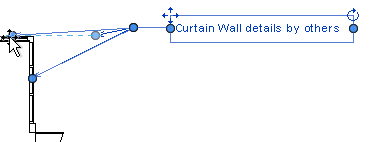
- Add a note to the east curtain wall:
- Click the east curtain wall.
- Move the cursor up and to the right, and click to place the first segment.
- Move the cursor horizontally to the right to place the second segment.
- Enter the text: Curtain Wall details by others, and click outside the text field.
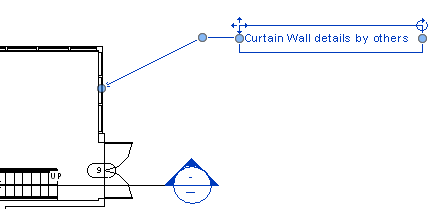
- Using the same method, add the following note to the north retaining wall, aligning this note with the curtain wall text:
- Apply damp proofing to all conc. walls.
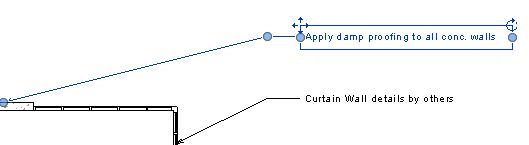
- Press Esc twice.
- Select the note for the north wall, drag the right control to the left to size the note box and wrap the text.
- Click and drag the move control
 to reposition the text, and press Esc twice.
 - Select the note for the curtain wall.
- On the Format panel, click
 (Add Left Side Straight Leader).
 - In the drawing area, click the endpoint for the new leader and drag it so that it points to the north curtain wall.