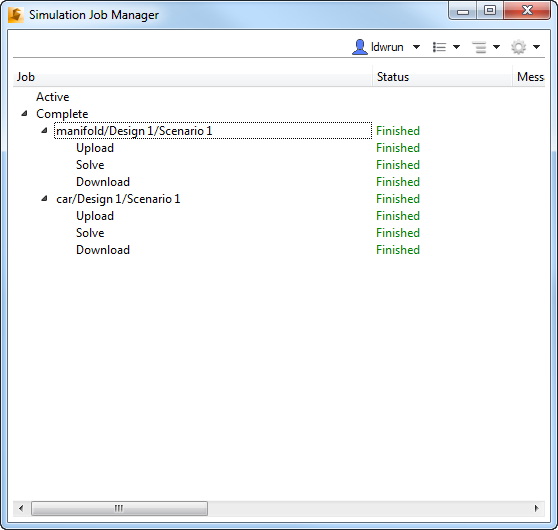
Use the List view to monitor the progress of your jobs. If an error occurs that prevents successful completion, the List view lets you know the stage at which the error occurred.
Job
The Job list is a hierarchal list of your jobs. Jobs are grouped in chronological order in the following time-based groupings:
- Active: Any job that has an active task.
- Complete: Jobs that ended within the last seven days. (This includes both jobs that ended successfully and those that did not.)
Jobs are broken into three stages, each of which is listed as an individual sub-branch below the job:
- Upload: The process of compressing and transferring an encrypted copy of the model to the Autodesk® secure storage service.
- Solve: The computational tasks performed by Autodesk® 360. Examples include mesh generation and numerical calculation.
- Download: The process of copying the simulation results data from the Autodesk 360 secure storage service back to the local workstation.
Status
- Scheduled: The Job Manager is aware of the job, but has not initiated the stage.
- Queued: The Job Manager has initiated the stage, but the stage has not started.
- Running: The Job Manager has started the stage.
- Canceled: The job was halted because Cancel was selected on the right click menu.
- Failed: The stage did not successfully complete. This can be caused by several factors.
- Abandoned: The stage did not complete successfully. This can be due to network issues.
- Finished: The stage has completed successfully with no errors.
- When the Upload and Solve stage is finished, the next stage begins.
- To support download of intermediate results, there are times when the Download stage shows as Running at the same time as the Solve stage.
- When the Download stage reaches Finished, the simulation is complete and results are ready for visualization on the local computer.
Message
This is the current stage of the job, and is displayed adjacent to the job name.
Progress%
This is a measure of how much of the active stage has been completed successfully.
Cloud Credit(s)
This value indicates the cost of the job, in terms of Cloud Credits. The column is populated only for Cloud jobs (and not Local jobs).
Time
This is the date and time when the job or stage achieved a specific status.
To view a detailed time history for all stages, open the Advanced tab of the Preferences dialog box, and check Show time details. The Job Status tab presents time information in three columns:
- Schedule Time: The time when the job was first created by the Autodesk® 360 product.
- Start Time: The time when the stage started.
- Completed Time: The time when the stage finished.
Source Computer
This is the name of the computer from which the job was launched.