The Simulation Job Manager contains the following elements:
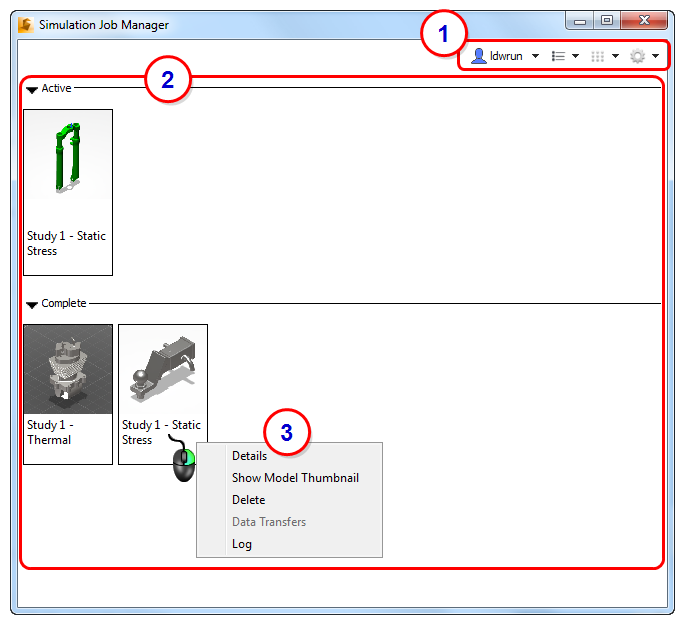
1. Toolbar
The toolbar contains the following items:
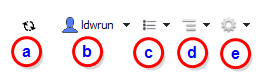
a. The Sync Monitor indicates when network activity occurs between your local machine and an Autodesk 360 server. To view the number of files being uploaded or downloaded, hover your mouse on the Monitor, and a tooltip displays the current network activity.
b. This is the User name or email address used to log into your Autodesk Account. If you are not logged in, Sign In is displayed in this location. You must be signed into Autodesk 360 to run analyses on the cloud.
- Name
- Status
- % Progress
- Time
- Source Computer
d. The Sizes menu gives you control over the size of the thumbnail images. You can also display your jobs in a List view from this menu, to access additional job details.
e. Set Preferences to customize how the Simulation Job Manager behaves. You can also access Help and open the About box to check the version number and the active port number.
2. Job View
-
The Active list (top portion) monitors currently running jobs. A progress bar on each item provides an indication of how much of the simulation process has been completed
-
The Complete list (bottom portion) shows finished or canceled jobs. A yellow triangle icon with an exclamation point indicates a cancelled job.
3. Context Menu (right-click)
The context menu contains several tools for gaining additional insight into the progress of your simulation. The options display in the menu based on the current context:
- Details: Opens a detail view of the selected job and lists the status; job type; priority; scheduled, started, and completed time; source computer; and the thumbnail image of the model. While running, a progress bar indicates the progress of the simulation. Click OK to close the detail view.
- Show Model Thumbnail: Opens the model thumbnail image in your default application images. The Windows file association settings for this file type determine which application opens the thumbnail image.
- Cancel (while running): Stops the running job. No additional results are saved to the local workstation for visualization. Note that cloud credits are refunded when you cancel a job.
- Delete (when complete): Click to remove a job from the Complete list. Note that the job is not deleted from your local computer.
- Data Transfers: Opens a summary of the data uploaded and downloaded to and from the cloud.
- Log: If an error occurs, the log file can be a useful source of information. This log file contains a lot of highly technical information. A Technical Support Engineer may request it from you in the event of a problem.
- Priority (while running): Set the priority of jobs run with the Local Solve option. By default, Local jobs are Normal priority. This means that they run in the order in which they are submitted. If, however, it is necessary to run a local job sooner than in the submitted order, increase its priority to High. This causes the job to run next, after the current job is finished, regardless of how many jobs were submitted before it. Likewise, to cause a job to run later than in the submitted order, change its priority to Low. (This option is available only for Local jobs.)
Context menu behavior when two or more jobs are selected:
To select multiple jobs, hold the keyboard Ctrl key, and click on each desired job. To select a range of jobs, select the first job, then hold the keyboard Shift key, and click on the last job. When multiple jobs are selected, the items listed in the context menu depend on whether you have selected active or finished jobs, or a combination of the two, as follows:
- If you select only active jobs, Cancel is included in the context menu, but Delete is not.
- If you select only completed jobs, Deleteis included in the context menu, but is Cancel not.
- If you select a combination of active and completed jobs, clicking Cancel only affects the active jobs. Likewise, clicking Delete only affects the completed jobs.