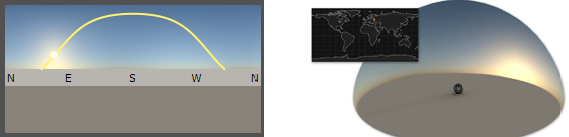
A skylight environment provides physical correct simulated lighting depending on world time and location. Skylights are procedurally generated Sphere Environment materials.
Preview Image Skylight
The Skylight provides an interactive preview image that allows you to quickly change the sun position. The yellow curve within the preview image depicts the sun path from sunrise to sunset at the currently set date and location. You can set the sun position represented by a circle by clicking on the sun path. The preview image includes labels of the four cardinal directions (N = North, E = East, S = South, W = West). If the current location is on the northern hemisphere, South is the centered direction; for locations in the southern hemisphere, North is the centered direction.
Skylight Material
- Resolution
-
Sets the resolution of the procedural environment texture. A higher-quality yields higher generation time for the environment but might be necessary in precomputed illumination mode with animated sun: Interactive, Medium, High Quality.
- Is Visible
-
Sets the light source to on by default.
- Flip Inside Out
-
Flips the normals of the object this material is assigned to.
- Show Compass
-
Displays a compass in the render window for the currently selected skylight material. The compass is positioned at the environment’s center and oriented according to the environment rotation (see Transformation).
- Emit Caustics
-
Activates/deactivates Emit Caustics. Allows the HDR to emit caustics. Only supported in FullGI illumination mode with caustics.
- Use as Lightsource
-
Uses the HDR as light source. Only supported in FullGI illumination mode.
- Use as Default Environment
-
Selects current environment as default for newly created TrueLight materials (see materials Common Settings).
Sky and Sun
- Sky Model
-
Choose between two different sky models: Realistic and Artistic. The artistic sky model produces more reddish and colorful skies, especially for sunrise/sunsets.
- Exposure
-
Sets the HDR-Image’s exposure level. The higher the exposure level, the longer the series of shutter cycles, which are used to calculate the image’s light intensity.
- Sky Turbidity
-
Controls the amount of haze in the atmosphere. Low values correspond to a clear sky. The default value of 3.0 is a clear sky in a temperate climate. The maximum value of 10.0 yields a hazy sky.
- Sun Scale
-
Controls the size of the sun. The default value 1.0 corresponds to the real size of the sun, seen from the earth. The sun is drawn as a filled circle within the sky environment. Increase the sun scale to get softer shadows with raytracing.
- Sun Visible in Specular Reflections
-
Defines whether the sun of this skylight material is visible in all specular reflections in the scene, for example, on clear coat.
- Use Mirrored Sky as Ground
-
The mirrored upper hemisphere (sky without sun) is used as lower hemisphere (ground).
- Ground Color
-
Sets the color for the single-colored ground in the lower hemisphere if Use Mirrored Sky as Ground is not selected. Note: when using the Realistic sky model, the ground color serves as a ground albedo which influences the tint of the sky.
Date and Time
- Date
-
The date determines the sun path. The sun position is computed from Local Time, Date, and Location. The Today button sets the date to the current operation system date.
- Local Time
-
Controls the sun position at the current date. The sun position is computed from Local Time, Date, and Location. The Now button sets the date to the current operation system local time.
Location
- Longitude/Latitude
-
Sets the location to these geographic coordinates in decimal degrees.
- Time Zone
-
The time zone is expressed as time difference to UTC (Coordinated Universal Time). It is automatically estimated from the given geographic coordinates.
- DST
-
Enables/disables daylight saving time. Specify whether there is daylight saving time at the current location on the current date because this information is not retrieved automatically.
- Closest City
-
The City (Country) information names the city that is closest to the given geographic coordinates. The current time zone is this city’s time zone.
- Location Search
-
Retrieve longitude/latitude data from a database of over 22,000 cities. You may also enter a country name and choose a city from the popup list.
Color Correction
- Whitebalance
-
Sets the whitepoint value in Kelvin.
- Hue-Shift
-
Shifts all colors in the HDR-Image uniformly through the hue color range.
- Contrast
-
Separates the light and dark color values further from each other.
- Brightness
-
Raises the color value of the whole HDR-Image.
- Saturation
-
Sets the HDR-Image’s saturation.
- Reflected Saturation
-
Sets the HDR-Image’s saturation for reflections of the HDR-Image in any surface.
Transformation
The source of spherical projection of the Skylight can be set using transformation parameters.
- Environment Size
-
Sets the radius of the projection sphere. The projection sphere must enclose all objects using a material having this Skylight as environment shader assigned. All objects that are outside the projection sphere using a Truelight Material with this Skylight as input channel, are rendered properly.
- Center
-
Defines the projection sphere’s center position.
- Get from Object
-
Sets the projection sphere’s center. To center the projection pivot automatically, select an object and press Get Center. The selected objects center is used as projection spheres pivot.
- Rotate X, Y, Z
-
Sets the Skylight orientation.
- Scale X, Y, Z
-
Sets the Skylight’s size. With the scale value, the image projection can be stretched and squashed on any axis.
Raytracing Settings
These settings take effect in Raytracing Mode only.
- Is Visible in Reflections
- Sets the visibility.
- Use as Lightsource
- Uses the HDR as light source. Only supported in FullGI illumination mode.
- Use Accurate Geometry
- When selected, uses the accurate geometry. This option is unselected by default. If unselected, all diffuse and glossy reflection calculations are based on the virtual sphere of the environment. Selecting this option, the real environment geometry is used for more accurate diffuse and glossy illumination in Precomputed+IBL and Full Global Illumination Mode. (At the cost of a 20-25% performance hit compared to default finite sphere environment.) Note: This option is only supported for diffuse and glossy environment reflections.
- Emit Caustics
- Activates / deactivates Emit Caustics. Allows the HDR to emit caustics. Only supported in FullGI illumination mode with caustics.
- Material ID
- Sets the id of the material.
- Illumination
-
- Upper Hemisphere: Emits light only from the top half of the sphere.
- Full Sphere: Emits light from the whole sphere.
- Override IBL Sampling Quality
- If selected, the setting overrides the global IBL Sampling quality for sampling the environment map.
- Interactive Quality: Sets the IBL sampling quality during interactive rendering.
- Still Frame Quality: Sets the IBL sampling quality during Still Frame rendering.