Animation » Timeline
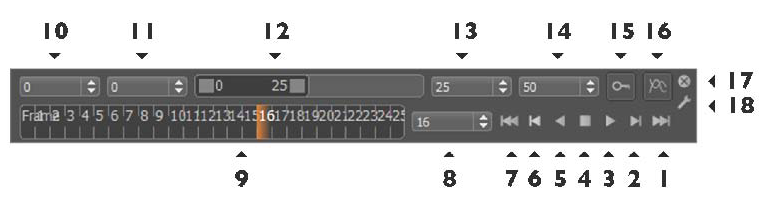
1. Set the slider to the end frame.
2. Set the slider to the next keyframe. A keyframe represents a saved state of attributes at a specific time. Keyframes are the basis for non-linear animations in VRED.
3. Play the animation.
4. Stop the animation.
5. Play backward.
6. Move the slider to the previous keyframe.
7. Move the slider to the start frame.
8. This box displays the current frame number. You can also enter a frame number to go that position.
9. Visual representation of the animation frames.
10. Set the start frame of the full timeline range.
11. Set the start frame of the detailed timeline range.
12. Slider for detailed timeline.
13. End value for detailed timeline.
14. Set the end frame of the full timeline range.
15. Set a keyframe for the selected object and all its animated attributes. This has the same effect as Key All in the Curve Editor.
16. Toggle activation of the local evaluation of the shown curves in the Curve Editor instead of all active animations in the scene.
17. Close the Timeline.
18. Open the Animation Tab in Preferences.