Sun and Sky
Introduction
The mental ray physical sun sky shaders are designed to
enable physically plausible daylight simulations and very accurate
renderings of daylight scenarios.
Analysis use
The shader library provides tools for lighting analysis.
A shader for the standard CIE sky model (both clear and overcast) is available.
This shader is grayscale (no color) and intended for analysis purposes rather
than generating visually pleasing images. See page ciesky for details.
The mia_physicalsky shader supports analysis related parameters from the Perez sky model,
as well as explicit illuminance parameter for the mia_physicalsun.
General overview
The mia_physicalsun and mia_physicalsky are intended to be used together,
with the mia_physicalsun shader applied to a directional light that
represents the sun light, and the mia_physicalsky shader used as the
scenes camera environment shader. The environment shader should
be used to illuminate the scene with the help of Final Gathering
(which must be enabled) and bounced light from the sun can be
handled either by final gather diffuse bounces, or via GI (photons).
For improving quality in indoor shots, the sky can be combined
with the mia_portal_light shader described on page
Sky Portals.
Units
The sun and sky work in true photometric units, but the output
can be converted to something else with the rgb_unit_conversion parameter.
If it is set to 1 1 1, both the values returned by the
mental ray shader API functions mi_sample_light
(for the sunlight) and mi_compute_avg_radiance
(for the skylight), when sent through the mi_luminance
function, can be considered as photometric illuminance
values in lux.
Since the intensity of the sun outside the atmosphere is calibrated as
a 5900 degrees Kelvin blackbody radiator providing an illuminance of
127500 lux, this is very bright when seen compared to a more
"classical" rendering where light intensities generally range from 0 to 1.
The rgb_unit_conversion parameter is applied as a multiplier and
could be set to a value below 1.0 (e.g. 0.001 0.001 0.001) to
convert the raw lux value to something more "manageable".
For convenience, the special rgb_unit_conversion value of 0 0 0 is internally
set so that 80000 lux (approximately the amount of light on a sunny day)
equals the classical light level of 1.0.
An interesting alternative is to set rgb_unit_conversion to 0.318 0.318 0.318.
Then the final rendered pixels in the image (when rendered with
mia_material or shaders following that shading convention and when
sent through the mi_luminance function) are
true photometric luminance values in
candela per square meter1.
These true luminance values then fit perfectly as input to the
photographic tone mapper described on page Tone Mapper,
with its cm2_factor set at 1.0.
Important Note on Fast SSS and SunSky
To use the mental ray fast SSS shaders together with the
high dynamic range indirect sun and skylight, it is very important
to turn on the Indirect parameter so the SSS shader
can scatter the skylight (which is considered indirect).
It is equally important to turn off the Screen composit
parameter (otherwise the output of the SSS shaders are clamped to a
low dynamic range and will appear to render black).
Common Parameters
Some parameters exist both in the mia_physicalsun and mia_physicalsky and
all do the same thing. For physical correctness, it is necessary to
keep these parameter in sync with each other in
both the sun and sky.
For example, a sun with a different haze
value than the sky cannot be guaranteed to be physically plausible.
The most important common parameters are those that drive the entire
shading- and colorization model:
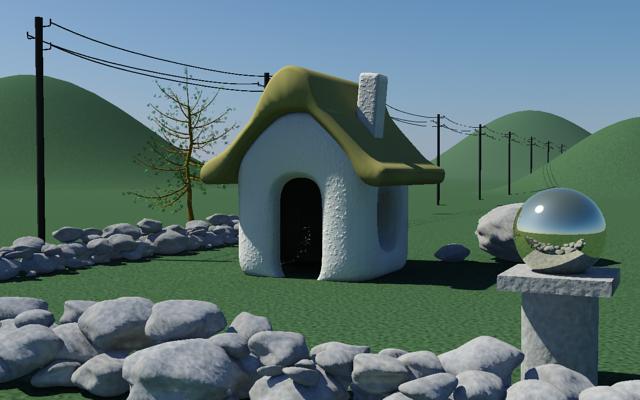
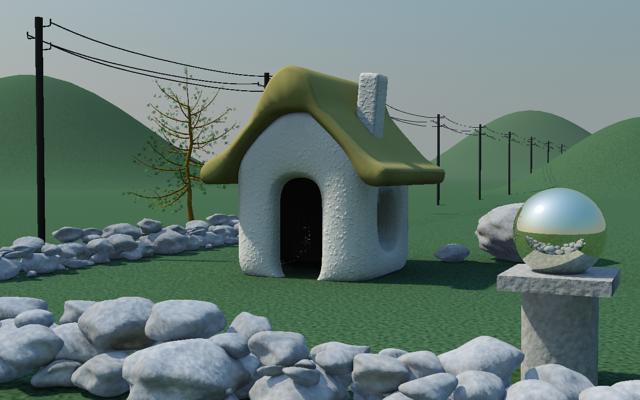
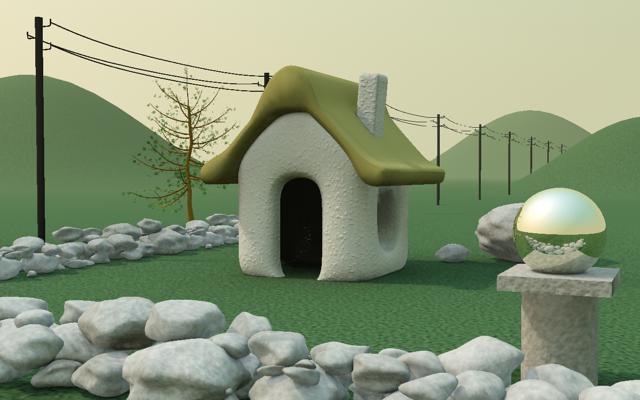
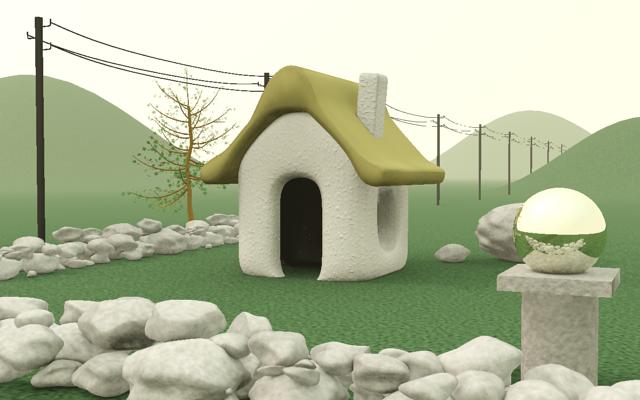
- haze sets the amount of haze in the air. The range is
from 0 (a completely clear day) to 15 (extremely overcast, or
sandstorm in Sahara).
The haze influences the intensity and color of the sky and horizon,
intensity and color of sunlight, softness of the suns shadows,
softness of the glow around the sun, and the strength of the
aerial perspective.
Haze=0
Haze=3
Haze=8
Haze=15
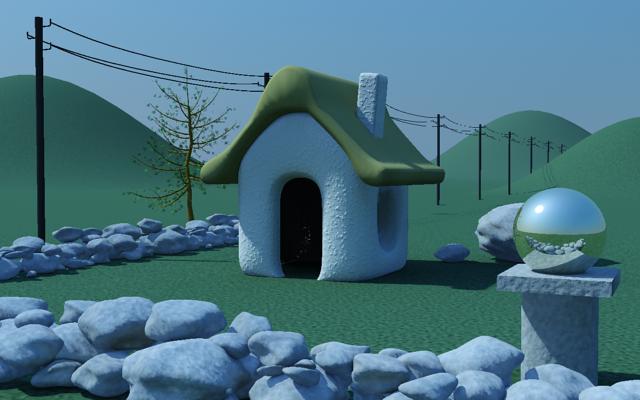
- redblueshift gives artistic control over the "redness" of
the light. The default value of 0.0 is the physically correct
value2, but
can be changed with this parameter which ranges from
-1.0 (extremely blue) to 1.0 (extremely red).
Redness=-0.3

Redness=+0.3
- saturation is also an artistic control, where 1.0 is the
physically calculated saturation level. The parameter ranges from
0.0 (black and white) to 2.0 (extremely boosted saturation)
Sun Parameters
The mia_physicalsun is responsible for the color and intensity of the sunlight,
as well as emitting photons from the sun.
The shader should be applied as light shader and photon emission shader
on a directional light source
(it does not work on any other light type).
declare shader "mia_physicalsun" (
        boolean "on"                   default on,
        scalar  "multiplier"           default 1.0,
        color   "rgb_unit_conversion"  default 0.0001 0.0001 0.0001,
        scalar  "haze"                 default 0.0,
        scalar  "redblueshift"         default 0.0,
        scalar  "saturation"           default 1.0,
        scalar  "horizon_height"       default 0.0,
        scalar  "shadow_softness"      default 1.0,
        integer "samples"              default 8,
        vector  "photon_bbox_min",
        vector  "photon_bbox_max",
        boolean "automatic_photon_energy",
        boolean "y_is_up",
        integer "illuminance_mode"           default 0,
        scalar  "direct_normal_illuminance"  default 0.0
    )
    version 6
    apply light
end declare
As mentioned above, the mia_physicalsun contains several of the common parameters that
are exposed in the mia_physicalsky as well (haze, redblueshift etc.).
The value of these parameters for the mia_physicalsun should match those in the mia_physicalsky.
The parameters specific to the mia_physicalsun are as follows:
- samples is the number of shadow samples for the soft shadows. If it
is set to 0, no soft shadows are generated.
- shadow_softness is the softness for the soft shadows. A value of 1.0 is the
value which matches the softness of real solar shadow most accurately. Lower
values makes the shadows sharper and higher softer.
- When photon_bbox_min and photon_bbox_max are left set to 0,0,0 the photon bounding box will
be calculated automatically by the shader.
If these are set, they define a bounding box
in the coordinate system of the light within which photons are aimed.
This can be used to "focus" GI photons on a particular area-of-interest. For
example, if one has modelled a huge city as a backdrop, but is only rendering
the interior of a room, mental ray will by default shoot photons over
the entire city and maybe only a few will find their way into the room.
With the
photon_bbox_max and photon_bbox_min parameters
one can focus the photon emission of the mia_physicalsun
to only aim at the window in question, greatly speeding up and enhancing the
quality of the interior rendering.
- automatic_photon_energy enables automatic photon energy calculation. When this is on,
the light source does not need to have a valid energy value that matches that
of the sun (it does, however, need a nonzero energy value or photon emission
is disabled by mental ray). The correct energy and color of the photons
will be automatically calculated. If this parameter is off, the photons
will have the energy defined by the lights energy value.
- If illuminance_mode is zero, the default solar intensity used (calculated internally
based on the haze, solar angle, optical airmass, etc.) which is compatible with
previous versions of the library.
If illuminance_mode is 1, the sun light will have the direct normal illuminance (in lux)
set by the direct_normal_illuminance parameter. The color of the sunlight is still driven by the
haze as before, only the intensity is modified.
Sky Parameters
The mia_physicalsky shader is responsible for creating the color gradient
that represent the atmospheric skydome, which is then used to light
the scene with the help of Final Gathering and/or
sky portals (page Sky Portals).
The mia_physicalsky, when used as an environment shader, also show the
sky to the camera and in reflections.
mia_physicalsky also creates a virtual ground plane that exists
"below" the model. This makes it unnecessary to actually
model geometry all the way to the horizon line - the
virtual ground plane provides both the visuals and the bounce-light
from such ground.
declare shader "mia_physicalsky" (
        boolean "on"                  default on,
        scalar  "multiplier"          default 1.0,
        color   "rgb_unit_conversion" default 0.0001 0.0001 0.0001,
        scalar  "haze"                default 0.0,
        scalar  "redblueshift"        default 0.0,
        scalar  "saturation"          default 1.0,
        scalar  "horizon_height"      default 0.0,
        scalar  "horizon_blur"        default 0.1,
        color   "ground_color"        default 0.2 0.2 0.2,
        color   "night_color"         default 0 0 0,
        vector  "sun_direction",
        light   "sun",
        # The following parameters are only useful
        # when the shader is used as environment
        scalar  "sun_disk_intensity"  default 1.0,
        scalar  "sun_disk_scale"      default 4.0,
        scalar  "sun_glow_intensity"  default 1.0,
        boolean "use_background",
        shader  "background",
        # For the lens/volume shader mode
        scalar  "visibility_distance",
        boolean "y_is_up",
        integer "flags",
        integer "sky_luminance_mode" default 0,
        scalar  "zenith_luminance"               default 0.0,
        scalar  "diffuse_horizontal_illuminance" default 0.0,
        # Perez model luminance distribution parameters
        scalar  "a",
        scalar  "b",
        scalar  "c",
        scalar  "d",
        scalar  "e",
        boolean "physically_scaled_sun"
    )
    version 5
    apply environment, texture, lens, volume
end declare
- on turns the shader on or off. The default is on.
- multiplier is a scalar multiplier for the light output.
The default is 1.0.
- rgb_unit_conversion allows setting the units, described in more detail
above. The special value of 0 0 0 matches 80000 lux (light level
on a sunny day) to the output value 1, suitable for low dynamic
range rendering.
- horizon_height sets the "level" of the horizon.
The default value of 0.0 puts the horizon at standard "height".
But since the horizon is infinitely far away
this can cause trouble joining up with any finite geometry
that is supposed to represent the ground. It can also cause issues
rendering locations that are supposed to be at a high altitude,
like mountain tops or the top of New York skyscrapers where the
horizon really is visibly "below" the viewer.
This parameter allows tuning the position of the horizon.
Note that the horizon doesn't actually exist at any specific
"height" in 3D space - it is a shading effect for rays that go
below a certain angle. This parameter tweaks this angle.
The total range available range is somewhat extreme, reaching
from -10.0 (the horizon is "straight down") to 10.0 (the horizon is
at the zenith)! In practice, only much smaller values are actually useful,
like for example -0.2 to push the horizon down just below the edge of a
finite visible ground plane.
Note: The horizon_height affects not only the visual representation
of the horizon in the mia_physicalsky shader, but also the color of the
mia_physicalsun itself, i.e. the point where the sun "sets" will indeed
change for a nonzero horizon_height.
- horizon_blur sets the "blurriness" with which the horizon is rendered.
At 0.0 the horizon is completely sharp. Generally low values
(lower than 0.5) are used, but the full range is up to 10.0 for
a horizon which only consists of blur and no actual horizon at all.
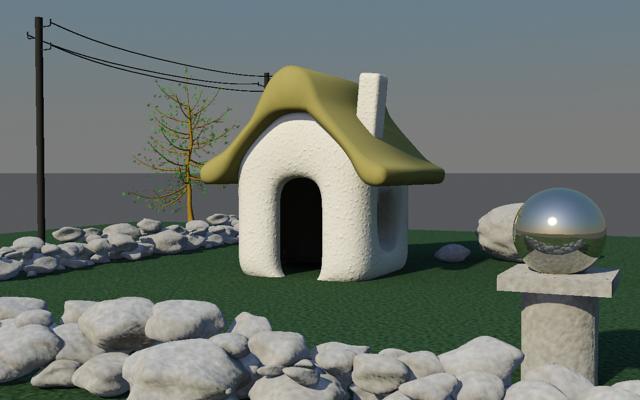 horizon_height
=0.0,
horizon_blur=0.0
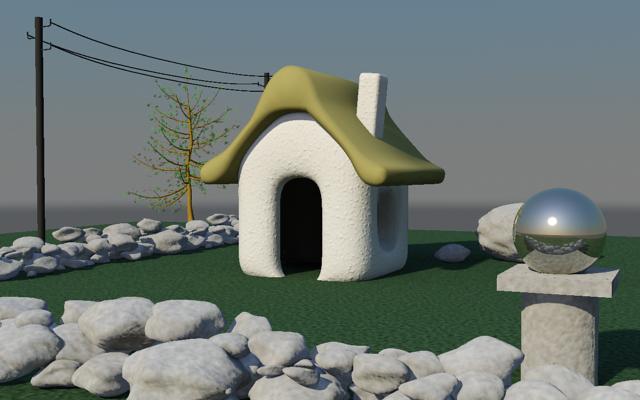 horizon_height
=-0.3,
horizon_blur=0.2
- ground_color is the color of the virtual ground plane. Note that this
is a diffuse reflectance value (i.e. albedo). The ground will appear
as if it was a Lambertian reflector with this diffuse color, lit by
the sun and sky only, does not receive any
shadows.
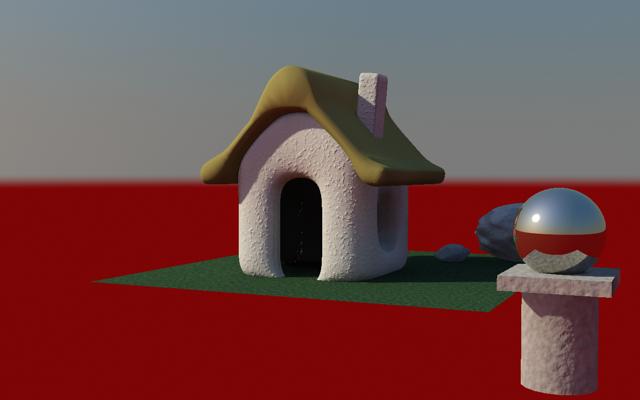
Red ground
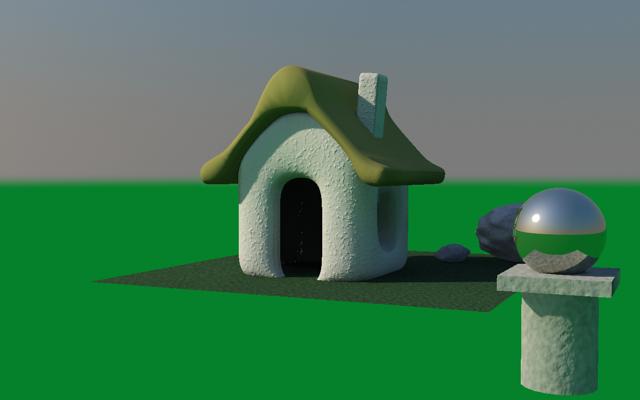
Green ground
Note in the above images how bounce-light from the ground tints
the walls of the house. Also note that the virtual ground plane
does not receive shadows.
Many sky models neglect the influence from bounce light from the
ground, assuming only the sky is illuminating the scene. To compare
the output if the mia_physicalsky with e.g. the IES sky model one must
therefore set the ground_color to black.
- night_color is the minimum color of the sky - the sky will never become
darker than this value. It can be useful for adding things like
moon, stars, high altitude cirrus clouds that are lit long after
sunset etc.
As the sun sets and the sky darkens, the contribution from
night_color is unaffected and remains as the "base light level".
- sun_direction is the direction of the sun disk when specified
manually. If the sun parameter is used, this parameter is
ignored.
- sun is the way to automatically set the sun direction. It
should be the tag of the light instance that contains the directional
light that represents the sun - i.e. the same light that has the mia_physicalsun
shader. This will make the visible sun disk automatically follow the
direction of the actual sunlight.
- Aerial Perspective is a term used by painters to convey how
distant objects are perceived as hazier and tinted towards the blue end
of the spectrum. mia_physicalsky emulates this with the visibility_distance parameter.
When nonzero, it defines the "10 distance", i.e. the distance at
which approximately 10 of haze is visible at a haze level of 0.0.
To use this effect, the shader must be applied as either a lens
or camera volume shader.
- y_is_up defines what constitutes "up". Some OEM integrations
of mental ray considers the Z axis "up" and hence this parameter
should be off - others consider the Y axis "up" and in
that case this parameter should be on.
- flags is for future expansion, testing and internal algorithm
control. Should be set to zero.
- If sky_luminance_mode is zero, the luminance of the sky is calculated automatically based
on the haze level, sun position, etc, and is compatible with the previous
version of the shader.
However, if sky_luminance_mode is nonzero, the luminance distribution across the sky dome
will follow the Perez model, which is driven by five parameters named
a, b, c, d and e. So to use this
mode you must have a valid set of Perez coefficients. {The color distribution
across the sky dome is still driven by the haze parameter!}
If sky_luminance_mode is 1, the luminance of the sky can either be defined by setting the
zenith_luminance parameter (a candela per square meter measurement) or by setting
a known diffuse_horizontal_illuminance value (in lux) - not both.
If sky_luminance_mode is 2, the zenith luminance is calculated from the CIE Clearsky model.
It is important to note that the mia_physicalsky shader treats rays differently.
Direct rays from the camera, as well as reflection and refraction rays see
the "entire" effect, including the "sun disk" described below. But since
the lighting already has a direct light that represents the sun (using the
mia_physicalsun shader) the sun disk is not visible to the finalgather rays
3.
These parameters do not affect the Final Gathering result, only the "visible"
result, i.e. what the camera sees and what is seen in reflection and refraction:
- sun_intensity and glow_intensity is the intensity of the visible sun disk and it's glow,
which can be used to tune the "look" of the sun.
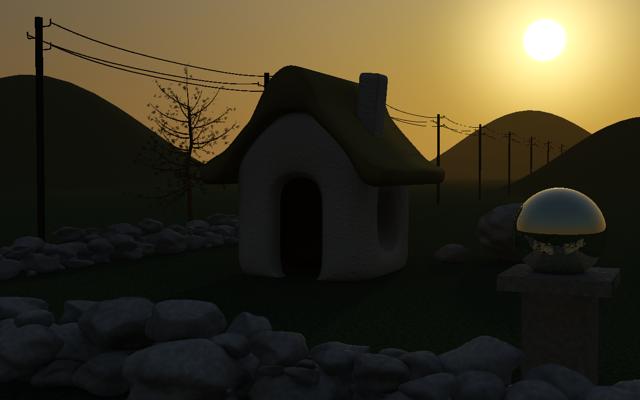 glow_intensity
=5
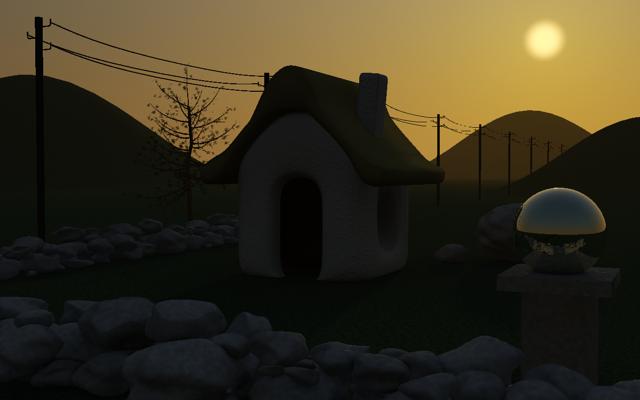 glow_intensity
=0.1
- physically_scaled_sun makes the intensity of the sun physically scaled. With a sun_intensity of 1.0, the sun will be as bright as it is in the real world. sun_intensity can still
be used to tweak the intensity (i.e. a value of 2.0 would make a sun that is twice
as bright as the real sun). glow_intensity and sun_scale can still be used to tweak
the aspect of the sun, but they have no impact on the total energy which is
automatically adjusted to compensate.
- sun_scale sets the size of the visible sun disk. The value 1.0 is the
"physically correct" size, but due to the fact that people tend to
misjudge the proper size of the sun in photographs, the default is
the slightly more visually pleasing 4.0
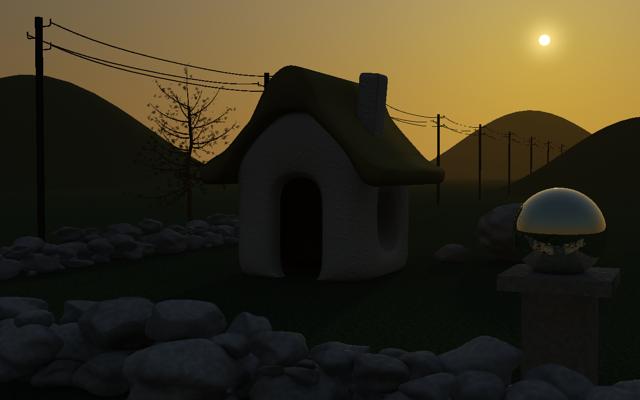 sun_scale
=1
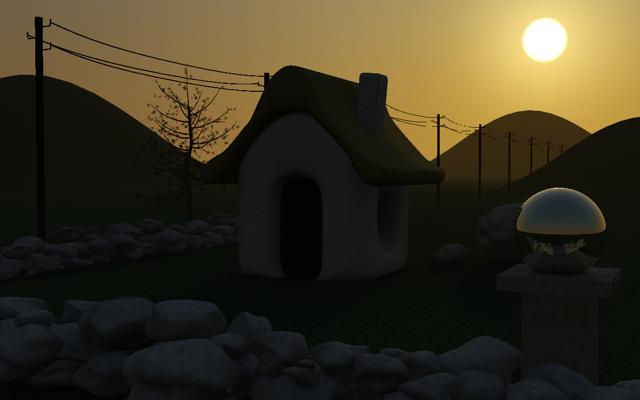 sun_scale
=4
- When use_background is enabled but no background has been set, the background of
the rendering will be transparent black, i.e. suitable for external compositing.
If a background shader is supplied, the background of the rendering will
come from that shader (for example a texture shader that looks up a
background photograph of a real location or similar).
In either case the mia_physicalsky will still be visible in refractions
and reflections.
CIE Sky model
The CIE sky model is a standard model utilized in lighting analysis. It is a colorless
(grayscale) model, and is hence not suitable for making "nice images", but it has
the advantage of following a standardized (known) luminance distribution.
declare shader "mia_ciesky" (
        boolean "on"                  default on,
        color   "rgb_unit_conversion" default 0.0001 0.0001 0.0001,
        # Luminance parameters
        boolean "auto_luminance"                 default on,
        scalar  "zenith_luminance"               default 0.0,
        scalar  "diffuse_horizontal_illuminance" default 0.0,
        # CIE specific parameters. 0 = clear sky, 1 = overcast
        scalar  "overcast"            default 0.0,
        # Sun direction
        vector  "sun_direction",
        light   "sun",
        # Y vector
        boolean "y_is_up",
    )
    version 1
    apply environment, texture
end declare
The shader shares many parameters with the mia_physicalsky and they work the same, this includes
parameters on, rgb_unit_conversion, sun_direction and y_is_up. See page
mi_shader__mia_physicalsky for details.
The following parameters are unique to the mia_ciesky shader:
- auto_luminance. When on, the luminance of the sky can either be defined
by setting the zenith_luminance parameter (a candela per square meter measurement)
or by setting a known diffuse_horizontal_illuminance value (in lux) - not both.
- When overcast is zero, the CIE Clear Sky model is used.
When overcast is 1.0, the CIE Overcast model is used.
In-between values is a linear interpolation of the two models.
Sky- and Environment Portals
The Problem
A classic problem in computer graphics is lighting a scene solely through
indirect light, like from a sky, or other "environment" light from
an acquired HDRI or similar.
This is accomplished in mental ray using Final Gathering (henceforth
abbreviated as FG), and is done by tracing a large number of
"FG rays" to see which hit the environment (or other lit surfaces).
Since this is a large number of rays, the results are cached
(for performance) at FG points and the result is interpolated,
"smoothing" the result.
This all works very well when there is a lot of fairly uniform light
that is "seen" by the FG rays. In general, FG gives the best result
when the light levels in a scene is fairly uniform; it works well
to illuminate an outdoors scene by the sky (most FG rays "see"
the sky), and it works well to bounce secondary light in a room in
which most surfaces are lit by direct lights (most FG rays "see"
some already-lit surface).
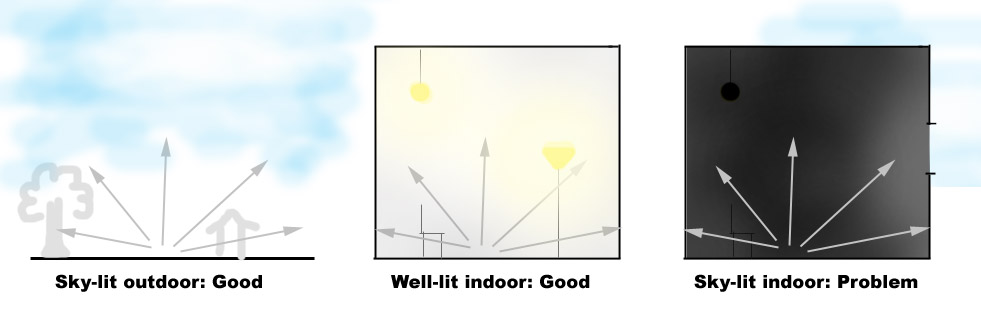
However, a scene of a dark room with no lights, and a single
window only exposed to the sky is more problematic:
In the image on the right, almost all FG rays will "see" blackness
and only a select few will be able to "escape" through the narrow
window to hit the sky. To resolve this accurately one need to shoot
very many FG rays, which has a negative impact on performance.
A further difference is that in the first two scenes (the outdoor scene
and the well-lit interior) there are already direct lights which cause
high-quality direct shadows, which resolves the details in the scene;
FG is only used for additional bounce- or sky-lighting, and doesn't provide
the bulk of the lighting. Therefore, any "over-smoothing" caused by the
interpolation of FG points is drowned out by other lights (or can
be resolved with AO in mia_material).
But the rightmost scene does not have that luxury, all light is
indirect skylight. Any over-smoothing due to interpolation will be clearly
visible, which means that one needs both a high FG ray count
and a high FG point density to create a pleasing render, which
gives longer render times.
A common technique used by many people doing interior renderings is to
put an area light in the window, to provide the sky-lighting rather
than rely on FG to "find" the sky. But this gives rise to the question
"how bright and what color should this light be?".
The Solution
To solve all these issues the concept of a portal light is
introduced. The portal light is a (rectangular) area light
which is placed in the window, which obtains it's proper intensity
and color from the sky outside the window (i.e. an environment
shader, like mia_physicalsky or similar) and how much of that sky that is
"seen"4.
Practically, this makes the portal light behave as a "FG concentrator"
so instead of having to send thousands of FG rays around the scene
to "find" the window, the portal light actually blocks FG rays,
and instead converts light from beyond the window to direct light,
with high-quality area shadows with no interpolation related issues
possible.
FG will now see a well lit room rather than a black
room, and can be performed at much lower FG ray counts. Furthermore,
since the light from the window is now direct, we gain
one extra light bounce "for free".
mia_portal_light
The mia_portal_light shader should be applied both as light- and photon
emitter shader on a rectangular area light. The mental ray
light instance must be set to be visible (this is a
technical requirement for the portal light to be able to "block"
final gather rays. If the light actually is visible or
not in the rendering is instead handled by the shader).
Furthermore, the mental ray light instance must be set up such
that the rectangular area light is extended in the X/Y plane
of the lights own coordinate space, and any transformation of
the light must be handled with the light instance's
transform5.
The following parameters exist:
declare shader "mia_portal_light" (
        boolean "on"                     default on,
        scalar  "multiplier"             default 1.0,
        color   "tint_color"             default 1 1 1,
        boolean "reverse"                default off,
        scalar  "cutoff_threshold"       default 0.005,
        boolean "shadows"                default true,
        boolean "use_custom_environment" default off,
        shader  "custom_environment",
        boolean "visible"                default off,
        boolean "lookup_using_fg_rays"   default on,
        scalar  "shadow_ray_extension"   default 0.0,
        boolean "emit_direct_photons"    default off,
        color   "transparency"           default 1 1 1
    )
    version 9
    apply light, emitter
end declare
on enables or disables the light.
multiplier sets the intensity and tint_color modifies the light
color. When it is white, and the multiplier is 1.0, the light emitted
is equal in intensity (and color) to the environment light that FG would have
seen if allowed to send many thousands of FG rays6.
The light normally shines in the positive Z direction of the light
instance's coordinate space. If reverse is on, it shines
in the negative Z direction.
cutoff_threshold is a performance optimization option. Any light
below this level is ignored, and no shadow rays are traced (which is what
consumes the bulk of the render time of an area light). Of course, this
makes the scene slightly darker since light is ignored, but can save a lot
of excess render time.
shadows can turn shadows on and off.
If use_custom_environment is off, the shader looks in
the global camera environment for the color of the light.
If it is on, it calls the shader passed as
custom_environment to find the color.
Tip: While the shader is intended to be a portal to an environment, one
can also treat it as a "light card" shader by putting a shader returning
a solid color as the custom_environment, for example
using mib_blackbody creates a light card with a given color
temperature.
If use_custom_environment is on but no custom_environment
is actually passed, the shader behaves as a white light card.
visible defines if the light emitting surface is visible or not.
When off, eye rays, reflection rays etc. go straight through so
the portal light itself remains unseen (and we still "see" out the
window). When on, the actual light emitting surface becomes
visible to eye rays, reflection rays etc (and one do not "see" out
the window any more, although one still "see" the environment shaders
result). The on mode is useful when using mia_portal_light as a light
card shader.
When lookup_using_fg_rays is off, the environment
shader is looked up with a normal call to mi_trace_environment().
However, some shaders behave differently if they are called by an FG ray
or by another ray (the mia_physicalsky shader, for example, does not show the
"image" of the visible sun to FG rays). Since the idea of mia_portal_light is
to act as an "FG concentrator" it should therefore follow that
behavior. So when lookup_using_fg_rays is on, it
calls the environment with the ray type set to miRAY_FINALGATHER,
so that shaders that switch behavior based on this can return the
color appropriate for a FG ray.
If shadow_ray_extension is zero, the shader begins tracing
shadow rays "at" the light. When positive, the shadow rays actually
start that distance "outdoors". So if there is a large object just
outside the window, it's shadow will be taken into account.
Conversely, a negative value allows the shadow rays to begin that
distance inside the window, which can allow them to "skip"
over troublesome geometry near the window (flowers, curtains) that
would otherwise just introduce noise into the shadows.
If emit_direct_photons is on, the light only shoots
direct photons, and does not actually emit any direct light
at all.
The transparency parameters has two functions.
- When visible is on, it is a multiplier
to the "visible color" of the area light. When this is
white, the directly "visible" color is the one
dictated by the laws of physics for a surface that emits
that amount of light.
Changing the parameter away from white allows one
to artificially change the balance between the visible
result (which is changed by changing this parameter) and
the intensity of the emitted light (which is not
affected by this parameter). This can be useful to avoid
noise
- If visible is off it defines the
transparency of the area light.
This allows the mia_portal_light shader to double as a "gel" on the
window, to subdue the intensity of what is seen outdoors, which
otherwise tends to appear overexposed and blown out. The actual
emitted light intensity is not affected by this, nor does this
affect the intensity of other light rays travelling through the
window, it only affects what is visible to the eye, in refractions
or reflections.
Examples
In this section we will examine the benefits of using the portal lights
compared to what has been possible in previous versions of mental ray.
We are using the following scene7:
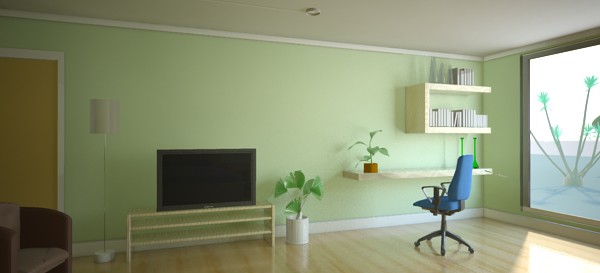
Our scene, using the portal lights, GI and FG.
The scene is only lit by the sun and sky, there are no light sources inside the
room of any kind.
Without Portal Lights
To clearly demonstrate what is direct and indirect light in the scene,
we here show the scene with portals, GI and FG turned off:
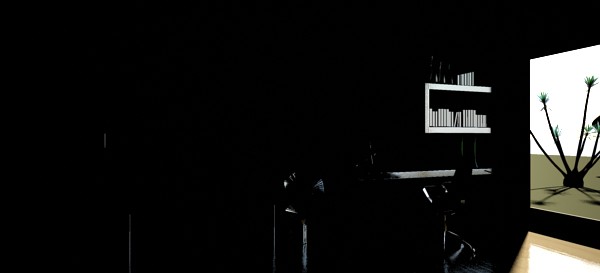
The direct lighting of our scene
The above image shows the isolated direct light. This means that this
result is what FG will "see" - an extremely high-contrast scene consisting
of complete blackness, the hotspot of the direct sunlight on the floor, and
the very bright sky, and sun-lit ground outside - a sub-optimal input
to the FG algorithm.
If we turn on FG on relatively low settings we get:
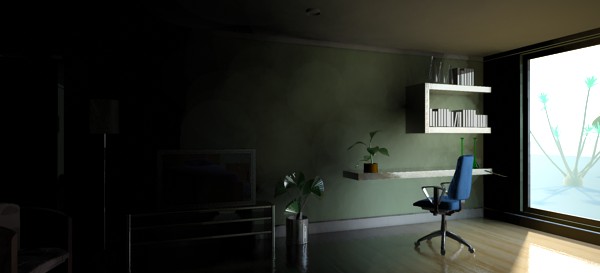
FG with 50 rays and density 0.1
This image wins no beauty awards. It is splotchy, the shelves seem to
"float" away from the wall, but most surprisingly, it's very dark.
Why is that?
The reason is the high contrast input. FG contains a filter that is intended
to avoid a speckled result if some stray FG rays hit a single extremely bright
object, so the filter removes the brightest rays. But our scene really
is high contrast, and we actually expect some rays to be much
brighter than others.
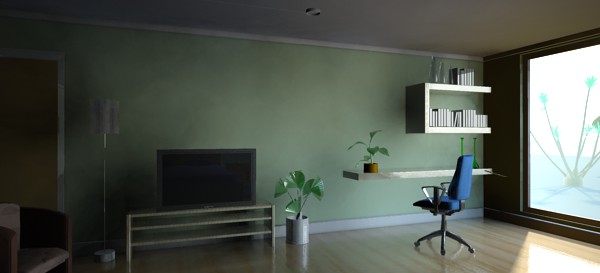
Using FG filter = 0
In our case the filter actually is fighting what we are trying to do. We can
turn off the filter, as in the image above, which helps our light distribution
some, but not the splotches, nor the "disconnect" of the shelves to the wall.
Since we are using mia_material, we have a built in ambient occlusion to help
in exactly these situations. However, turning that up only helps partially:
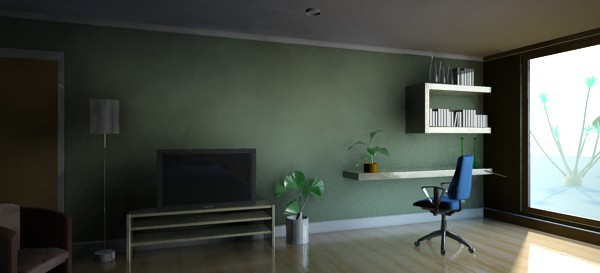
Adding AO - helps a bit
The lone solution available in the past was to simply increase the quality
of the FG settings. And naturally, we are using very low settings,
so the bad quality is not surprising at this stage. Lets turn up the knobs:
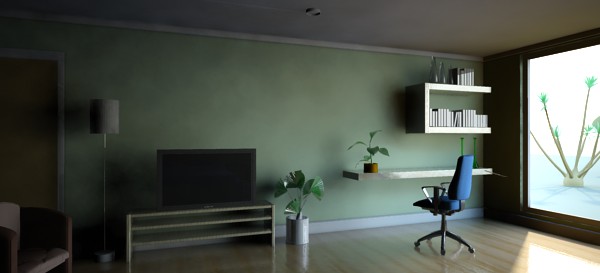
FG with 250 rays and density 0.8
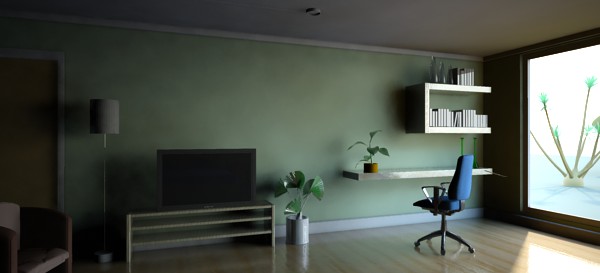
FG with 500 rays and density 1.5
Yes, increasing the number of rays and the density helps but it
hurts our render time a lot. Even at the high setting we are still not
near the optimal result. We would have to go even higher to resolve
all the detail!
Lets back down from the high FG settings for a moment and concentrate
on light transport. The scene is still very dark, because we are only
getting a single FG bounce, and since the lighting from the sky is
indirect we get no bounce of that light! Meaning: In this
scene, the sunlight is bouncing once, but the skylight is not bouncing
at all!
Lets turn up the number of bounces to 3:
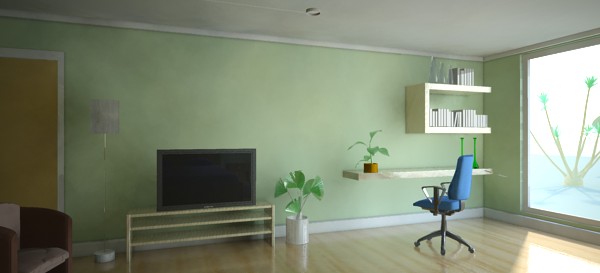
FG with 3 bounces
This gave us more light. Due to the fact we stepped back from our "high"
FG settings, the lighting isn't smooth and lacks any detail.
Using FG multi-bounce is just one of the ways mental ray can transport
light in a scene. The alternative is to use Photons (GI). But keep in mind that
when Photons are enabled, FG goes back to a single bounce, letting photons
handle all the remaining bounces:
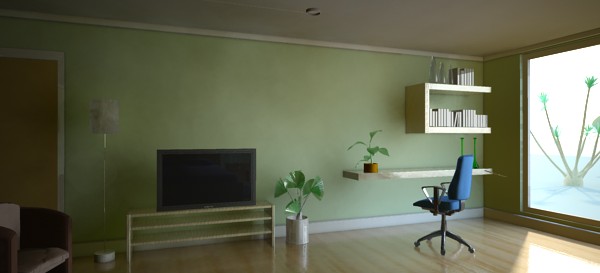
FG with GI (Photons)
Now something odd happened; the color shifted towards yellow. Why is that?
This is because the sky does not generate any photons. So we now have multiple
good-quality bounces of the sun, but we are back to zero
bounces of the sky!
With Portal Lights
Now lets turn to the portal lights. First lets turn all FG and GI off, and
simply add a portal light to the window with it's default settings. The
resulting image is this:
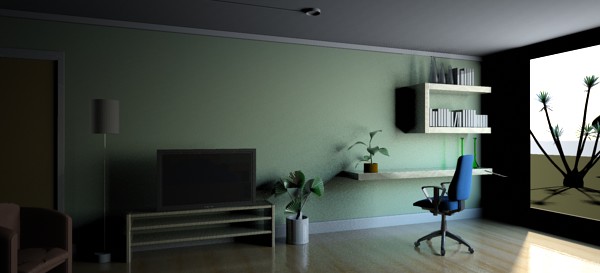
The portal light only, no FG or Photons
Color wise this looks similar to the early FG results above, but the
level of detail is much higher. Since no interpolation is going on,
the shelves sit securely on the walls. All shadows contain the subtlest
of details.
Since this is now direct light it will be picked up by FG when that
is turned on. Let us compare what FG would "see" with, and without the portal lights:
Without portal lights
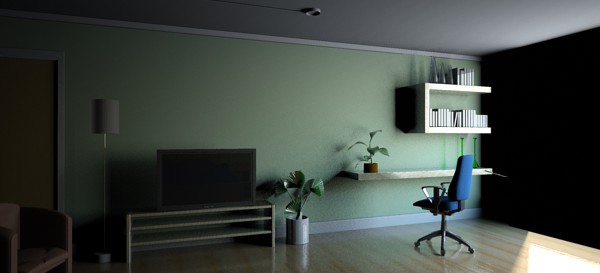
With portal lights
The left is the super-high contrast result FG would "see" without portals,
but the right is a fairly well balanced scene. And not only is it already filled
with subtle direct light - the sky itself is actually invisible to FG, so
it never has to carry the burden of hitting a high contrast area8 and the problem with the final gather filter
pretty much disappears.
The second feature of the portal lights being direct is that if we turn FG
back on, we now get once bounce of light "for free":
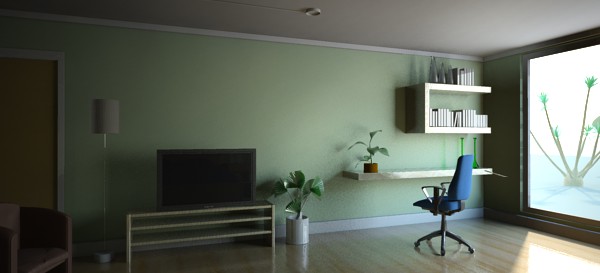
One free bounce of sky lighting, courtesy of the portal lights
Notice how the wall inside the window now has some bounce light on it from the
sky light, even though we are using FG with a single bounce!
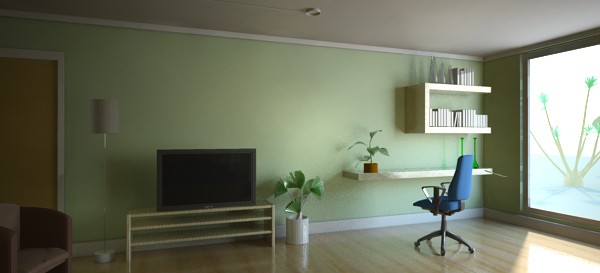
Using portal lights and 3 diffuse bounces
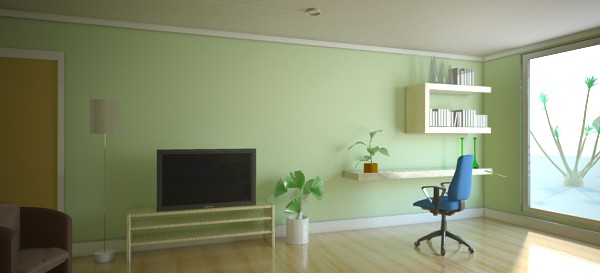
Using GI (Photons)
Turning on multiple diffuse bounces (on the left) makes the image come alive. Turning on GI
(Photons) now yields a much more balanced image
because the portal lights actually shoot photons!
No longer is there the big skewing in favor of bounced sun light,
the sky light will bounce equally well in the form of photons.
Finally, turning on one of the indoor lights, and utilizing the portal lights
transparency parameter to combat the overexposure of the outdoor view, we
get a final image:
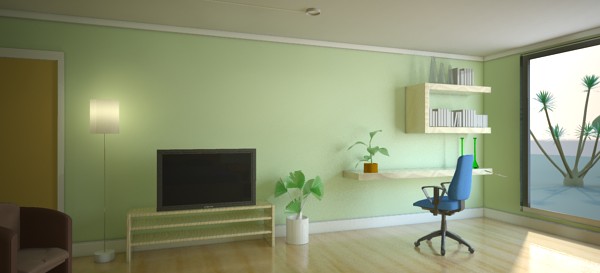
A final image
In conclusion: The portal lights help...
- ...reducing render time (by reducing the need for using extremely high FG settings).
- ...maintain the light balance in the scene (by converting environment light to photons,
which can bounce around indoors just as well as sun light).
- ...increase the quality of the sky lighting, making smooth areas smooth and
blotch-free, as well as revealing the most minute detail with full fidelity.
- ...dramatically reduce scene set-up time (by requiring little to no tweaking,
always generating the "optimal" image out-of-the-box).
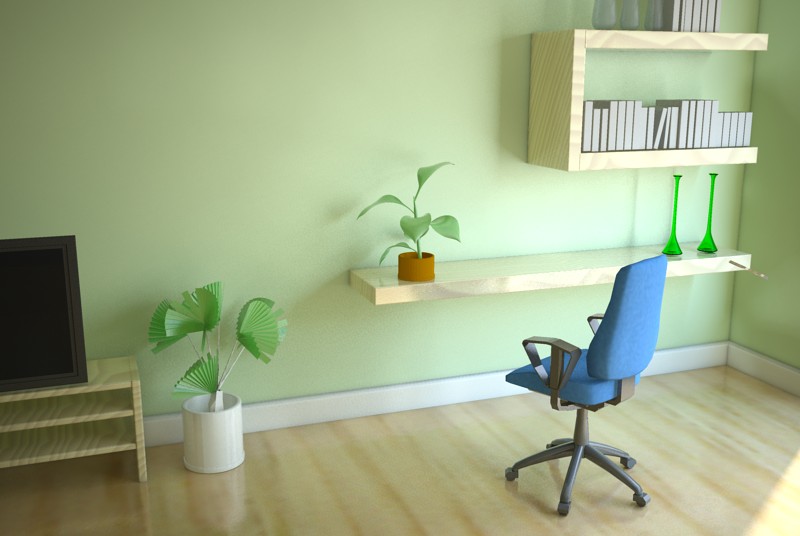
The subtle interplay of skylight, courtesy of the portal lights
Photometric Lights
The Problem
One difficulty in using base mental ray shaders to render a physically
correct scenes with GI (using photons), is in balancing the
photon energy and the direct light correctly. The reason for this is that the
intensity is generally specified as an intensity for some given direction (for
example the peak intensity on a spotlight), but the energy is the sum
of (or technically, the integral) of all such intensities in all directions.
So for example for a spotlight, for the same peak intensity, you would need
different photon energies depending on the width of the spotlight cone,
and depending on the shape of the intensity distribution within that cone.
And while this can be calculated for a mathematically defined intensity
distribution (such as a spotlight cone) what about an arbitrary distribution
as defined by a light profile?
Furthermore, to ensure optimal convergence of the photon solution for a light
which varies its intensity based on the direction of light
(e.g. a spotlight or a light using a light profile),
instead of emitting photons of different energy in different directions, one
should emit photons of similar energy in different densities.
So the amount of energy-per-area (the density of photon energy) at a given
point must match the direct light arriving at that point.
The Solution
To solve all these issues, we introduce the mia_photometric_light.
It takes all the guesswork out of balancing the photon energy with the light
intensity by peforming a numerical integration of the chosen intensity
distribution to calculate the proper photon energy automatically, as well as
takes care of adapting the photon density to the distribution, all automatically.
To use it, simply use the same instance of the shader as both
light and photon shader on a light source. The light must have an
origin (i.e. the shader does not work on an infinite light
source). The light must be set to emit photons, and must be given
a nonzero energy value (although the actual value will be overriden
by the shader, a nonzero energy value is required, or mental ray
will not emit any photons at all for the light). The exponent
should always be 2. If the light is a spotlight, a spread
value should be used. See the mental ray manual about lights.
shader "myLight" "mia_photometric_light" (
    "on" true,
    "color" 1 1 1,
    ...
)
light "theLight" = "myLight"
	emitter = "myLight"
	origin 0 0 0
	energy 1 1 1
	exponent 2
	caustic photons 20000
	globillum photons 20000
end light
The shader is declared as follows:
declare shader "mia_photometric_light" (
       boolean "on"           default on,
       scalar  "multiplier"   default 1.0,
       color   "color"        default 1.0 1.0 1.0,
       # How to define the light intensity
       #   0 = using a manual peak intensity in cd
       #   1 = using a total amount of lumen
       #   2 = using the information stored in the IES file
       integer      "intensity_mode",
       scalar       "manual_peak_intensity_cd",
       scalar       "manual_flux_lm",
       # How to define the light distribution
       #   0 = Isotropic spherical distribution
       #   1 = Spotlight distribution
       #   2 = using the information stored in the IES file
       integer      "distribution_mode"   default 0,
       scalar       "spotlight_cosine_bias",
       lightprofile "profile",
       # Scene and lighting unit management
       scalar      "units_to_meter_scale" default 1.0,
       scalar      "cm2_factor"           default 1.0
    )
    version 2
    apply   light, emitter
end declare
on turns the light on or off.
multiplier allows tweaking the intensity like a dimmer.
Only when this is 1.0 will the intensity settings mentioned below
be accurate.
color is the color of the light. Only if this is a
normalized color (i.e. that the mi_luminance() of the color
is 1.0) will the intensity settings mentioned below be accurate.
Fortunately, functions such as mib_cie_d and
mib_blackbody do return normalized colors.
intensity_mode guides what parameter and in what unit
the light intensity is defined:
- When intensity_mode is 0, the peak intensity of the
light is defined (in candela) by the
manual_peak_intensity_cd parameter.
- When intensity_mode is 1, the overall flux of the light
is defined (in lumen) by the
maual_flux_lm parameter.
- When intensity_mode is 2, the intensity is directly derived
directly from the values stored in the IES profile
assigned to the profile parameter.
distribution_mode defines how the light is distributed in
different directions:
- When distribution_mode is 0, the light is isotropic, i.e. it
shines exactly the same in all directions.
- When distribution_mode is 1, the light is a spotlight. The
light must have a spread parameter to define the width of the
beam. The distribution of light within the cone follows a cosine
function, raised to the power of the
spotlight_cosine_bias parameter. Hence, a bias below 1.0
will push light towards the edges of the cone, and a bias above 1.0
will push light towards the center of the cone.
- When distribution_mode is 2, the intensity distribution
of the light is derived from the values stored in the IES profile
assigned to the profile parameter.
Note that it is legal to combine this distribution mode
with either of the manual intensity modes 0 or 1.
In those cases, the IES profile is used in relative mode, trying
to accomodate the desired intensity but still accomodate the
directional distribution of the IES file.
Since physical lighting in real world units is highly scale dependent, the
units_to_meter_scale defines how many scene units goes into one
meter. E.g. if one scene unit is one millimeter, this would be 1000.
Finally, the cm2_factor is
the conversion factor between pixel values and candela per square
meter luminance values.
In short, this should match the cm2_factor of the
mia_exposure_photographic shader to yield a
photographically correct render, intensity wise. See also
page Units.
Footnotes
- 1
- The value 0.318 (1/pi)
originates from the illuminance/luminance ratio of a theoretically
perfect Lambertian reflector.
- 2
- Calculated for a 6500K whitepoint.
- 3
- This would otherwise cause noise in the Final Gathering
solution and too much light added to the scene.
- 4
- The subtended solid angle of the window as seen
from the shading point.
- 5
- This is how most OEM application already
sets up the mental ray area light instances.
- 6
- For FG filter 0,
the unbiased mode.
- 7
- Large parts of the example
scene geometry is provided courtesy of Giorgio Adolfo Krenkel.
- 8
-
Although
FG rays that directly hit the pool of light on the floor caused by the sun will
indeed see a high contrast.