General Utility Shaders
Round Corners
CG has a tendency to look "unrealistic" because edges of objects are
geometrically sharp, whereas all edges in the real world are slightly
rounded, chamfered, worn or filleted in some manner. This rounded edge
tends to "catch the light" and create highlights that make edges
more visually appealing.
The mia_roundcorners shader can create an illusion of
"rounded edges" at render time.
This feature is primarily intended to speed up modeling, where things
like a table top need not be created with actual filleted or chamfered
edges.
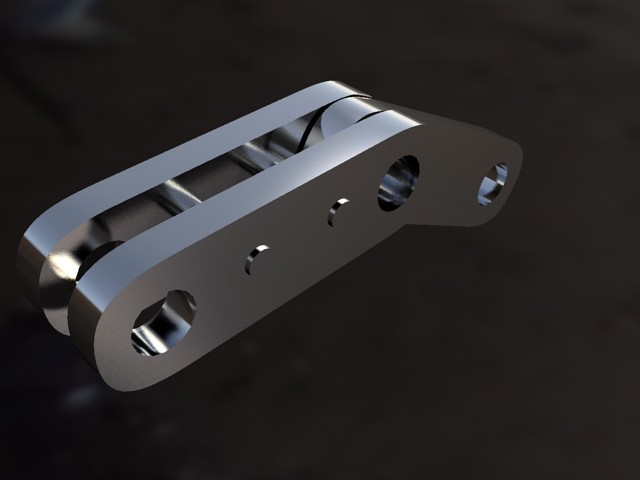
No round corners
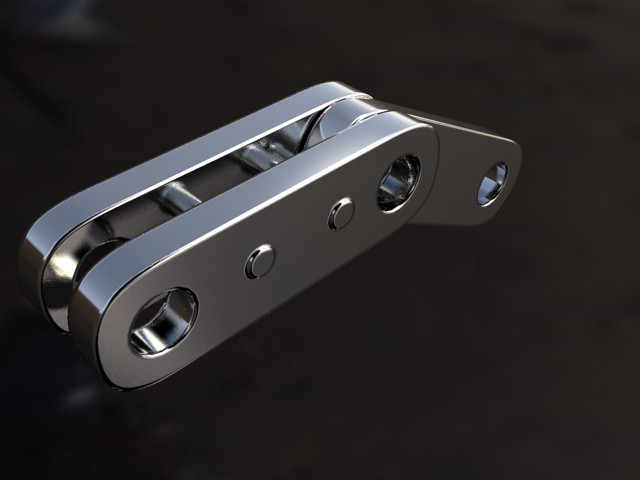
Round corners
The shader perturbs the normal vector, and should be applied where
bump maps are normally used, e.g. in the bump parameter
if the mia_material.
The function is not a displacement, it is merely a shading effect
(like bump mapping) and is best suited for straight edges and simple
geometry, not advanced highly curved geometry.
declare shader vector "mia_roundcorners" (
        scalar "radius",
        boolean "allow_different_materials",
        shader  "bump",
        integer "bump_mode",
        vector  "bump_vector",
    )
    version 3
    apply texture
end declare
The radius parameter defines the radius of the rounding effect,
in world space units.
When allow_different_materials is off, the rounding
effect happens only against faces with the same material. If it is
on the rounding effect happens against any face of any material.
The bump parameter is a passthrough to any other bump shader
that handles additional bumping of the surface, for example
mib_bump_map2 or similar.
This parameter is only used if bump_mode is 0.
To better support OEM integration, the new parameters bump_mode
and bump_vector was introduced.
bump_mode defines the coordinate space of the bump_vector,
as well as that of the return value of the shader itself (which is also a vector),
and if it is interpreted as a "normal vector perturbation" or a whole new
"normal vector"`.
The following values are legal:
- 0: compatible mode. The old bump parameter is used in place of bump_vector.
The return value is 0,0,0, and the shader actually perturbs the normal vector itself.
- 1: "add" mode in "internal" space
- 2: "add" mode in world space
- 3: "add" mode in object space
- 4: "add" mode in camera space
- 5: "set" mode in "internal" space
- 6: "set" mode in world space
- 7: "set" mode in object space
- 8: "set" mode in camera space
The "add" modes mean that the vector contains a normal perturbation, i.e.
a modification that is "added" to the current normal. The "set" mode means that
the actual normal is replaced by the incoming vector, interpreted in the
aforementioned coordinate space. Equally for output, an "add" mode implies that
the shader returns a perturbation vector intended to be added to the current normal,
and "set" mode implies that it returns a whole normal vector. In neither case does
the shader actually modify the current normal by itself.
Environment Blur
Shader Functionality and Parameters
The mia_envblur shader works by accepting some other environment
shader as input, which would usually be a shader that performs an
environment lookup in an HDRI environment map. When the render starts,
it performs a one-time setup and rasterizes the result of this environment
shader in a special format into an internal pyramidal filter structure.
Then, when rendering proceeds, the shader can perform an extremely efficient
blurring operation in this environment map in way that looks very similar to
shooting an extremely large amount of glossy reflection rays into it;
i.e. it yields a perfectly smooth result - quickly.
declare shader "mia_envblur" (
        shader  "environment",
        scalar  "blur"               default 0.0,
        boolean "mia_material_blur"  default on,
        integer "resolution"         default 200
    )
    version 1
    apply environment, texture
end declare
environment is the actual environment shader looked up by this shader. If
this is not specified, the global camera environment is used.
blur is the amount of blur (range 0.0 to 1.0) applied on the image. If
this is 0.0, the internal bitmap is bypassed and the environment shader
is looked up directly, as if the mia_envblur shader was not there.
The blur amount can be automatically calculated setting
mia_material_blur to on. Any reflective environment
lookup performed by mia_material will cause the appropriate
blur in mia_envblur. Leave blur at 0.0 in this case.
This feature is described in more detail on page Automatic Blur.
resolution is the resolution of the internal pyramidal data
structure used for the filtering. The default value of 200 means that a
map of 200 x 200 samples are taken and stored, for subsequent filtering.
This should be set high enough to resolve the smallest feature in the
environment map. 200 is generally enough for any still image - animations
need higher resolutions (1000).
It is important to remember that mia_envblur does a one time
rasterization of the environment shader at start up time.
This means that that shader must be constant across the scene,
and cannot be a complicated position-dependent blend of environment
shaders. The environment can still change over time,
since the rasterization step is performed anew each frame.
Use Cases
The environment blur shader mia_envblur is intended to increase quality
and performance of renderings that are largely reflecting the
mental ray environment (i.e. that do not primarily
reflect other objects).
The shader is primarily useful in product visualization renderings that
are surrounded by an HDRI environment map for reflections, and also
for visual effects work where one wants to help integrate CG objects
in a real scene with the help of HDRI reflections, and want a smooth
yet fast lookup.
The shader is not as useful for interior architectural renderings,
since in those (enclosed) scenes, most reflection rays are bound to hit
other objects; the purpose of this shader is to help reflection rays
that do not hit other objects, i.e. the largest benefit is in an
"open" scene1.
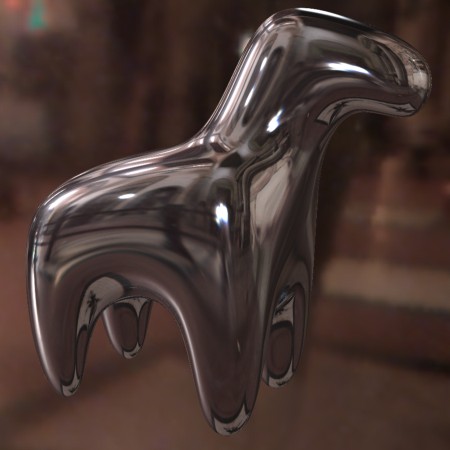
Object reflecting an environment map
Here an example object is reflecting an environment map2 with no
glossiness (i.e. perfect mirror reflection). This looks fine, because there
is no quasi-random sampling performed.
But what is we want to make a glossy reflection? If one simply uses the
glossy reflection of mia_material one receives the following result:
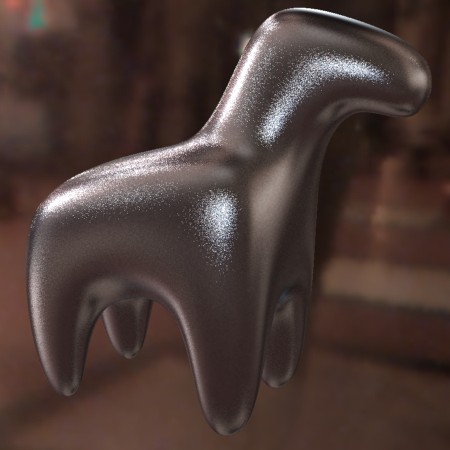
Glossy reflection with 8 samples
It is obvious that the default 8 glossy reflection samples are nowhere near
enough, especially with an environment map with such high contrasts in it.
Trying with 100 glossy samples (at a large performance hit) the result is:
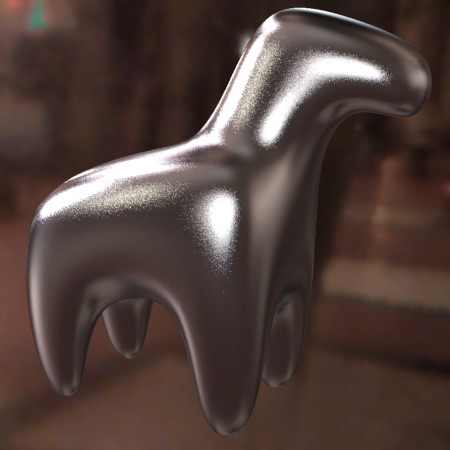
Glossy reflection with 100 samples
This is better, but still nowhere near a "smooth" glossy reflection. The
100 samples made the rendering an order of magnitude slower, and it is still
not enough! What can we do?
What we want to is not look up the environment multiple times. Not 8
times, nor 100 times, but once, except we want that lookup to
already contain the desired blur!
This is accomplished by enabling the single_env_sample parameter of mia_material
and then apply mia_envblur as our environment shader and our "original"
environment map as the environment parameter of mia_envblur.
Going back to our original 8 glossy samples, the following result can
be rendered, very quickly:
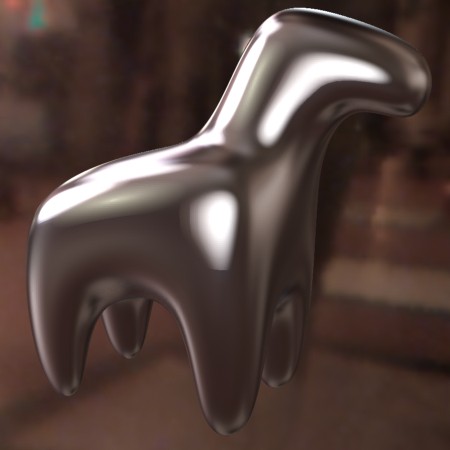
Glossy reflections using
mia_envblur
This looks much better, and renders much faster, but the level of blur is
constant. A much more advanced way is to let mia_envblur derive the blur
to apply by enabling mia_material_blur.
Assume we have applied the following map to the refl_gloss parameter of
the mia_material:
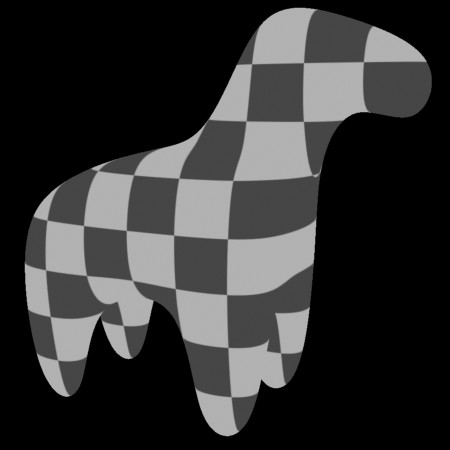
Glossiness map
The resulting render, with the help of mia_envblur will be this:
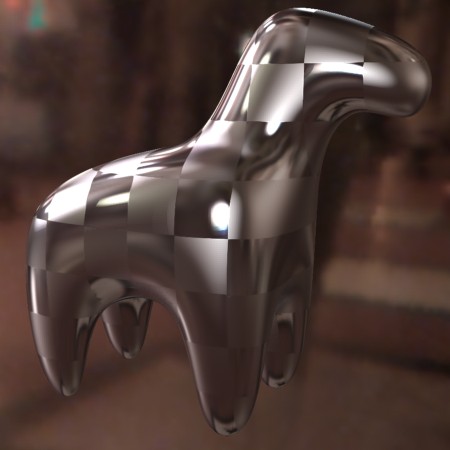
Mapped glossiness via
mia_material_blur
Please note that mia_envblur shader only supports isotropic lookups,
and will ignore any anisotropy parameters of mia_material when using it like this.
Also, do not forget to use the single_env_sample feature; just blurring the environment
map is often not enough to combat the noise.
Keep in mind that other objects will still reflect in the traditional
manner with multiple samples, and this feature only applies to environment lookups.
Therefore it can be very advantageous to use refl_falloff_dist to limit "actual"
reflections to nearby objects only, and let the environment take over for distant
objects3:
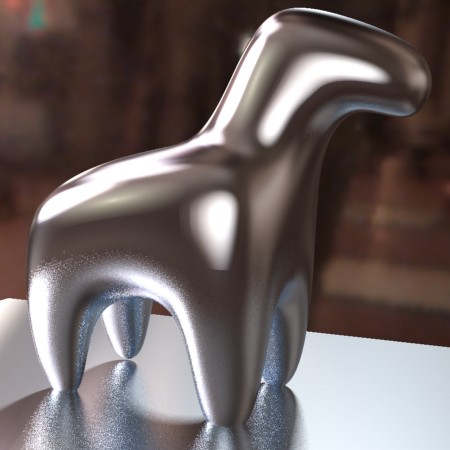
No
refl_falloff_dist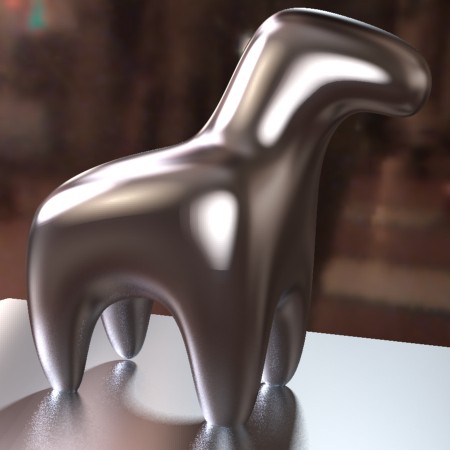 refl_falloff_dist
 used
In the right image the legs of the horse only reflect very near to the floor,
and conversely the horse only reflects the very nearest parts of the floor -
the rest is environment reflections. This yields a faster result than actually
tracing those reflections, and cuts down on the noise in the image.
Light Surface
Shader Functionality and Parameters
The mia_light_surface shader is primarily intended to help creating
physically plausible renders of the "visible" portion of
a light source - the actual tube in a fluorescent tube, the
actual bulb in a light bulb, etc. while still using a
traditional CG "light" to create the illumination of
the scene (see the use cases described below).
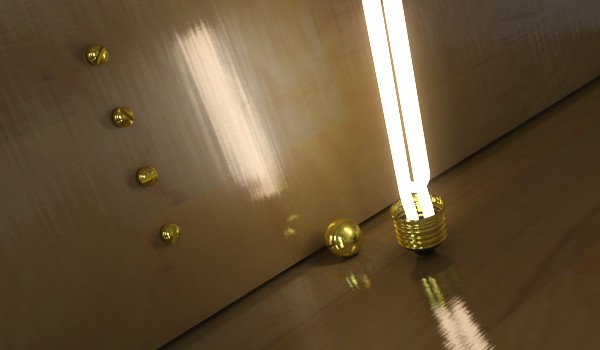
An example of using
mia_light_surface
In the image above, actual illumination comes from a long
thin rectangular area light, which is set not to cause
any specular highlights. The visible "glow" of the
fluorescent tube is set be visible in reflections (and
hence become our much more accurate "highlight") but
still be invisible to FG rays, so it will not be incorrectly
picked up as additional light.
The mia_light_surface shader can either provide a color all by itself,
or derive the color from an existing (set of) light(s) in
the scene.
The shader only returns a color and does not do any
other shading per se. A tip is to use it plugged into
the additional_color of mia_material.
These are the parameters of the mia_light_surface shader:
declare shader "mia_light_surface" (
        color		"color"        default 1 1 1,
        scalar      "intensity"    default 1.0,
        scalar      "fg_contrib"   default 0.0,
        scalar      "refl_contrib" default 0.0,
        boolean     "use_lights",
        scalar      "lights_multiplier" default 1.0,
        vector      "lights_eval_point" default 0.0 0.0 0.0,
        array light "lights"
    )
    version 3
    apply texture
end declare
color is the overall color, and applies both to built in
light or light derived from light sources.
intensity is the intensity of the "built in" light, i.e.
the surface will appear to the camera to have an intensity of
color multiplied by intensity (assuming
use_lights is off - see below).
fg_contrib is how much of the light that is visible
to FG rays, and refl_contrib how much that is visible
to reflection rays.
When use_lights is on, the lights listed in the lights array
are polled and their intensity (multiplied by the lights_multiplier)
is added to the output dictated by the intensity parameter; i.e.
if L is the output of all lights in the lights list,
the final output color of the shader is:
color * (L * lights_multiplier + intensity)
When lights_eval_point is 0,0,0 the intensity of the light
is evaluated (with shadows disabled) at the point in 3D space that is being
shaded. Since this may vary in an undesirable way for a light that has an
IES profile, one can specify an explicit point at which the light color
is evaluated. This point is in the coordinate space of the light.
Use Cases
Illumination in General
In the real world every light emitting object is visible, has an area, and emits light
from that area. When using FG, mental ray will treat any surface that adds light
energy into the scene as if it was a light source. However, to get the best possible
quality out of this, one need very high FG settings, with long render times.
Light sources in computer graphics can be either point sources or
area lights, and the area lights themselves may, or may not, be visible
in the rendering. In most cases It is simply more efficient to use actual
light sources:
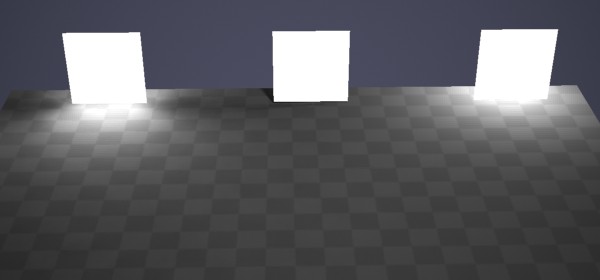
Emitting FG, Not emitting FG, And using a point light
The image above shows 3 patches that are all using the mia_light_surface above a
checkered plane. The leftmost patch has it's fg_contrib set
to 1.0 (and is hence illuminating the floor), the other two has it set to 0.0.
But the rightmost patch has a point light hidden behind it.
At close distances (or with very large light sources, like the entire
outdoor sky) FG can illuminate objects just fine with very good
quality. At long distances or with small sources, using an explicit light
source is much more efficient.
mia_light_surface gives separate control if the object should be "seen" by
reflection rays or FG rays (and how much) via the
fg_contrib and refl_contrib parameters.
This image uses a slightly reflective checkered plane to
illustrate this. No light sources are used behind these patches:
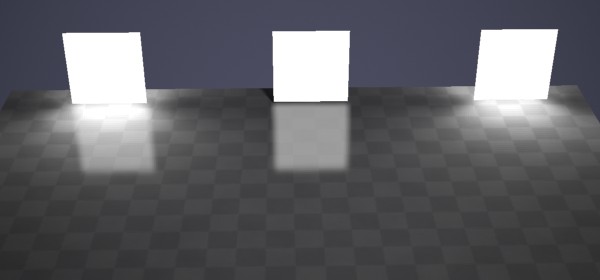
Visibility to FG and reflections
The leftmost patch is visible both to FG (illuminates the plane) and
reflection (reflects in the floor). The center patch does not
illuminate (fg_contrib is zero) and the rightmost does
not reflect (refl_contrib is zero).
Highlights vs. Reflections
In the real world, the visible light emitting objects are both
visible to any camera photographing the scene, as well as reflect
(glossily) in other objects. In computer graphics, light sources
tend to be invisible to the camera, and their reflections are
"cheated" with the help of "highlights" by material shaders.
The mia_material supports a protocol for light sources to tell it
if they should generate highlights or not. This is implemented by
most OEM applications light sources, look for flags
like "Affect Specular" or "Emit Specular" or similar on
the lights.
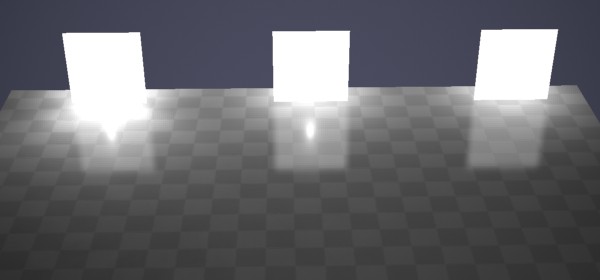
Light hidden behind patch with various flags.
There is a light hidden behind each of the patches in the image
above. The leftmost is emitting both specular- and diffuse light.
The middle one is only emitting specular light, and the rightmost
is only emitting diffuse light. Furthermore, the rightmost patch
has it's fg_contrib set to zero.
As we can see, the leftmost patch creates too much illumination,
since we get illumination both from the light and from the patch.
The center patch generates the strange effect of a small
"highlight" (our light source is just a point light) inside the
reflection of what we are trying to sell as "the visible light".
In this case this effect is distracting, so we want it disabled
- like we have done on the light on the right. That is the way
to go; let the surface handle the reflection, not the
illumination, and let the light handle the illumination, not
the reflection (i.e. no traditional "specular highlight").
An alternative, when using area lights, is to allow the area
light to create the specular highlights:
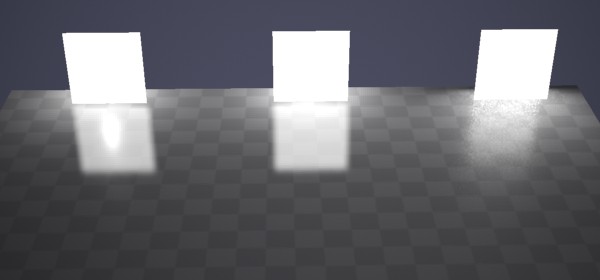
Area light specular highlights can also "work"
This illustrates the alternative. The leftmost patch again uses
a point light with specular on. This is what we do not
want, since it looks strange. The other two patches use an area
light. The middle patch has the area lights specularity turned
off and the patch has refl_contrib set to 1.0, the
right has the lights specular enabled, and a
refl_contrib of zero.
As we can see, both variants on the right side "work", so
it is a matter of choice which method is used for area lights.
However, the middle method tends to be preferred, because
often one is using a geometrically simple area light (sphere,
rectangle, etc.) in place of an object that is actually
geometrically complex (a neon sign, for example). In those
cases one definitely want to use the method in which
the object is reflected, and the light does not
emit specular light:
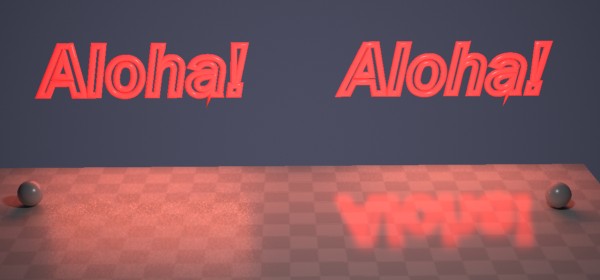
Complex geometry require real reflections
Both neon signs use a rectangular area light for their illumination,
and both cast nice area shadows (as witnessed by the small spheres).
But the sign on the left has a blatantly rectangular "reflection",
which does not make any sense. For this use, definitely use the method
on the right side, with the lights specularity off, and the surface's
refl_contrib nonzero.
Complex Light Distribution
In a real world luminaire, complex interactions between the bulb, the
reflector, and various occluders determine the final distribution of
light flying off into the scene.
Naturally, one do not want to consider all those minute details just
to make a rendering of a desk lamp, and indeed, the problem comes pre-solved
in the form of measured data (i.e. IES or EULUMDAT files).
The mia_light_surface shader can get its intensity from a light. This saves the
user the time of keeping the intensity and color of the "visible
surface" in sync with the intensity and color of the light source.
If the use_lights is on and some light is passed in the
lights parameter, this happens automatically.
This works fine for isotropic point lights and similar, but when
using measured light data, one can run into an issue:
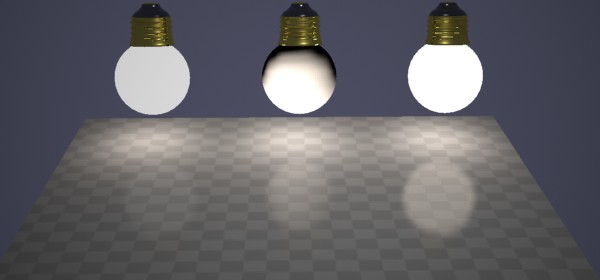
Picking up intensity/color from the lights
The above scene contains three spheres. Lets assume they are the
models of the light bulbs of some desk lamp. They each contain a
light that has an IES profile fitting that luminaire applied.
The leftmost sphere uses mia_light_surface with a manual setting, i.e.
use_lights is off. The user is responsible for making
sure the intensity and color of the surface is "correct",
as well as manually keeping it in sync with any animated
intensity changes etc.
The center sphere uses use_lights, but we get a very
strange effect from it; half our lightbulb is dark. This is because
the IES profile we chose only emits light in the down direction.
Since the light source is in the center of the sphere, only the
lower half of the sphere will gather any intensity values off
the light!
Clearly this is not desirable; the IES profile is a compound
effect applying to the entire luminaire, and should not be
"painted" onto the light bulb itself!
The solution is to use lights_eval_point as is done
on the rightmost sphere. Here a point just in front of the light
is picked (in the lights own coordinate space) as the "evaluation
point". Each point on the sphere (regardless of its location)
will have the intensity "measured" at that point in space.
This gives the sphere a color that automatically follows any
intensity- and color-changes of the light, yet is uniform
across the surface of the sphere. This sphere will reflect
correctly in a more plausible way than a traditional "highlight"
would.
In conclusion: The mia_light_surface shader allows...
- ...creating a surface as a "stand in" for an existing light, that "looks" bright,
without emitting additional light into the scene.
- ...controlling the amount of reflection and light actually introduced into the scene.
- ...driving the appearance of the surface from an existing light source.
- ...more physically correct "highlights" by replacing them with glossy
reflections of actual high-intensity objects.
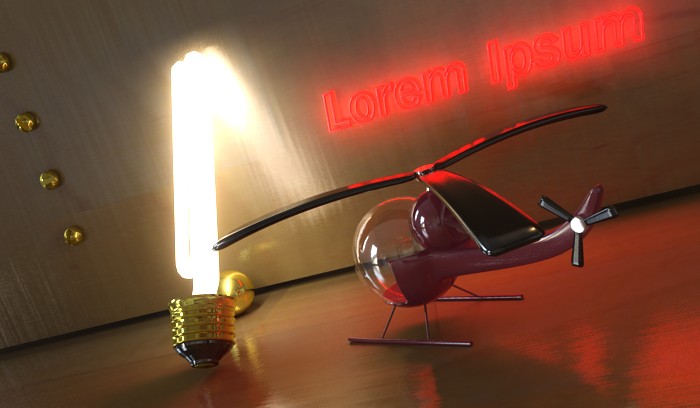
Another example using
mia_light_surface
Footnotes
- 1
- It is also very useful combined with using
refl_falloff_dist in mia_material.
- 2
- The
"Galileo's tomb" probe from www.debevec.org, which contains many small
bright areas that tend to be troublesome in this context.
- 3
- This is particularly true in a visual effects context.