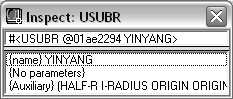
The Inspect feature is the component of VLISP that provides you with the ability to browse, examine, and modify AutoLISP and AutoCAD objects. You can use Inspect to view the following items:
- Any AutoLISP objects such as lists, numbers, strings, and variables
- AutoCAD drawing entities
- AutoCAD selection sets
Using Inspect, you can also browse through complex data structures.
The Inspect tool creates a separate window for each object you inspect.
To open an Inspect window
-
 Select an AutoLISP object name (for example, a variable).
 - Click View
 Inspect from the VLISP menu bar, or press the Inspect button on the Debug toolbar.
 The Inspect command is also available from a number of shortcut menus and from the windows displayed by the Apropos and Symbol Service features.
- If you invoke the Inspect command without selecting an object name, VLISP prompts you to specify the object you want to inspect, displaying the following dialog box:
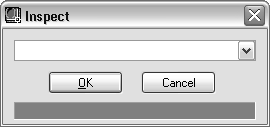
Enter the object or expression you want to inspect, then click OK to open the Inspect window or click Cancel to cancel the action.
VLISP saves the last 15 items you enter in the Inspect prompt box. You can choose a previously specified object for inspection by selecting it from the drop-down list.
For example, to inspect the definition of the yinyang function, select the name in the text editor window containing the yinyang.lsp, then click the Inspect button to view the Inspect window: