In this lesson, you add some detail to the rear of the cowl, and then adjust its shape to better fit the blueprint image.
Set up the lesson:
- Continue working from the previous lesson or
 open
p47_cowl_air_intake.max.
open
p47_cowl_air_intake.max.
- If you opened the file,
 select the P-47 fuselage and go to the
  Modify panel.
Shape the rear of the cowl:
- On the ribbon
 Polygon Modeling panel, activate
  (Polygon).
 -
 Orbit the Perspective viewport so you can see the back of the cowl.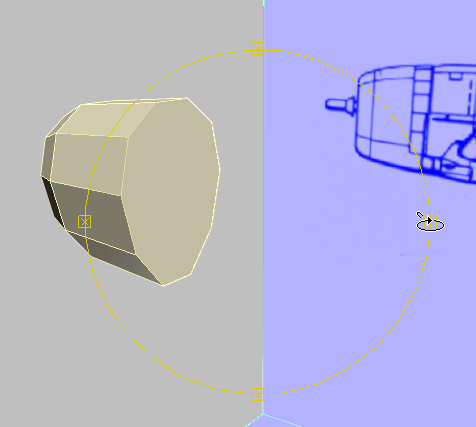
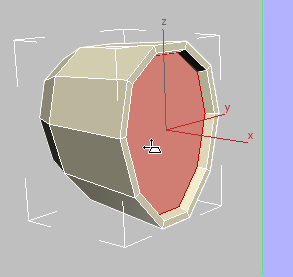
- Click to select the polygon at the rear of the cowl.
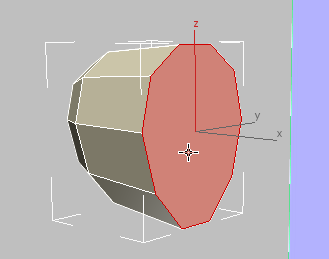
- On the ribbon Polygons panel, click
 (Inset). In the Perspective viewport, drag the mouse down to inset the rear of the cowl.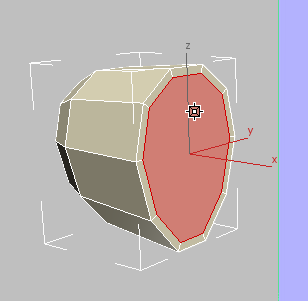
- On the ribbon Polygons panel, click
 (Bevel). In the Perspective viewport, drag downward to create a shallow recess at the rear of the cowl.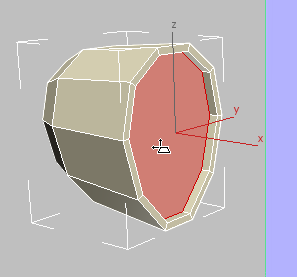
Release the mouse, then drag it downward a bit more to reduce the size of the recessed polygon.
You can check your work by pressing Alt+X to turn on X-Ray display once again, and looking at the Front viewport.
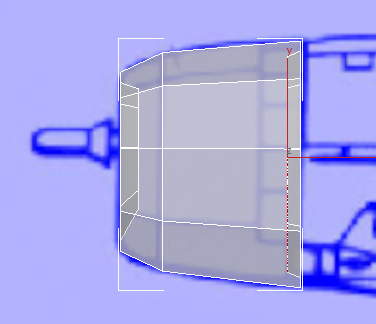
The engine cowl fits over the front of the main fuselage, a bit like a bottle cap on top of a glass bottle. So the rear of the cowl also has a recessed area, though not as pronounced as the air intake.
Adjust the curvature of the cowl:
- Activate the Front viewport.
- On the ribbon Polygon Modeling panel, activate
 (Edge).
 - Click to select one of the longer edges along the length of the cowl.
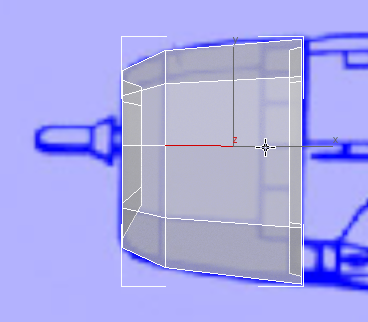
- On the ribbon Modify Selection panel, click
 (Ring).
 The Ring tool selects a ring of comparable edges, about the circumference of the cowl.
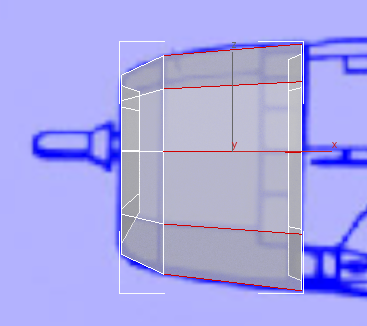
- On the ribbon Loops panel, Shift+click
 (Connect).
 Shift+clicking Connect displays the caddy controls for the Connect tool. These let you adjust the edge connection interactively.
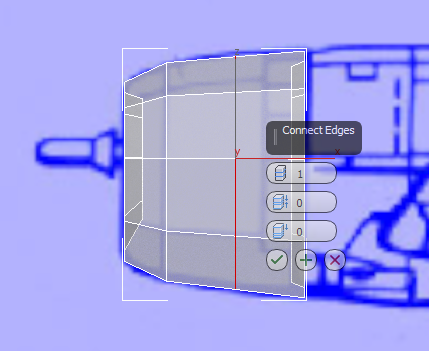
- On the caddy, drag the value of the lower spinner, Slide, to slide the new vertical edge to the left, so it is beneath the bulge in the cowl.
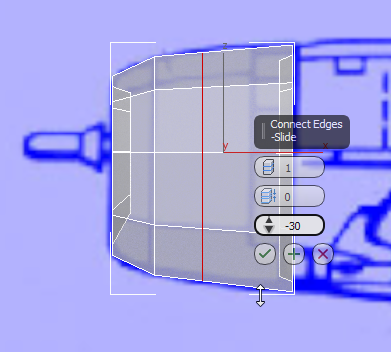
- When the edge is in the right place, click
 (OK).
(OK). -
 Scale the new edge up along the Y axis so the cowl has a bulge that better matches the blueprint image.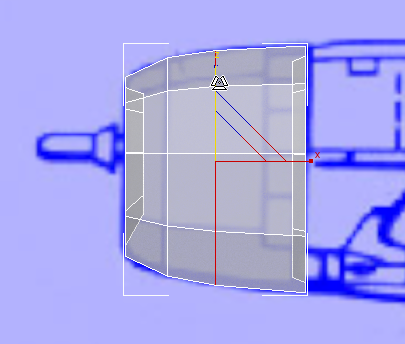
- Click
 (Edge) again to exit the Edge sub-object level.
The engine cowl is almost done: To complete it, you adjust its curvature to better match the blueprint.
Now the P-47 engine cowl is essentially complete, as far as polygon shapes go. (You will add some detail later, to improve the way 3ds Max smooths this part of the model.)
Save your work:
- Save the scene as p47_engine_cowl.max.