Advance Steel databases are usually stored locally on the PC, in a folder related to the Advance Steel installation. For companies which have more than one computer with Advance Steel installed it is useful to store the databases on a server computer, and make all the computers read this common database.
The server computer doesn't need to have Advance Steel installed on it, only the local computers need to have it.
The required operating system for the server is Windows 2000 or newer.
The GTC component uses a different AstorProfiles database than the one used by Advance Steel.
The GTCMapping and AstorProfiles databases used by the GTC component are located in C:\ProgramData\Autodesk\Advance\Data\ .
The name consists of the database name and corresponding version of Advance Steel (e.g. GTCMapping2017.mdb and AstorProfiles2017.mdb correspond to the 2017 version of Advance Steel).
How to share the databases on the server computer
- Create a folder on the server computer (for example: "data") and set full access rights for all users. The folder needs to be on a NTFS partition.
- Copy the databases you need to share (for example: AstorSettings.mdb) in this folder and verify if the database in not read-only.
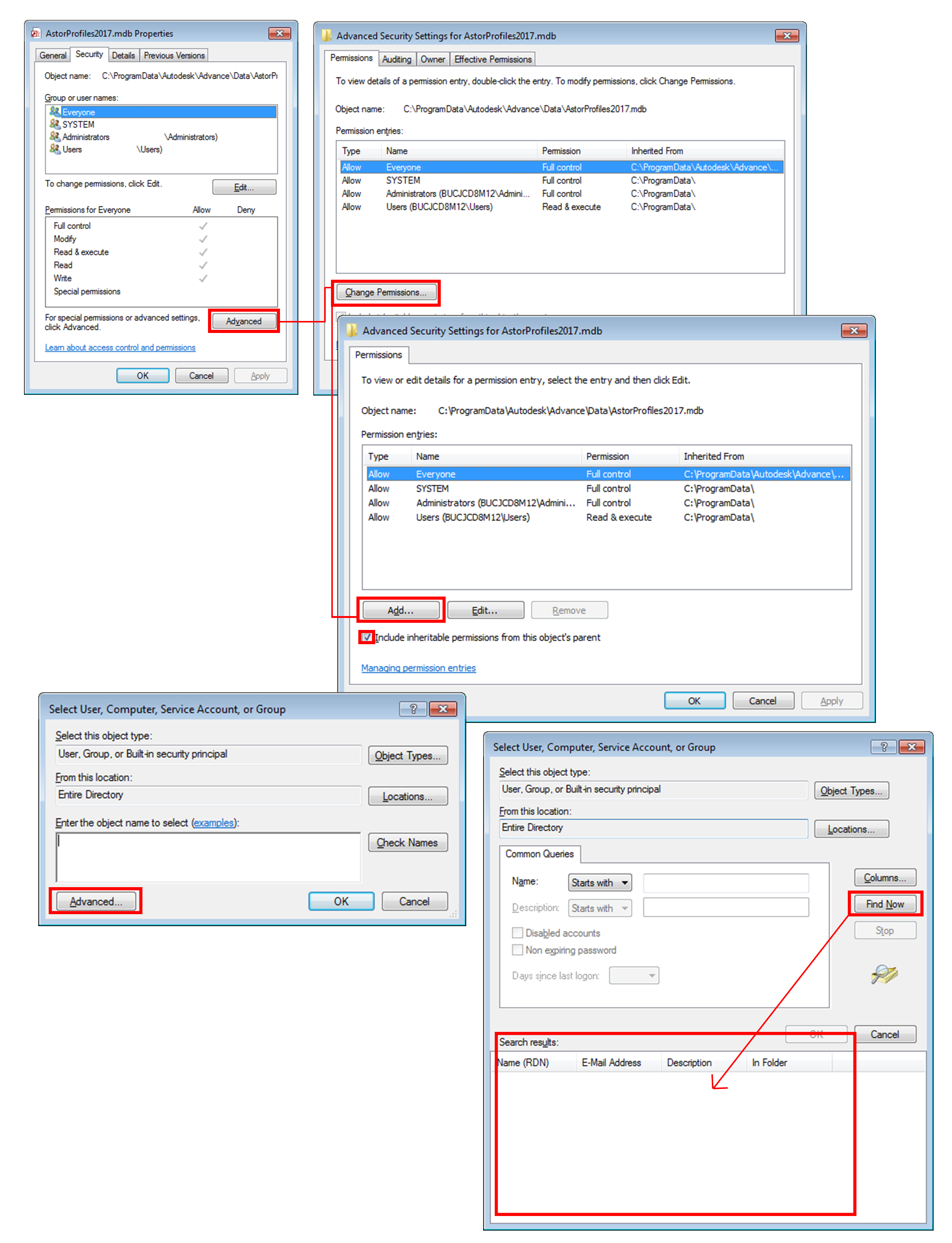
- Open the file properties dialog for this database (right click on the file > Properties). Then go to the Security tab to change the security settings for this file (please see the image below).
It's necessary to check the option: "Include inheritable permissions from this object's parent". If this option is turned off then all the added users that should have access to this file will be automatically removed from the allowed access list for this file. In the Select User or Group dialog, press Find Now and the list of users will appear in the Search results.
How to configure the local Advance Steel installation to read the network databases and perform a fast customization deployment
- Open the Windows Registry Editor.
- Go to: HKEY_LOCAL_MACHINE\SOFTWARE\Autodesk\Advance\DatabaseConnections\

- Edit the database string path:
Example:
Value Name: AstorProfiles2017
old Value Data: DRIVER={Microsoft Access Driver (*.mdb, *.accdb)};UID=;PWD=;DBQ=C:\ProgramData\Autodesk\Advance\Data\AstorProfiles2017.mdb
new Value Data: DRIVER={Microsoft Access Driver (*.mdb, *.accdb)};UID=;PWD=;DBQ=\\Network\AstorProfiles2017.mdb