Advance Steel databases are usually stored locally on the PC, in a folder related to the Advance Steel installation. For companies which have more than one computer with Advance Steel installed it is useful to store the databases on a server computer, and make all the computers read this common database.
The server computer doesn't need to have Advance Steel installed on it, only the local computers need to have it.
The required operating system for the server is Windows 2000 or newer.
How to share the databases on the server computer
- Create a folder on the server computer (for example: "data") and set full access rights for all users. The folder needs to be on a NTFS partition.
- Copy the databases you need to share (for example: AstorSettings.mdb) in this folder and verify if the database in not read-only.
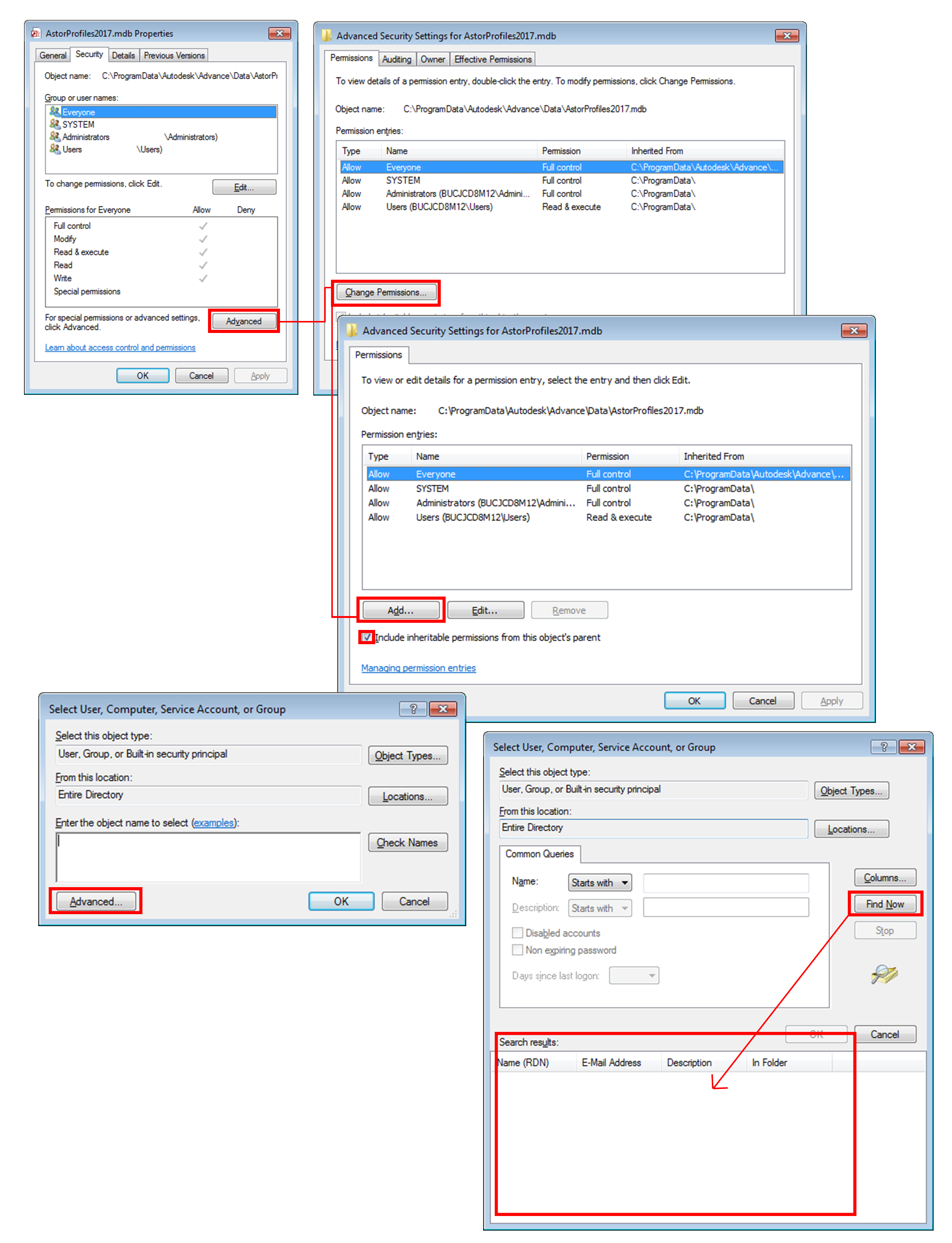
- Open the file properties dialog for this database (right click on the file > Properties). Then go to the Security tab to change the security settings for this file (please see the image below).
It's necessary to check the option: "Include inheritable permissions from this object's parent". If this option is turned off then all the added users that should have access to this file will be automatically removed from the allowed access list for this file. In the Select User or Group dialog, press Find Now and the list of users will appear in the Search results.
How to configure the local Advance Steel installation to read the network databases and perform a fast customization deployment
Starting with Advance Steel 2017, the mechanism that allows the reading of each database needed for modelling and detailing was changed and unified. The databases are read in a two-step mechanism, allowing more flexibility over how the deployment and configuration for network usage is done.
- Step 1: Advance Steel reads the path for the DatabaseConfiguration.xml file from the <Value Name="DataConfigFilePath" Type="String">C:\ProgramData\Autodesk\Advance Steel 2017\Configuration</Value> line. This line is located in the ASSettings_Advance.xml file, in C:\Program Files\Autodesk\Advance Steel 2017\Common\Bin\.
- Step 2: The DatabaseConfiguration.xml file (located in the path mentioned at step 1) contains the database paths for all the Advance Steel databases, including AstorProfiles (which was not available here in versions prior to Advance Steel 2017).
Method 1
This method involves editing only the DatabaseConfiguration.xml, and using full paths to point to the network database.
- Open DatabaseConfiguration.xml file with any text editor (e.g. Notepad).
- Edit the path for each database that is required to be mapped.
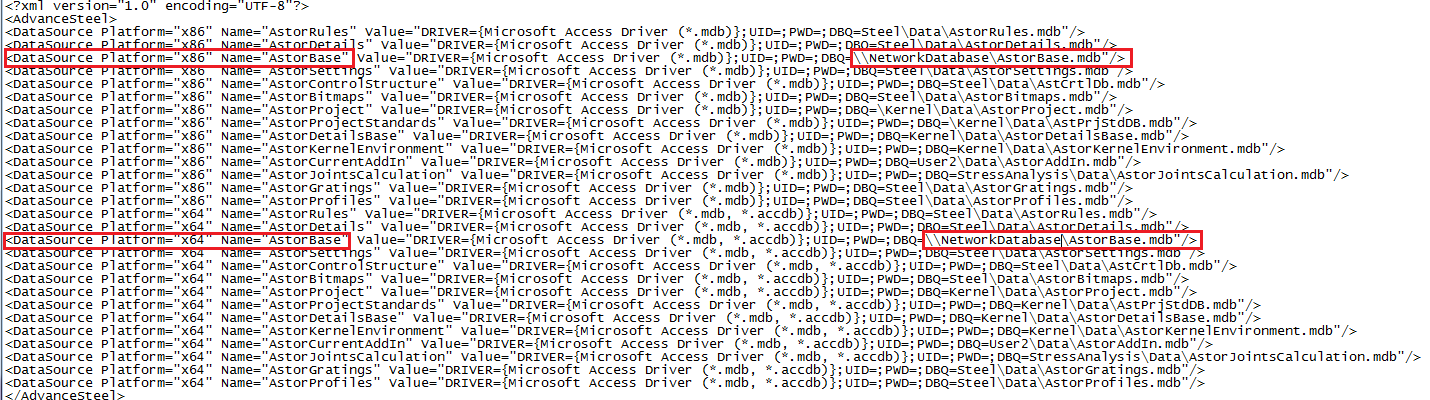
All databases that Advance Steel uses are present in this configuration file. On a typical deployment, where only content needs to be shared, not all databases will be placed at a network address, so those databases can be excluded from the editing described above.
Each database appears twice in the DatabaseConfiguration.xml file (x86 and x64 versions). Both lines need to receive the same modification. They refer to a single database, the difference consists only in the database defined driver.
The path that needs to be used in the configuration is the absolute path (not a relative path, like the ones that exist in the original file that comes with the Advance Steel 2017 installation).
- D:\TempFolder for a local path - a different folder on the hard drive.
- Z:\ SharedAdvanceSteelFolder\ - a typical network drive folder. Even if this is a network address, using the mapping drive, the Windows functionality allows the use of this path in the DatabaseConfiguration.xml file.
- \\NetworkServer\sharedfolder\ - a typical network address with computer name and shared folder.
- \\192.168.0.1\sharedfolder\ - a server IP address can also be used if the network computer does not have a DNS (Domain Name System) name.
Method 2
This method involves moving all databases to a network server, together with the DatabaseConfiguration.xml file, and then applying only one modification per local computer to execute the deployment of shared databases.
- Copy the whole structure of C:\ProgramData\Autodesk\Advance Steel 2017\ to a network shared path.
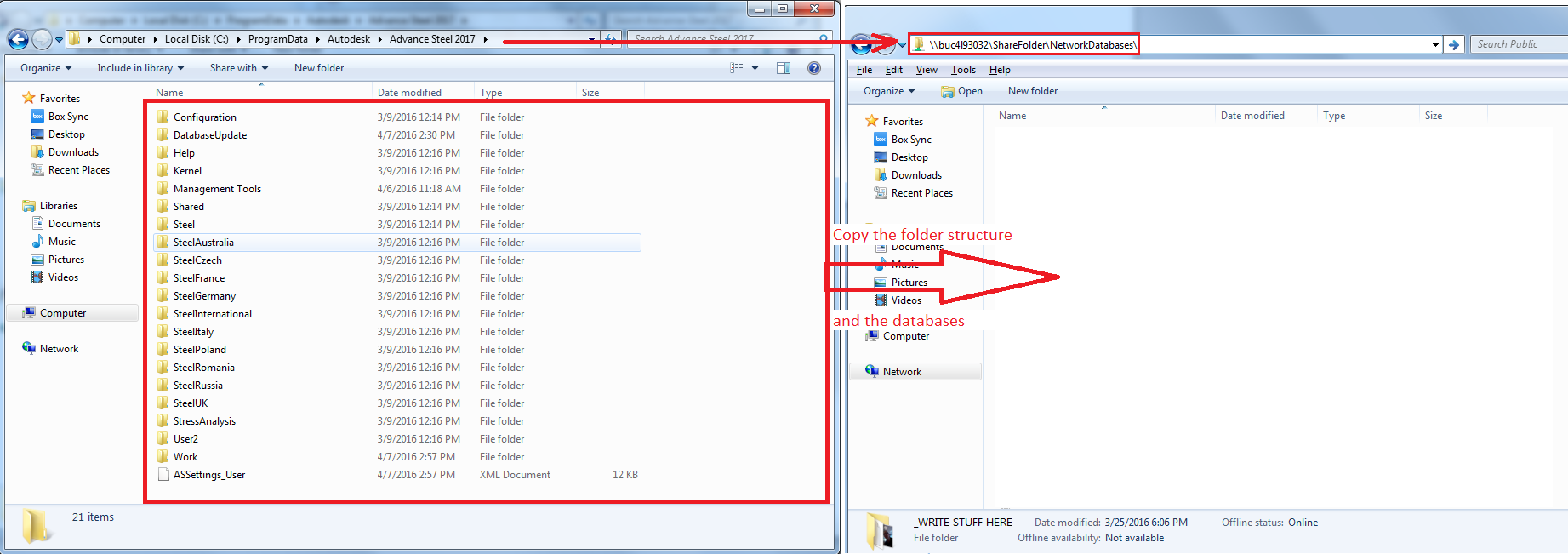
- Open ASSettings_Advance.xml located in C:\Program Files\Autodesk\Advance Steel 2017\Common\Bin\ using Notepad or any other text editor.
- Scroll through the file and find the <Key Name="Environment"> field.
- Edit the paths for the DataPath and DataConfigFilePath values, to match the folder on the network drive where the data and configuration file are located.
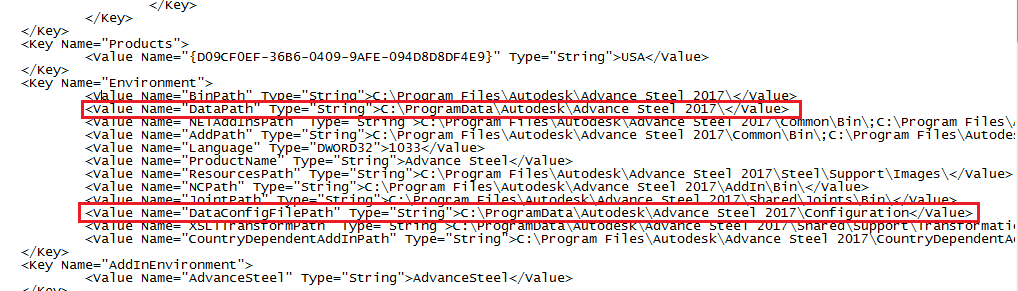
- DataConfigFilePath > this points to the DatabaseConfiguration.xml file. This file is part of the data folder moved to a network path at the first step.
- DataPath > this points to the root folder of the entire database folder, moved at step 1. This path is used together with the relative path of the database configured in the
DatabaseConfiguration.xml to create the full path for that database, for example:
- DataPath is configured with \\NetworkServer\AdvanceSteelShared\
- In the DatabaseConfiguration.xml, the AstorProfiles.mdb is configured using the Steel\Data\AstorProfiles.mdb path
-
The full path where Advance Steel searches for AstorProfiles.mdb will be \\NetworkServer\AdvanceSteelShared\Steel\Data\AstorProfiles.mdb