Use the appropriate view, available from the Distort menu's View box, for the task you are performing.
| Select: | To view: |
|---|---|
| Input | The Front1 or Front2 clip. You toggle between them using the Input box. |
| Matte | Matte1 or Matte2. You toggle between them using the Input box. |
| Background | The background clip used in the warping or morphing effect. |
| Result | The result clip of the warping or morphing effect. |
| ResultMatte | The result matte that is created when you blend the IFront1 and Front2 clips when morphing. |
| DistortSchm | The Distort schematic. |
Each of the Input and Matte views can correlate with two views if you loaded two inputs and their mattes into the Distort tool. See GUID-9A8FAAA2-B769-4B77-B2E4-2C4C077B06EB.htm#WSCBA3EE2B36D8CB6F-195644721162BE4157F-7FF6.
While in the Input view, you can also toggle between viewing the unwarped input and the warped input by clicking between the Source and Destination buttons in the Warp and Morph menus.
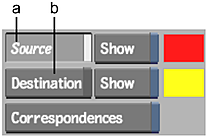
(a) Source button (b) Destination button
Toggling Between Inputs
When you are morphing between clips, you can toggle between them so either Front1 or Front2 appears in the image window. The splines drawn on the clip are also displayed. For example, if you select Front1, the Front1 clip, along with its splines, is displayed in the image window. If you then select Front2, the Front2 clip appears with the splines drawn for Front2.
You can similarly toggle between Matte1 and Matte2.
To toggle between s or mattes:
- From the Warp or Morph menu in the Distort tool, select an option from the Input box.
Select: To: Front1 Display the Front1 clip if Input is selected in the View box, or Matte1 if Matte is selected in the View box, along with the Front1 source and destination splines. Front2 Display the Front2 clip if Input is selected in the View box, or Matte2 if Matte is selected in the View box, along with the Front2 source and destination splines. The corresponding clip with its splines is displayed. As well, the splines that are not displayed, for example, splines added to the Front1 clip if you select Front2, are indicated as hidden in Distort's schematic.