As you warp surfaces, sometimes their edges are pulled away from the absolute edge of the image, revealing either the background clip, or blank space.
You can fill this revealed area with the warped clip by repeating it.
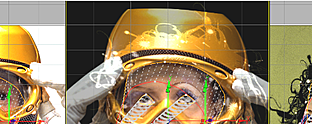 Without Fill .Image courtesy of Das Werk and The House |
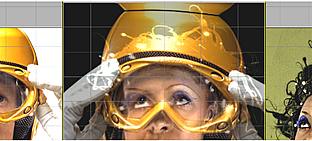 With Fill, set to Part .Image courtesy of Das Werk and The House |
To fill in gaps at edges of a distorted clip:
- Click Setup.
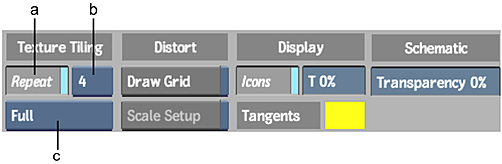
(a) Repeat button (b) Repeat value (c) Amount box
- In the Texture Tiling section, Enable Repeat.
- Toggle the Repeat value to set the number of times the clip is repeated to fill the gaps:
- Select 4 to repeat the clip once on each side: top, bottom, left, and right.
- Select 8 to repeat the clip twice on each side.
- Toggle the Amount button to control the portion of the clip to use to fill the gaps:
- Select Full to squeeze the whole clip into each of the gaps.
- Select Partial to use only a mirrored corresponding, and proportional portion of the clip to fill each of the gaps.