Garbage mask setups are created through the GMask node in Batch. You can import a saved garbage mask setup into Distort and use it as a spline. Note the following about how Distort interprets settings in the imported garbage mask setup:
- If the imported garbage mask has animation on its axes, the animation is recreated in axes above the main axis in the Distort schematic.
- If the imported garbage mask has shape animation or explicit animation on the gmask splines, the same animation on the source and destination splines is transformed into shape animations.
- If the imported garbage mask includes tracking data, the offset parameters on the geometry are duplicated on the offset parameters of both the source and destination splines.
- Garbage mask setups that use multiples axes to manipulate instances of splines are translated to Distort instances. See Instancing Distort Splines.
For help creating garbage masks, see Drawing a Mask.
To import a garbage mask setup into Distort:
- Do one of the following:
- In the Distort menu, click Load to open the file browser.
- From the Distort node in Batch, click NodeSetup to display Distort’s Setup menu, then click Load Node to open the file browser.
- From the Load Type box, select Gmask.
The browser automatically points to the default Gmask folder.
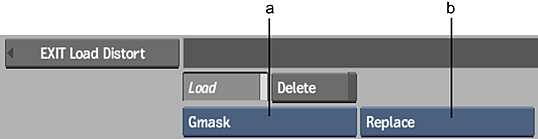
(a) Load Type box (b) Load Mode box
- From the Load Mode box, select whether you want the Gmask setup to append to or replace any existing Distort splines in your scene.
- From the file browser, select the name of the setup to load. Tip: A library of preset garbage mask setups is available. To load a preset garbage mask, navigate to the /opt/Autodesk/project/<project_name>/gmask/default/ directory.