
Click to open an existing process parameter (PRM) file from the library of files, import a PRM stored elsewhere, or scale a PRM file.
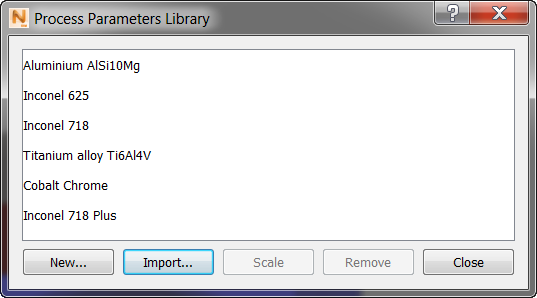
Each PRM file records attributes of the printing machine and the manufacturing material, as shown below.
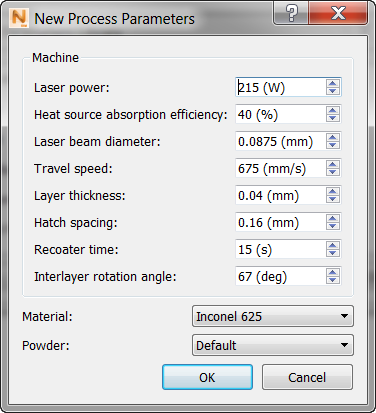
The process parameters allow for multi-scale modeling. The PRM file can be reused for any future simulations that involve the same combination of material and processing parameters.
The process parameters used by the Simulation Utility to create a PRM file are as follows:
- Laser power [W]: The nominal laser heat input of the powder bed system for the simulated build.
- Heat source absorption efficiency [%]: The percentage of energy absorbed by the part during processing.
- Laser beam diameter [mm]: The size of the laser spot size as it impinges upon the powder surface and is roughly equivalent to half of the melt pool diameter.
- Travel speed [mm/s]: The speed of the laser passes.
- Layer thickness [mm]: The nominal thickness of the powder bed layers.
- Hatch spacing [mm]: Also known as Gap Width, this is the distance between the centers of two parallel laser passes.
- Recoater time [s]: The time it takes the recoater blade to spread a new layer of powder and return to its resting position.
- Interlayer rotation angle [degrees]: The angle the laser passes are rotated each layer.
The Material drop-down menu lists the materials that are included with the installation. New materials can be added in two ways:
- On the Home tab, click , and enter the temperature-dependent physical properties for the new material. For PRM generation, Thermal Conductivity, Density, Specific Heat, Coefficient of Thermal Expansion, Elastic Modulus, and Plasticity data are required at a minimum.
- In the Process Parameters dialog, on the Material drop-down menu, choose Custom and import a material property text file. This file must be in a particular format, using the template provided in the Local Simulation installation folder C:\Program Files\Autodesk\Netfabb Local Simulation 2017\doc\material_template.txt, also available in the Material Template topic in this Help.
Powder properties are approximated by default in PRM generation simulations. To adjust how the powder properties are handled, choose Custom and import a powder properties text file. After entering these options you will prompted to save the PRM file to a name of your choosing, after which the PRM generation process will start. For best results, PRM generation should be done on a computer with 14 or more cores; otherwise, the time required can be excessive.
Scale an existing PRM file
As experience develops with the use of a particular PRM file, you may discover that the simulation results are inaccurate. For example, distortion of parts may be 20% higher in simulations than in actual builds. To improve the accuracy of future simulations, you can scale a PRM file up or down, as follows:
- Click Process Parameters to open the Process Parameters Library dialog.
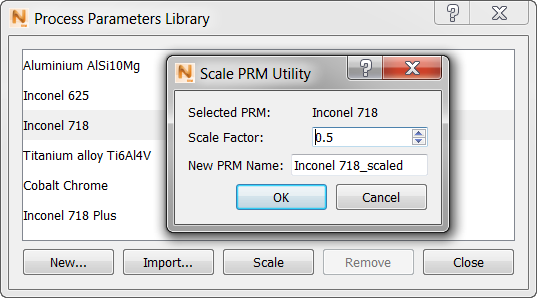
- Select the PRM file to be scaled, and then click Scale.
-
Enter a Scale Factor, based on 1.0 as the current value in the PRM file. For example, set a value of 0.5 to reduce the factor by half, or 1.2 to increase it by 20%.
- Enter a descriptive name for the scaled PRM file, and then click OK to save the file in the library.