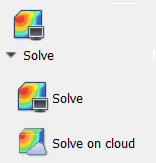
Select to run the simulation on the local computer, if the local solver is installed, or across the network on the Cloud. If you select the Cloud option and have not already logged in with your Autodesk ID, the Autodesk Single Sign-On dialog will open for you to log in. The following notes apply to solving on the Cloud:
- The option to export a warped STL is not supported. This option is found on the Results tab, Export panel.
- Process parameter (PRM) files cannot be generated on the Cloud.
- Simulations cannot be run on the local computer while you are logged in to the Cloud.
- Some Cloud Credits will be deducted from your Autodesk account to pay for the simulation. If the number of credits required exceeds the value set on the Cloud tab of the Settings dialog (Simulation Menu), you will be prompted to approve the cost.
As the simulation starts, a progress bar displays in the lower right of the Simulation Utility. When the solution is finished, you are prompted to load the results.
If you navigate to the folder that contains your original model file, you will see a new set of files, each bearing the name of the part plus an appended string such as <part>_thermal.in, or <part>_mechanical.out. A ‘results’ folder is also created, containing files from the analysis. Some of these files can be used with the Local Simulation command-line interface to experiment with different simulation scenarios.
Solve Multiple Simulations in Batch Mode
It can be useful to run multiple simulations in batch mode to efficiently solve a series of analyses. In batch mode, another analysis will begin as soon as the previous one ends.
To run in batch mode
- Create a new text file named batch.cmd in your working directory.
- Use a notepad editor such as Notepad++ to open this text file.
- Add the following syntax:
pan -b projectname_thermal
pan -b projectname_mechanical
where pan calls the solver, the -b option overwrites previously generated results, projectname_thermal is the name of the thermal input file, and projectname_mechanical is the name of the mechanical input file.
Note: Do not include the file extensions with the input file names. - Add more input files until all of your desired analyses are added.
- Save the text file and make sure the input files are stored in the same directory as the batch.cmd file.
- Double-click the batch.cmd file to begin the first analysis.
Consider the example batch.cmd file below which lists six input files to be run consecutively:
pan -b example1_thermal
pan -b example1_mechanical
pan -b example2_thermal
pan -b example2_mechanical
pan -b example3_thermal
pan -b example4_thermal
pan –b example1_thermal
pan –b example1_mechanical
pan –b example2_thermal
pan –b example2_mechanical
cd \simulations\example3\
pan –b example3_thermal
pan –b example3_mechanical
cd \simulations\thermal_only\
pan –b example4_thermal