 The Advanced part selection is a feature with which you can select parts with certain properties. It is available in the Part menu or in the context menu after a right-click on empty space in the viewing screen.
In the bottom half of the dialog, in the field Selection Preview, there is a list of parts which would be selected with the current conditions. If you tick the box Add to current selection, parts which are already selected remain selected. Otherwise, the selection is replaced.
Select Parts by Outbox
To select parts by their outbox size, enter limit values for the three axes into the text fields on the right. In a dropdown menu on the left you can choose if you want to select parts with outbox dimensions larger or smaller than those values. Below, you can choose if you want only one outbox dimension or all outbox dimensions to match the conditions defined above. With the option Ignore orientation, the values are no longer assigned to one specific axis. So, it does not matter how the parts are oriented.
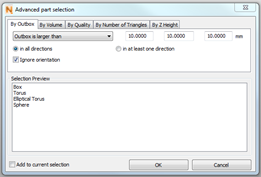
Select parts according to the outbox. You can set direction and orientation.
Select Parts by Volume
To select parts by volume, open the dropdown menu on the top and choose if you want to select all parts with a volume larger or smaller than a certain value. To the right, you can enter that limit value in the text field. Please note that parts with holes do not have a volume and cannot be selected here.
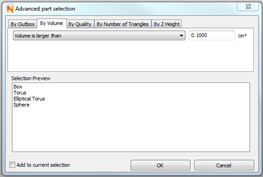
Select parts according to the volume. Set a threshold and decide whether the parts’ volume should be larger or smaller than the threshold.
Select Parts by Quality
If you select parts by quality, you can choose from several criteria in the dropdown menu. Valid parts are all closed and correctly oriented parts. Faulty parts are all parts which are not valid. Closed parts are all parts without any open triangle edges or holes. The orientation is ignored. Parts with holes do have open edges. Oriented parts, unlike non-oriented parts, are parts where all triangles are oriented correctly, with the outside of a triangle on the outside of the part. Further options are Parts with more than one shell, Parts with exactly one shell and Parts without triangles.
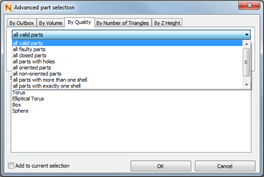
Select parts according to the quality. You can set different options in regard to the parts’ quality.
Select Parts by Their Number of Triangles
To select parts by their number of triangles, open the dropdown menu on the top and choose if you want to select all parts with more or all parts with less than a certain number of triangles. To the right, you can enter that number of triangles.
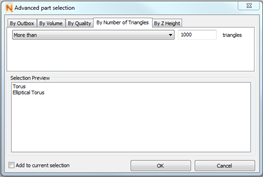
Select parts according to the number of triangles. You can decide whether the selected parts are supposed to have more or less triangles than the selected threshold.
Select Parts by Their Z Height
You can select parts by their Z Height which can be quite practical for packing a build volume. Choose if the parts are supposed to be completely over or under a certain value or if they partially can be smaller or bigger.
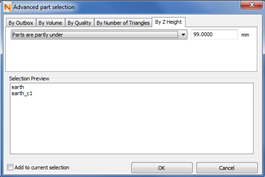
Select parts according to the Z-height. You can set whether the parts are supposed to be completely or partially over/under the selected threshold.