 The Boolean operations module creates either a unification or a cross section of two or more overlapping parts, or subtracts one overlapping part from the other, effectively cutting the cross section out of the remaining part. They can only be performed with closed and oriented volume meshes and will always result in new parts.
To conduct Boolean operations, first move parts together so that they overlap, then select all parts you want to use. Start the Boolean Operations module in the toolbar, in the Extras menu or in the Extras submenu of the context menu. This opens a new screen and options for Boolean operations in the tabsheet. The screen includes only the selected parts.
In the tabsheet, the parts are listed in two fields. Parts which shall remain after the Boolean operation are marked green in the screen and are listed in the left field. Parts that shall be subtracted from the resulting part of the Boolean operation are marked red and listed in the right field.
This basic setting for a part is changed either by clicking on the part in the screen or by selecting the part in the tabsheet and clicking on the arrow below the field. The color of the part will be changed and it will be moved into the other parts field in the tabsheet.
The Log field in the tabsheet shows the result of a test, if the parts prepared for Boolean operations are closed and oriented. The test is conducted every time you start the Boolean Operations module. If one of the selected parts fails this test, no Boolean operations can be conducted.
Depending on how you have assigned your parts, three major Boolean operations can be conducted, based on position and volume of the different parts: Parts can be unified, an intersection of parts can be created and parts can be subtracted from one another. Thereby, the triangle meshes of the parts are retriangulated, resulting in new, closed and oriented volume triangle meshes. The operations are available in the Actions section at the bottom of the tabsheet and in the context menu by right-clicking on the screen.
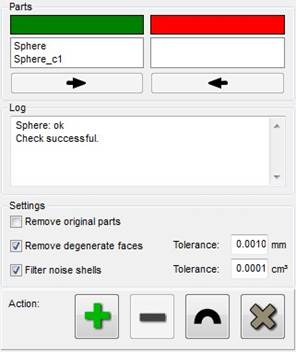
The tabsheet for conducting Boolean operations
Unify Parts
 To enable this operation, all parts must be green. Effectively, it unifies all parts of the operation, removing all resulting intersections and interior surfaces and triangles.

Left: Two parts before the Boolean operation. Center: A preview of the unification in the Boolean Operations screen. Right: The resulting part.
Create Intersection
 All parts are required to be green for this operation. The new part created by this feature includes only the cross section of the volumes of two or more parts. The triangle mesh is created around this common volume.
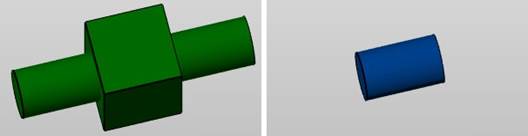
An intersection of a box and a cylinder
Subtract Parts
 For this function, at least one part must be marked red and situated in the right Parts field. A new part is then created as a unification of all green parts, but with all cross sections with overlapping red parts being cut out.
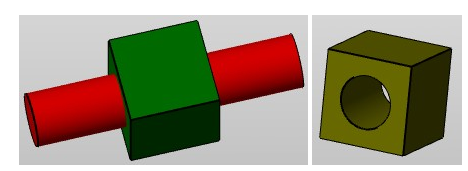
Red parts are subtracted from the green parts.
Settings
Further settings in the tabsheet are Remove Original Parts, Remove Degenerate Faces, and Filter Noise Shells:
If Remove Original Parts is ticked in the tabsheet and a Boolean operation is applied, the old parts will be removed. If it is not ticked, you will have both the old and new parts available.
After the triangulations, Remove Degenerate Faces, if checked, removes all triangles without any or with hardly any surface. These triangles usually are unnecessary. By setting the tolerance, you can set the maximum height of the triangles which shall be deleted.
Finally, you can Filter Noise Shells. These are very tiny shells which can come into being when you subtract parts or create intersections. If the box is checked, you can enter a tolerance volume. All shells with a volume lower than that will be deleted when the Boolean operation is applied.
Apply Boolean Operations
After performing one of these operations, you can either apply the calculation, undo the calculation or thoroughly cancel Boolean Operations. If you want to insert the part into the project, you have to click Apply. If you want to perform a different Boolean Operation, click Undo. To leave the module without effect, click Cancel.

Apply, undo or cancel Boolean operation.