This tab gives you a preview on how the part is going to be built up on the machine during the job. Functionality is similar to the slice commander but on a 3D model.
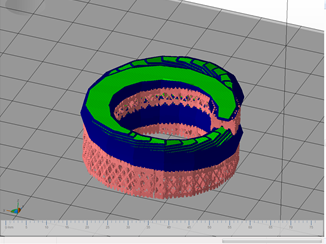
See how the part builds up during the job in a 3D model including supports. You can customize the displayed layersize and scroll through the layers in the context menu of the visualization tab.
In the context area the Build information is going to be displayed. It is changing depending on the set layersize in the options tab. Here you can also change display mode. Anytime changes have been made, make sure to click on recalculate preview, so they become effective. Use the scrollbar on the very left to browse through the different layers.
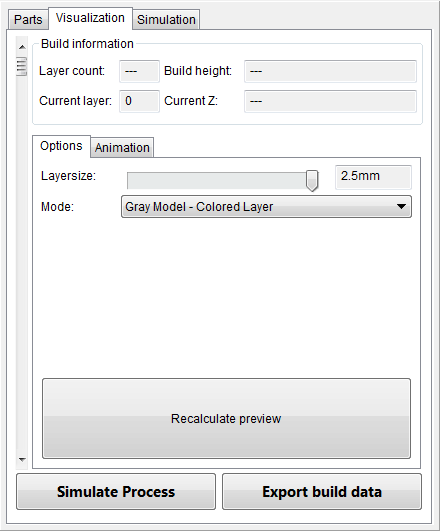
Make sure to always click on Recalculate preview, for your changes to become effective.
It is also possible to animate how the part is going to evolve during the build. To do that go to the animations tab and click on animate. Use the slider next to the button in order to change the animation speed. The slider above the animation button allows you to browse through the currently active slice. So you can take a look at how the hatching is going to look like. The checkbox Jump to next layer after animation now gives you 2 different animation possibilities. First turn it on, to animate the whole part from bottom to top. Turn it off, to animate the current layer and see how the contours and the hatching build up.