Viewing through the ReCap 360 Web Dashboard
Once published, you can view and share your projects with collaborators through the desktop application or through the ReCap 360 web dashboard.
Simply click anywhere on the project's photo cover to open your scan or photo project in ReCap 360's web interface where you can:
Photo projects:- View your project in RealView
- Trim your project
- Add textures and shading
- Navigate your scene using a range of tools
- Provisionally save your changes
- View your project in RealView
- Annotate and Markup your project
- Edit, delete, hide, and add images to existing annotations
- View scan locations / Mirror Balls
- Measure distance in Freehand and Ortho modes
After publishing to your A360 Drive, desktop access to sharing can be found through the main menu:
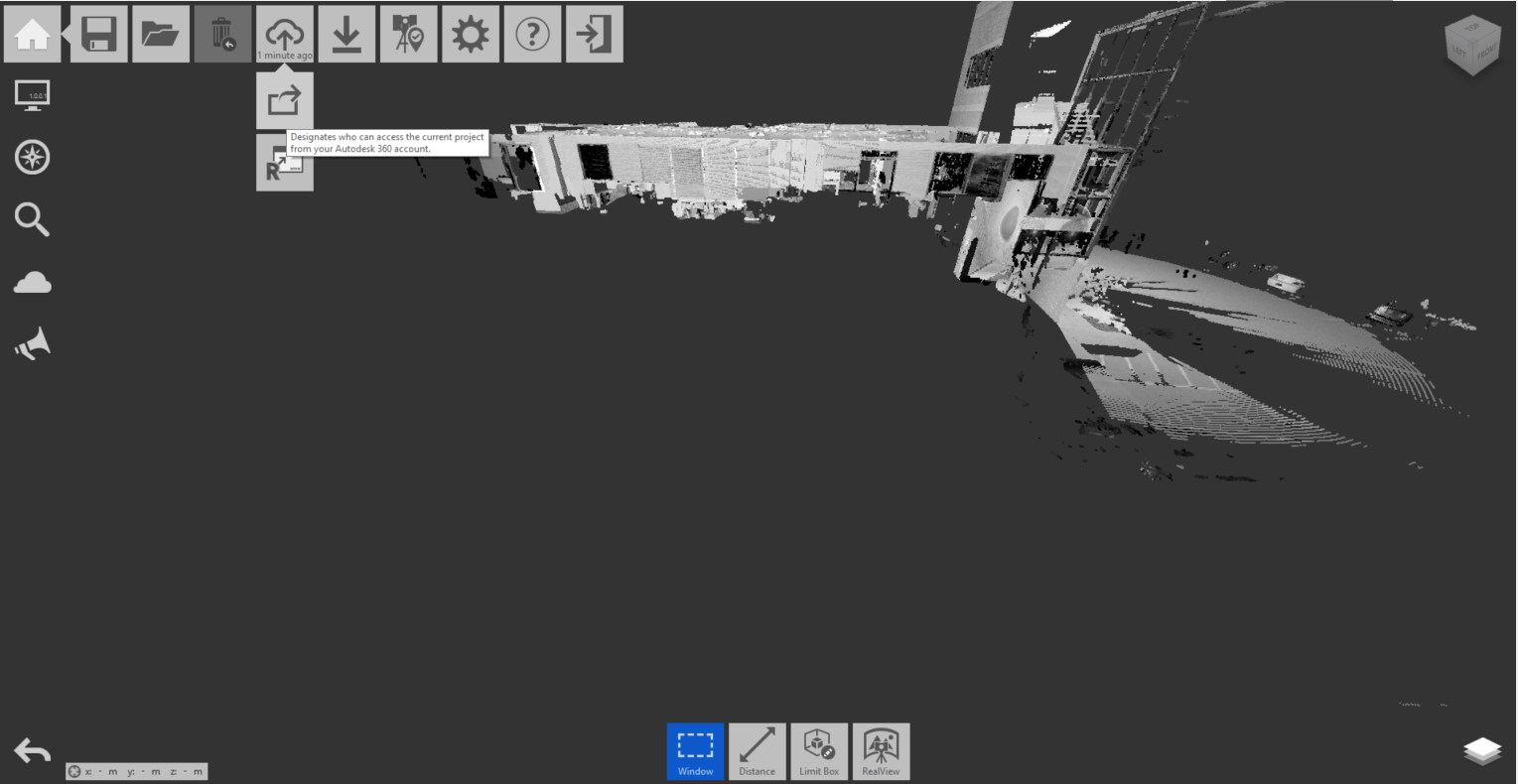
The share dialog will let you add collaborators to the current project:
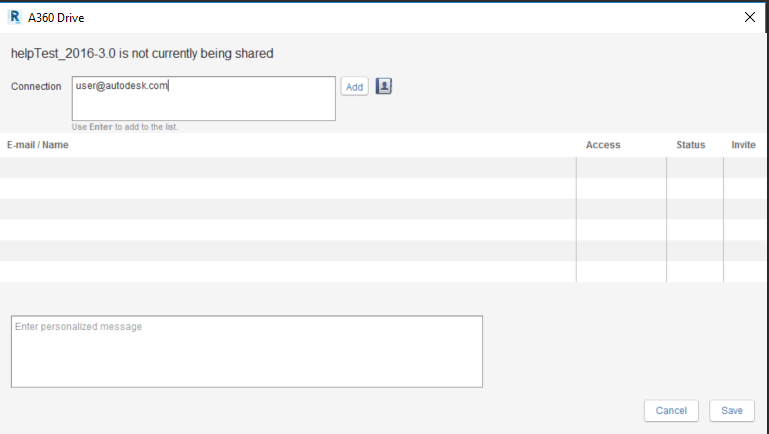
And define their access level:

From the web application, simply login to gain access to your projects from your dashboard:
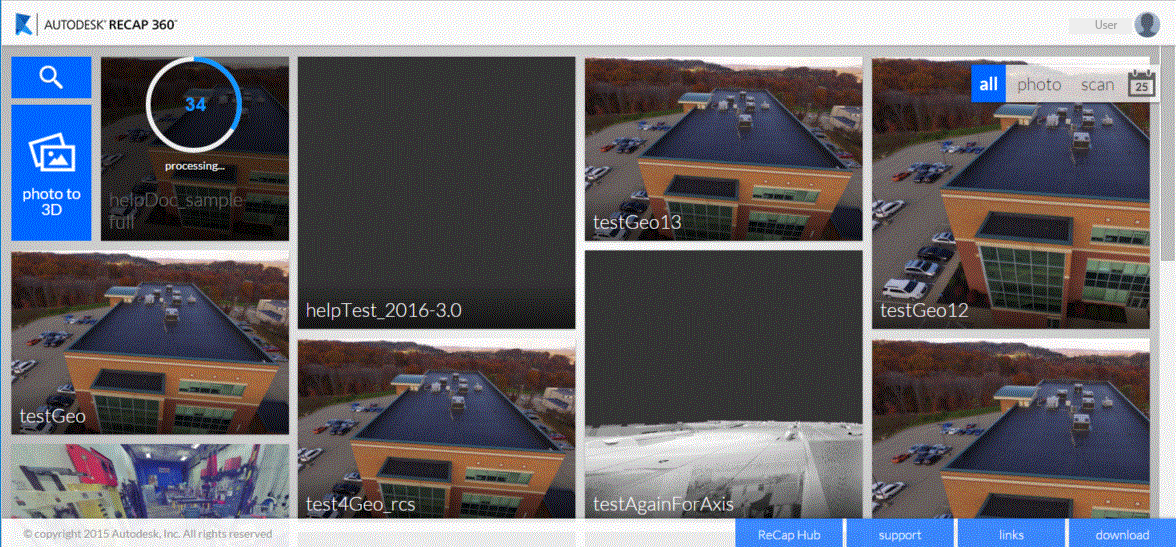
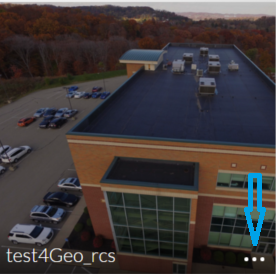
Hovering on any of the projects' menus will provide access to a list of contextual tools with options for sharing and managing the projects:
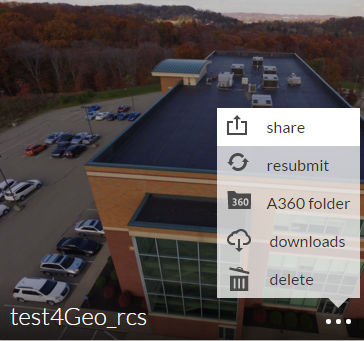
With the share dialog open, enter the email addresses of the collaborators you want to add to the project. You will also be able to define collaborator permissions:
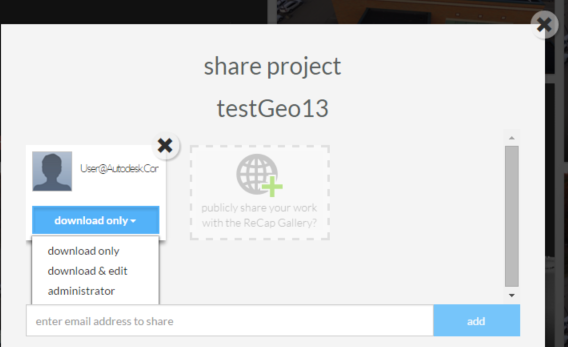
Once the invitation has been sent, they will have access to the document for viewing, collaboration, and download through the web.
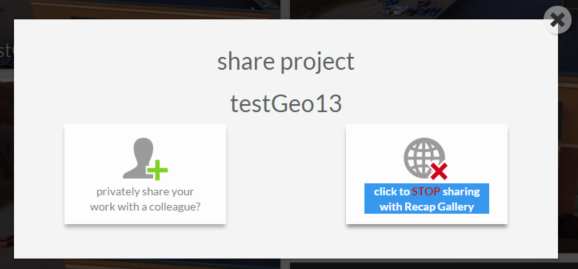
Through the same share dialog box, you can also opt to share your project publicly with the ReCap 360 community for feedback or to provide gallery examples of your photo or point cloud projects.
You can stop publicly sharing by re-pressing the box when the red "X" appears:
Changes made on desktop or web can be synced between the two applications by the project owner, allowing for rapid collaboration between multiple team members across varietal platforms.
To sync changes from the desktop application, after choosing the publish option from the Home flyout, you will be prompted to either update the currently published version or upload a new version:
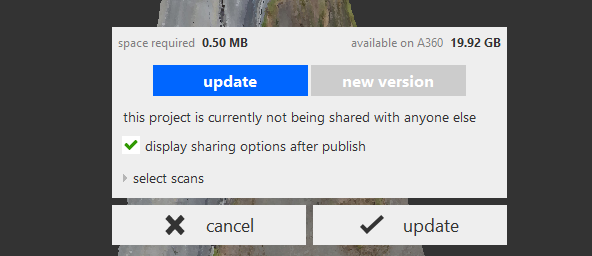
To sync from the web, simply re-share the project from the dashboard menu or download the updated version for use in your desktop application.