You can tap into a span at a point other than the end. For example, you might have an existing secondary line and you need to insert an underground pedestal or secondary handhole. The handhole structural feature (insulator, rack or spreader bar) might contain a device feature (junction or switch). You could then insert a service line or additional secondary line. Snapping ensures that the tap is connected to the segment being tapped.
The term "Tap" contains two modes: Hard Split and Soft Split. Soft split is only used for Gas. You can tap into a span at a point other than the end. To tap line features, you need to define Connectivity rule, otherwise Hard Split will be used as default. For example, you might have an existing Gas main pipe and you need to insert a Tee fitting at the middle of the main pipe to connect with a Gas service pipe. This case needs to use Soft Split, so you need to define Add Constraint rule by choosing Soft Split in Fitting’s Connectivity Rule Point. See below screenshot.

If you don't want to tap a line, you need to create Add Constraint rule by choosing 'Do not Tap' as Connectivity option in Connectivity rule. As below, one phase Transformer is not allowed to tap a three phase Conductor.

As you insert features, toggle the Hard Split icon  or Soft Split icon
  on the tooltip to add or prevent a tap. To prevent a tap, you need to choose Message/Notice as Constraint Type in Add Constraint rule.
Case 1: Hard Split with Notice/Message is used in Add Constraint rule or no definition in Connectivity rule. Below is defined for Switch:

Digitize a Switch to tap an Underground Conductor, the Hard Split icon shows in the tooltip.
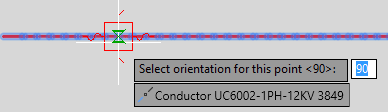
Since the Constraint Type for this rule is 'Message', the system allows you to change it by clicking Hard Split icon. After it is selected, it is changed to Do Not Tap icon  . It indicates the Switch is digitized at the specify location, but not hard split the conductor.

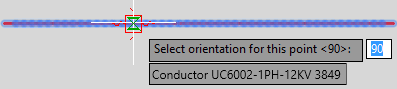
Case 2: Hard Split with Alert is used in Add Constraint rule. Also use Switch as example:

'Alert' here means force Hard Split any conductor with Switch. So in the tooltip, you will see Hard Split icon is hidden.
Soft Split case is the same as above two cases.
Case 3: Do not tap with Notice/Message in Add Constraint rule. Define Connectivity rule for Vault:

Digitize a Vault to tap an Overhead segment. Do not tap icon and message texted in the rule are show in Tooltip.

Also you can click it since the rule is defined with Notice. After click, Hard Split icon is displayed.
Case 4: Do not tap with Alert in in Add Constraint rule. Define Connectivity rule for Vault:
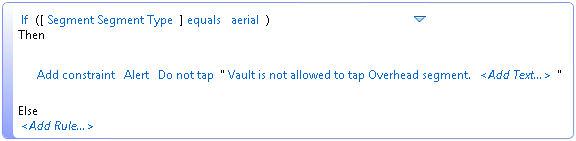
The Disallow tap icon  is hidden to prevent you click it.

You can open Feature Info to check that Disallow tap icon shows.

Automatic tapping is disabled when auto-connect also applies. If the distance between the tap location and one of the segment end points is smaller than the auto-connect distance, Utility Design does not auto-tap the segment.
For options related to tapping, see General Layout Options.
If you remove a tap, you must also remove the structure. For Hard Split, you must then manually merge the two segments and their contents, or two gas pipes. But for Soft Split, when point feature is moved or deleted, the two pipes will be merged automatically at the split location.
- On the command line, enter AUDMERGE. When prompted, click the first facility line and then the second facility line. Note: The merge operation is only performed it the start and end points of the facility lines to be merged share the same location. Also, the facility line to be merged must have the same attribute values including the attribute values of any ducts and conductors contained in the segments.
By default, if Merge not defined as a constraint, merging is allowed.
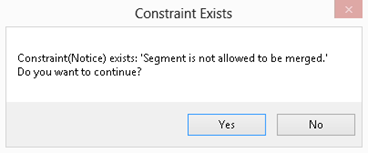
Do not merge is defined as Connectivity option in Add Constraint rule, it indicates the system is disallow you to merge the two selected facility lines. Below rule is defined for Segment:

Run AUDMERGE to select two segments, a dialog is prompt as below. Click on Yes will continue to merge; otherwise click on No will exit AUDMERGE command.
If you set Constraint Type to 'Alert' as below:

Run AUDMERGE and select two segments, the Constraint Exists dialog won't show, instead a message shows in Command Line, and the merge operation exit.
