- Click Autodesk Nastran
 Properties Physical.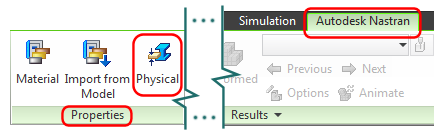
The Physical Property dialog box appears. The default element Type is Solid Elements, which is appropriate for this tutorial model.
- Change the Name from the default name to Angle and Gusset.
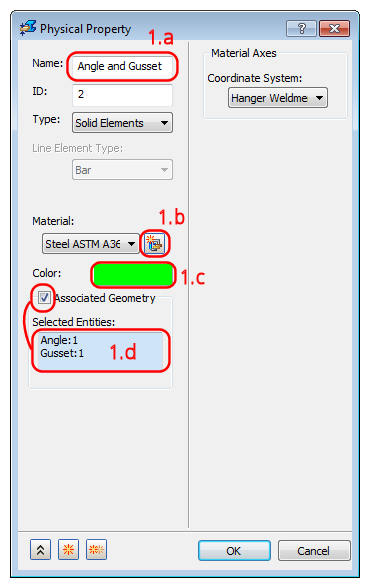
Figure 1.a – 1.d
- Click the New Material button. (See Figure 1.a – 1.d.) The Material dialog box appears.
Consult Figure 1.b.i – 1.b.vi for the following six steps.
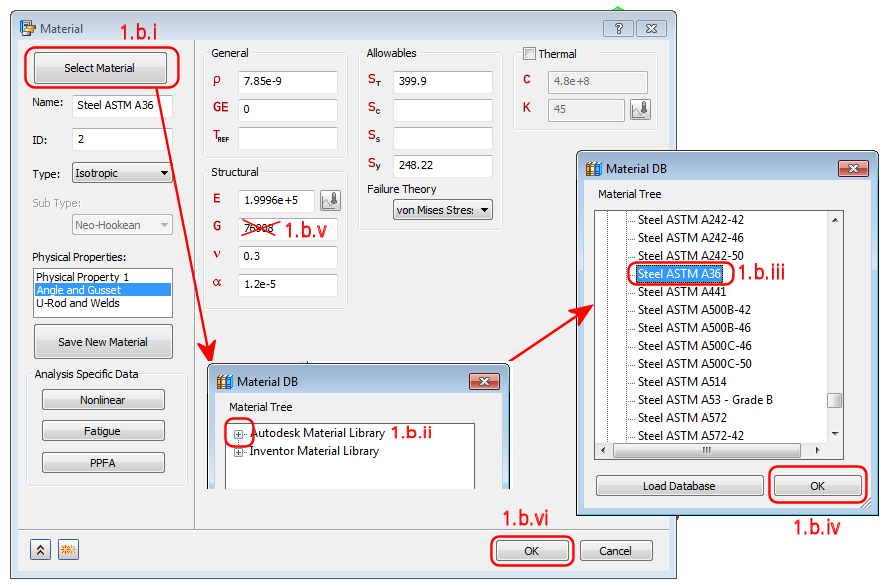
Figure 1.b.i – 1.b.vi
- Click Select Material.
- Expand the Autodesk Material Library branch of the Material Tree.
- Scroll down and select Steel ASTM A36.
- Click OK.
- Delete the value in the G field, which is the shear modulus. For isotropic materials, G is calculated from the Young's modulus (E) and Poisson's ratio (ν). Deleting the G value prevents a solver warning message caused by a slight discrepancy between the specified and calculated values of G.
- Click OK.
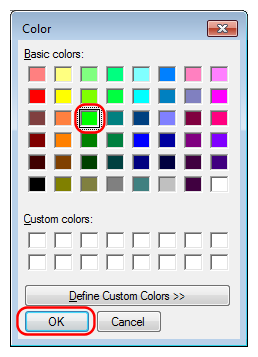
- Click the Color selection box. (See preceding Figure 1.a – 1.d.) The Color dialog box appears.
- Select the green color in the third row of the third column, as shown in the following image, and click OK.
- Select the green color in the third row of the third column, as shown in the following image, and click OK.
- Activate the Associated Geometry checkbox. (See preceding Figure 1.a – 1.d.)
- In the model canvas, click the angle and gusset to select them. The part names appear in the Selected Entities list and the feature lines of the selected parts turn blue. Be sure that the correct two parts are selected. The ASTM A36 steel material is assigned to these two parts.
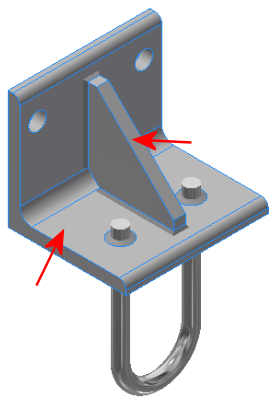
- In the model canvas, click the angle and gusset to select them. The part names appear in the Selected Entities list and the feature lines of the selected parts turn blue. Be sure that the correct two parts are selected. The ASTM A36 steel material is assigned to these two parts.
- Change the Name from the default name to Angle and Gusset.
- Click the New button near the bottom left corner of the Physical Property dialog box.
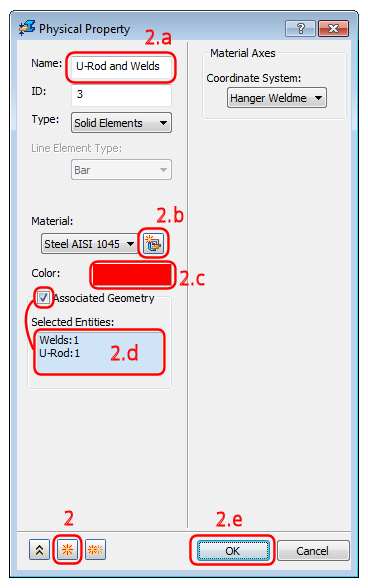
Figure 2 – 2.e
- Change the Name from the default name to U-Rod and Welds. (See Figure 2 – 2.e.)
- Click the New Material button. (See Figure 2 – 2.e.)
(Consult Figure 2.b.i – 2.b.vi for the following six steps.)
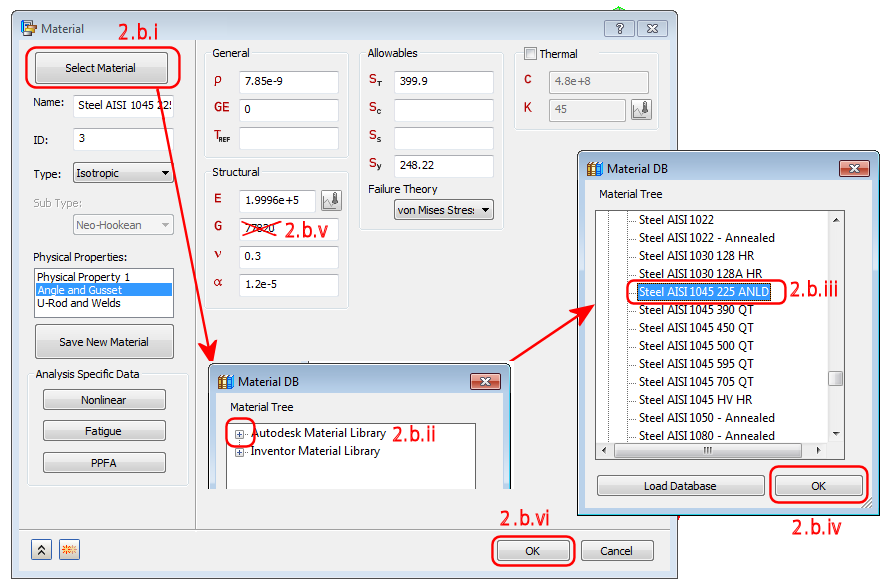
Figure 2.b.i – 2.b.vi
- Click Select Material.
- Expand the Autodesk Material Library branch of the Material Tree.
- Scroll down and select Steel AISI 1045 224 ANLD. (ANLD is an abbreviation of annealed.)
- Click OK.
- Delete the value in the G field.
- Click OK.
- Click the color selection box. (See Figure 2 – 2.e.) The Color dialog box appears.
- Select the red color in the second row of the first column, as shown in the following image, and click OK.
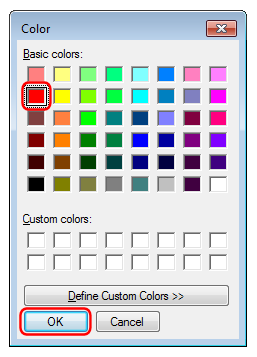
- Select the red color in the second row of the first column, as shown in the following image, and click OK.
- Activate the Associated Geometry checkbox. (See Figure 2 – 2.e.)
- In the model canvas, click one of the welds and the U-Rod to select them. The part names appear in the Selected Entities list and the feature lines of the selected parts turn blue. Be sure that the correct two parts are selected. The AISI 1045 steel material is assigned to these two parts.
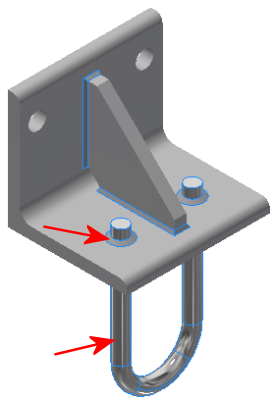
- In the model canvas, click one of the welds and the U-Rod to select them. The part names appear in the Selected Entities list and the feature lines of the selected parts turn blue. Be sure that the correct two parts are selected. The AISI 1045 steel material is assigned to these two parts.
- Click OK to apply the material, and exit the Physical Property dialog box.
- Verify that you have correctly defined the materials by expanding all browser nodes under Physical Properties. Compare your screen to the following image:
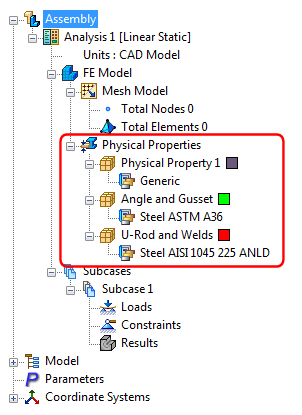 Note: The Generic material definition was imported from the CAD model. However, this material, and the associated element properties, are not assigned to any part of the simulation model (and therefore have no affect on the solution). The CAD material may or may not be imported automatically, depending upon your version of Autodesk Nastran In-CAD. So, if you do not see the Physical Property 1 and Generic nodes in your model browser, there is no need for concern.
| Previous Topic: Open the Model | Next Topic: Mesh the Model |