 The Management System area is where you build and iterate the components involved in your simulation.
Use the Management System area to add new liquid objects and use solvers to manage often complex simulations. The area is also where you start processing your solves and manage the cached data associated with them.
Interface
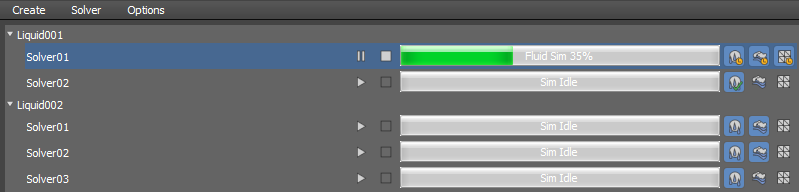
Management System Area shown with two liquid objects and five active solvers.
Menu bar
Use the Menu bar to manage objects, solvers, and caches, as well as change the window layout and monitor the simulation.
Create menu
- Liquid Object
- Creates a new liquid object.
- Motion Field
- Creates a new motion field object.
Solver menu
- New Solver
- Creates a new solver for the selected liquid object.
- Clone Solver
- Clones the selected solver and all of its settings. The name of cloned solver is appended with_Copy.
- Rename Solver
- Renames the selected solver.
- Delete Selected Solver
- Deletes the selected solver.
Note: Do not delete solvers while they are running or paused.
- Clear Cache Files
- Opens the Clear Cache dialog where you can select to clear fluid, foam, and/or mesh caches for the selected solver.
- Truncate Simulation
- Deletes all existing simulation files after the current frame. Use this command to fine-tune a simulation beyond a certain frame without discarding earlier results.
- Set Initial State
- Sets the initial state for the solver at the current frame. Use this feature to start a new simulation based off of the state of an existing simulation on a particular frame. This is useful when you want a fluid to be in full flow at the start of the simulation, for example when creating a waterfall or an open faucet.
- Clone With Initial State
- Creates a clone of the solver using the current frame as the initial state. The new solver name is appended with IS_FX, where IS indicates the initial state and FX indicates the frame number used for the initial state. When solved, the first frame of the simulation reflects the simulation state at the initial state frame from the original solver it was cloned from.
- Clear Initial State
- Clears the currently set initial state for the solver. This action cannot be undone.
Options menu
- Vertical Layout
- Arranges the Solver Parameters panel vertically, listing the groups at the top and the parameters at the bottom.
- Horizontal Layout
- Arranges the Solver Parameters panel horizontally, listing the groups on the left and the parameters at the right.
- Open Output Window
- Opens the Simulation Output window where you can monitor the progress of the simulation and troubleshoot any errors that may occur.
- Reset Cache Clearing Options
- Resets all 'Do not show this message again' options set in the simulation's pop-up cache dialogs.
- Display Frame in Progress Bar
- Shows the last-solved frame in the progress bar instead of the completed percentage.
Solver Area
Use the Solver Area to manage liquids and solvers, start and stop solves, monitor sim progress, and select simulation components.
Context Menus
Right-click a liquid or a solver to open the following context menus:
Liquids context menu
- New Solver
- Creates a new solver for the selected liquid object.
- Select Object in Scene
- Selects the specified liquid object in the scene.
Solvers context menu
- Clear Cache
- Opens the Clear Cache dialog where you can select to clear fluid, foam, and/or mesh caches for the selected solver.
- Rename
- Renames the selected solver.
- Truncate Simulation
- Deletes all existing simulation files after the current frame. Use this command to fine-tune a simulation beyond a certain frame without discarding earlier results.
- Clone
- Clones the selected solver and all of its settings.
- Export
- Opens the Export Solver Data dialog where you can export liquid solver data to a file.
- Delete
- Deletes the selected solver.
Note: This option does not appear if solvers are running or paused.
- Set Initial State
- Sets the initial state for the solver at the current frame.
- Clone With Initial State
- Creates a clone of the solver using the current frame as the initial state. The new solver name is appended with IS_FX, where IS indicates the initial state and FX indicates the frame number used for the initial state.
- Clear Initial State
- Clears the currently set initial state for the solver. This action cannot be undone.
- Export .prt Files
- Exports PRT files for liquid and/or foam. A progress bar is shown at the bottom of the 3ds max interface where you can also cancel the export. Make sure to enable the liquid or foam components in the simulation controls for the solver before export.
The files are exported to the cache output path in folders named Liquid_PRT and Foam_PRT. For more information, see the documentation for the Caching panel, in the Additional Export Options group.
Simulation Controls
Use the simulation controls to solve selected components and monitor their progress. You can solve liquid, foam and the cache mesh at the same time, or solve the liquid first and then the foam and/or cache mesh.

| Click: | To: |

|
Start the solve. |

|
Pause the solve. |

|
Stop the solve. |

|
Solve the liquid component. |

|
Solve the foam component. |

|
Generate the mesh component. |
Enabled components are shown in light blue. Components that are not completely solved show a yellow clock, and completed solves show a green checkmark.