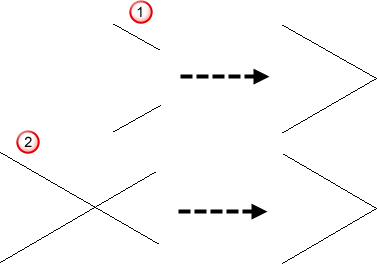
Select this menu option to convert sharp corners to rounded corners, close vectors, or join vectors. The Tool Settings: Fillet Vectors panel is displayed. ArtCAM enables you to specify, and subsequently edit, the radius of the fillet you create.
Note: The
Fillet Vectors
 button on the
Design and
Vector Creation toolbars is a shortcut for this menu option.
button on the
Design and
Vector Creation toolbars is a shortcut for this menu option.
button on the
Design and
Vector Creation toolbars is a shortcut for this menu option.
The Tool Settings: Fillet Vectors panel contains the following settings:
- Fillet Radius — Enter the radius of the fillet you want to create.
- Fillet arc — Select this option to create a fillet arc. Enter a radius in the
Fillet Radius box, then click the corner at which you want to insert the fillet, or click the two line spans that you want to join with an arc.

- Dog bone
— Select this option to create an arc on corners. This fillet needs two adjacent lines to work. Enter a radius in the
Radius Fillet box, then click the corner at which you want to insert the arc.

- T bone — Select this option to create an arc to one side of a corner. The fillet needs two adjacent lines to work. Enter a radius in the
Radius Fillet box, then click the two adjacent line spans you want to join with an arc. The arc is created on the first line span clicked.

- External arc — Select this option to extend adjacent line spans tangentially and then loop back round. You could use this fillet for smooth rather than abrupt changes in direction. Enter a radius in the
Radius Fillet box, then click the corner at which you want to create an external arc.

- Extend/trim line to intersection — Select this option to extend two spans until they intersect
 , or to trim two spans back to where they intersect
 .
.