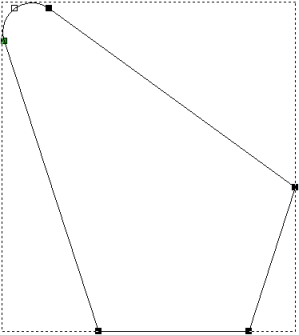
To convert a sharp corner into a filleted corner:
- Select the vector in which you want to insert filleted corners.
- Select
Vector > Fillet or click the
Fillet Vectors
 button. The
Tool Settings: Fillet Vectors panel is displayed.
button. The
Tool Settings: Fillet Vectors panel is displayed.
- Select Fillet arc.
- In the Fillet Radius box, enter the radius of the arc you want to insert.
- Move the cursor over a corner in the selected vector, and then click to insert the fillet.
Before
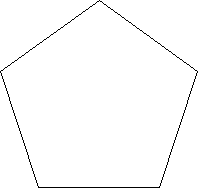
After
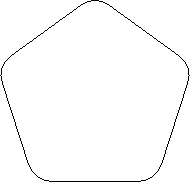
To close an open vector with extended spans:
- Select the vector in which you want to insert filleted corners.
- Select
Vector > Fillet or click the
Fillet Vectors
button. The
Tool Settings: Fillet Vectors panel is displayed.
- Select Extend/trim line to intersection.
- Select the first span of the open vector. The
 icon is displayed on the selected span.
- Select the second span.
ArtCAM extends the two spans until the two nodes meet.
Before
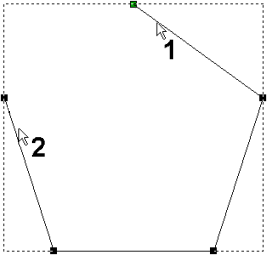
After
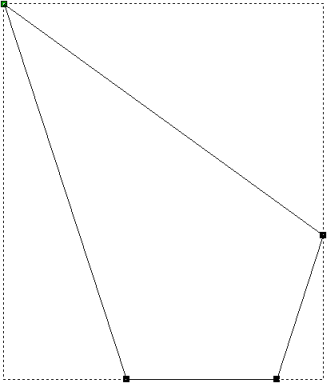
To close an open vector with a fillet:
- Select the vector that you want to close with a fillet.
- Select
Vector > Fillet or click the
Fillet Vectors
button. The
Tool Settings: Fillet Vectors panel is displayed.
- Select Insert Fillet.
- In the Fillet Radius box, specify the radius of the fillet with which you want to close the vector. The wider the radius, the shorter the extended spans.
- Select the first span of the open vector. The
icon is displayed on the selected span.
- Select the second span.
ArtCAM extends the two spans until they are close enough to be joined with a fillet of the specified radius.
Before
After