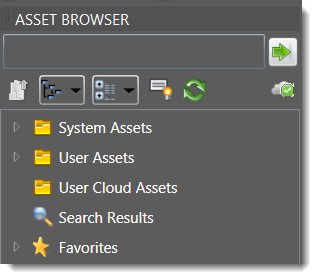
The Asset Browser provides access to System Assets, User Assets, Cloud-based Assets, Vault Assets, and asset Search Results.
To access the Asset Browser, select the
Factory tab  Tools panel
Palettes
Asset Browser
Tools panel
Palettes
Asset Browser
 .
.
The Asset Browser is made up of the following:
| Search | Enter the name of the asset you are searching for. As you enter characters a list of matching solutions is provided. The more characters you enter, the more refined the list becomes. |

|
Click to begin the search using the search phrase you entered. |

|
Move up a folder level. |

|
Select a browser view style - Tree or Thumbnail. Click the down arrow on the Thumbnail/Tree Views drop-down menu to select your preferred view method. |

|
Click to display a drop-down menu that provides options to sort assets by asset type, name, or date modified. You can choose to sort assets in either ascending (the default) or descending order. |

|
Turn browser tooltips on and off. |

|
Refresh the browser contents. |

|
Indicates the number of available variations of an Asset Variant created in Inventor Factory. |
| Cloud status cues | The cloud is internet-based storage for assets. To access cloud assets, internet access is required. These iconic cues are provided to alert you to access status of the cloud servers. |

|
Access to Cloud assets is enabled. |

|
Access to Cloud assets is disabled. |

|
Access to Cloud assets is disconnected. |

|
Cloud asset content is initializing. |
|
|
The Asset Browser provides access to all levels of the Factory Assets to allow easy navigation. Visible only when the view style is set to Thumbnail. |
| Cloud Asset status cues | Various icons next to the thumbnail images provide information about the asset status. |

|
The asset family is new within the time period listed and is available for download. |

|
The asset is available for download. |

|
The asset is downloading. The tiny progress bar updates during the process. |

|
The asset is downloaded and ready to be used. Drag and drop it into the layout. |

|
The cloud asset has been updated. Right-click and select Update Asset to download the new version. |
| Preview Assets |
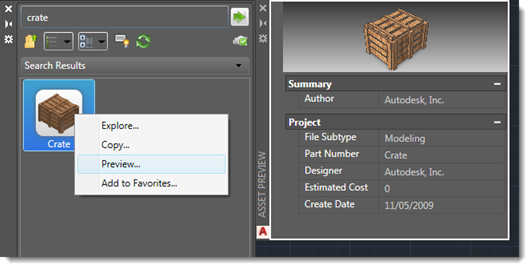
Right-click an asset node and select Preview... to see the asset in an enlarged 3D view.
|
Context menu commands
| Folder | Right-click on a folder to display the context menu commands. |
| Explore | Opens a window that displays the current folder. Navigate the subfolders to locate imperial and metric assets. |
| Asset | Right-click on an asset to display the context menu commands. |
| Explore | Opens a window that displays the current folder. Navigate the subfolders to locate imperial and metric assets. |
| Move |
Displays for local assets only. Moves the selected folder or asset to another local folder or a folder stored in Vault.This feature is useful if you are storing assets locally, but want to make them available for others to access from Vault. You can move the selected item to an existing folder or create a new one during the move process. Moving an asset or folder deletes it from the location from which it was moved. |
| Copy |
Copy a single asset to another folder, or copy a folder to another local folder or a folder stored in Vault. Folders cannot be copied to cloud folders. As part of the copy process, you can enter a new name for the asset or folder and select its storage location. Copying a System asset creates a duplicate of the asset for editing and saving as a new User asset. |
| Preview | Displays a thumbnail image of the asset in a separate window. |
| Edit |
Launches the Asset Builder, allowing you to change any of the originally defined asset properties. If a 3D model is associated with this asset, you can keep the original model or associate a different one. Click 3D Representation in the Asset Builder ribbon to see these options. Select Save in the Asset Builder ribbon to save the changes and republish the asset to the content library. |
| Update Asset(s) | Updates any single Vault or cloud-based asset, or all assets contained in a selected folder of the Asset Browser. |
| Download Asset(s) | Displays for cloud and Vault assets that are available for download, but are not yet downloaded. You can download a single asset, or batch download any selected folder in the Asset Browser. |
| Asset Variant | Displays a submenu listing available asset variants created in Inventor Factory. |
| Add to Favorites... | Add, or remove, a frequently placed asset into the Favorites folder for quick and easy access. |
| Delete | Removes the asset from the Asset Browser. |