Vault integration features let you manage libraries, store, view, and download assets using Vault Professional.
Assets stored in Vault appear in your Factory Asset Browser in a Vault Assets folder. The structure of the folder mirrors the library structure in Vault. If you add or delete a folder in Vault, the change is reflected in the Asset Browser.
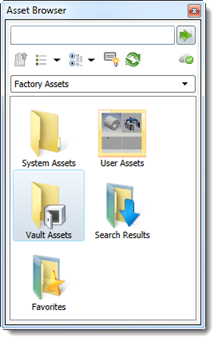
Many asset management activities occur in your Vault Assets folder. From here you can download, copy, preview, and add assets to your Favorites folder just as you would your other local or cloud assets. If you make changes to an asset in the Vault Assets folder, saving the updates also saves them in Vault.
Publishing assets to Vault
To publish assets to Vault, follow the same steps you would when publishing other assets, except select Vault as the destination:
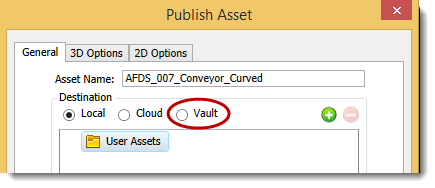
See Publishing Factory Assets for asset publishing information.
Moving local assets to Vault
The Move features is useful if you are storing assets locally, but want to move them into Vault for storage or sharing.
You can move the contents to an existing folder or create a new folder as part of the move process. Moving an asset or folder deletes it from the location from which it was moved.
To move assets to Vault:
- Locate the asset or folder in the Asset Browser.
- Right-click on the item to view the context menu.
- Select
Move.
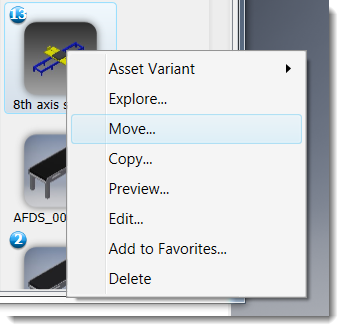
- Select
Vault, and then select the folder in which to move the selected item.
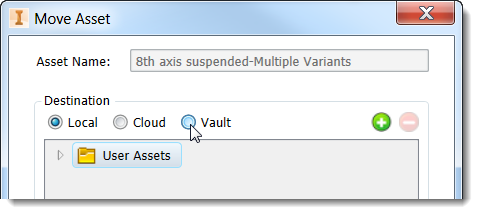
- Click OK.
Updating layouts with assets from Vault
There might be times, particularly with older layouts, where Vault is storing a version of an asset that is newer than the one in your layout. Complete the following steps to quickly and easily update the layout.
- Click
Update Assets in the Inventor Factory ribbon to display a list of out-of-date assets.
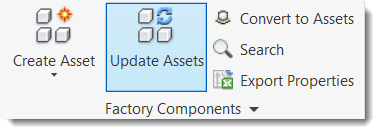
- Select the checkbox next to the placed assets to update. Hovering the mouse anywhere in a row highlights the corresponding assets in the layout to help you easily identify what will change.
- Select the Include assets in sub-layouts checkbox to also update assets that are placed in subassemblies.
- Select Update. The status changes to Successful when asset updates are complete. If an update fails, hover your mouse over the status to see the reason.
Updating Vault assets in the Asset Browser
You can update a single Vault asset, or batch update assets from Vault with just a few clicks.
- In the Asset Browser, select the Vault Assets folder.
- Navigate and right click on the Vault Assets folder or subfolder containing the assets to update and expose the context menu options.
- Select Update Assets from the context menu.
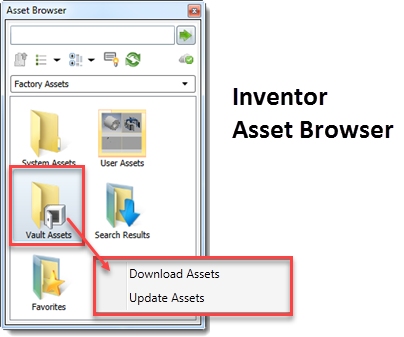
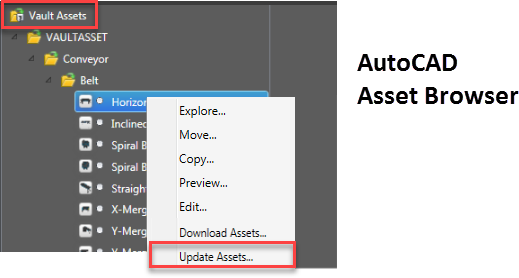
Once the assets are downloaded or updated, your assets will be up to date with the most current asset data.
Downloading assets from Vault
Downloaded Vault assets are stored on your local hard drive in a folder called FactoryCloudLibrary. They are then available for all factory layouts even when you are not connected to the Internet. If a newer, updated version of a downloaded asset becomes available, it appears in the Asset Browser with this icon
 .
.
To bulk download assets from Vault:
- Select a folder from the Vault folder structure in the Asset Browser.
- Right click to access the list of context-menu options.
- Select Download Assets.
All of the assets in the Vault assets are up to date with the latest asset data.