Create a factory tooltip for key parameters that displays in the Factory Properties dialog.
Create a custom Factory Tooltip that displays when you hover over the parameter value in the Factory Properties dialog. Creating a factory tooltip provides you with a fast way to identify an asset parameter.
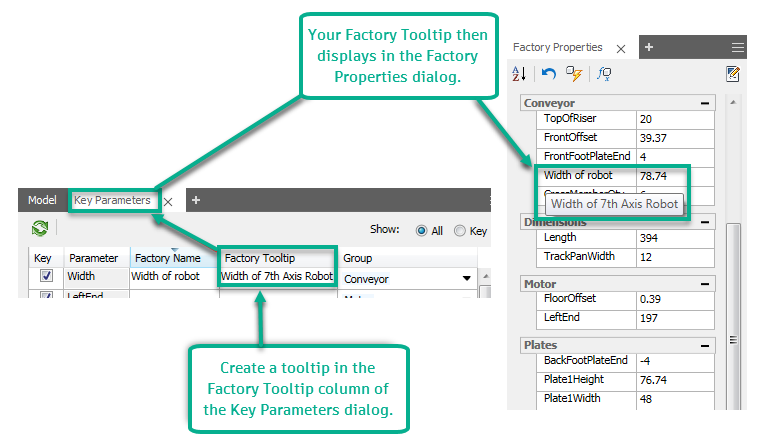
Note: If the Factory Tooltip field is blank, the Inventor parameter comment is used by default.
To create a custom Factory Tooltip in Inventor Factory:
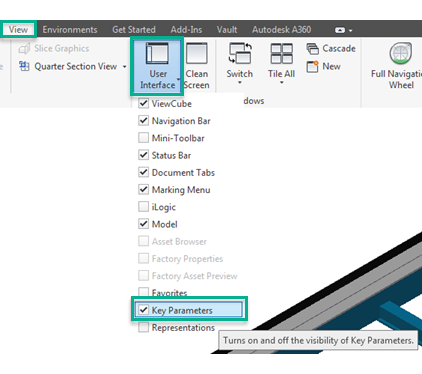
- On the
View tab
 Windows panel
User Interface option, select the
Key Parameters checkbox.
Windows panel
User Interface option, select the
Key Parameters checkbox.
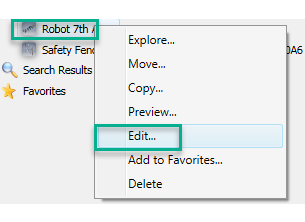
- Right click on the asset in the
Asset Browser, and then select
Edit from the context menu.
- Optionally, you can use the
Asset Builder
 to customize Key Parameters once the Asset is published.
- In the
Asset Editor Model Browser, select the
 next to the
Model browser tab.
next to the
Model browser tab.
- Select Key Parameters from the list.
- In the Asset Editor, add a factory-specific tooltip in the Factory Tooltip field of the Key Parameters dialog.
- Click
Finish Asset Editor
 from the ribbon.
- If prompted, in the Save Asset dialog, click OK to save.
- To update the asset instance with new properties, click
Update Assets
 on the Factory ribbon.
- To view your Factory Tooltip in the Factory Properties dialog, on the
Factory tab
Tools panel
Palettes menu, select
Factory Properties.
- Open the Factory Properties dialog, select the asset in the layout, and hover over a category to expose the tooltip.