Values for many of the parameters listed in the Factory Properties browser can be selected and edited to change the properties of an asset. Assets can also be moved from one layer to another. Any changes made to a selected asset only reflect in that specific instance. Changes do not affect the Factory Assets library.
To access the browser, click
Factory tab
 Tools panel
 Factory Properties from the
Palettes drop-down menu. You can also access the browser by right-clicking on an asset to display the context menu, and then selecting Factory > Factory Properties.
Factory Properties from the
Palettes drop-down menu. You can also access the browser by right-clicking on an asset to display the context menu, and then selecting Factory > Factory Properties.
The Factory Properties browser becomes populated with asset data when a parameterized asset is selected in a factory layout assembly. If a field is grayed-out, the value cannot change. If an asset is not defined for a category, the category does not display.
If a property value is derived from a key parameter expression included in the asset properties definition, you can hover your mouse over the value to view the expression. For example, "The height is 70in" might appear in the asset description; hovering over the field shows that the expression used to define the description is "=The height is <height>".
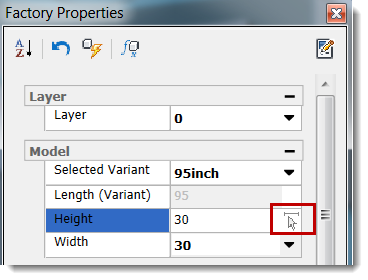
When updating a distance measurement (for example, height, width, or length), you can either type the value in the field or click the Measure icon to define the distance by selecting two points.
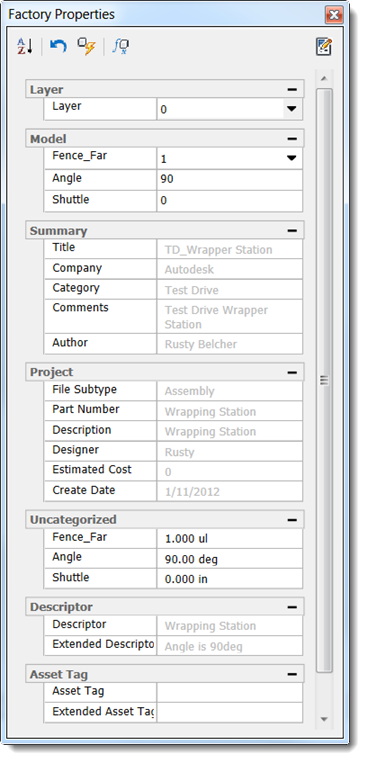
Factory Properties information is organized in the following categories:
- Layer: The layer name of the selected asset. If multiple assets are selected, the layer name appears as *VARIES*. Click to the right of the layer name to display a drop-down list containing the names of all layers defined in the current layout. You can move the selected asset(s) to a different layer by selecting the desired layer from the drop-down list. If the selected asset is an asset variant, the Selected Variant option appears below the layer name in the Layer section. Click to the right of Selected Variant to display a drop-down list containing each of the parameters assigned to the asset variant. You can modify the asset by selecting a different variant parameter from the drop-down.
- Model: Modeling parameters that have been specified as Key Parameters within an asset. Model parameters are defined using the Inventor Parameters command.
- Summary: Properties defined in the Asset Properties Summary tab when the asset was created
- Project: Properties defined in the Asset Properties Project tab when the asset was created
- Customizable: Parameters represent specific
iProperty and user-defined values entered when creating the asset using the
Asset Properties command. These properties are organized based on categories defined when creating assets. To update a custom property, click
 in the upper right corner of the browser.
- Descriptor: A description of the asset. Descriptors have general information about an asset such as the manufacturer, model name, and model number. Each copy of the asset has the same descriptor. An extended descriptor contains additional information about the asset; for example, "straight conveyor with variants" indicates that variations of this asset are available for selection when placing the asset.
- Asset Tag: A tag associated with the asset. Asset Tags have specific information about a particular asset, such as the company inventory number, the asset serial number. Each copy of an asset can have its own asset tag.
For more information about modifying placed assets using the Factory Properties browser, see Inserting Factory Assets.