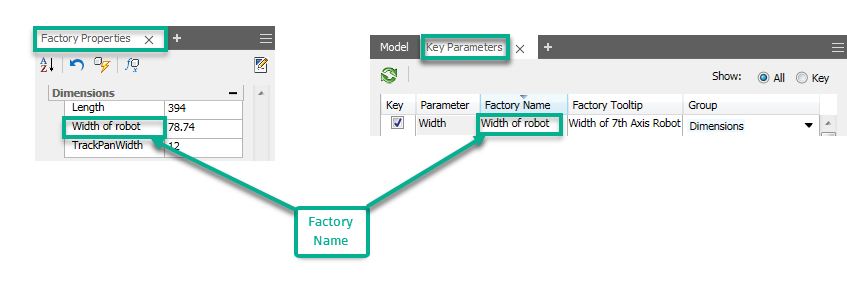
Create a unique Factory Name for your key parameters to display in the Factory Properties dialog.
Create a unique Factory Name for your parameters so you can quickly identify the parameter in an asset instance and quickly understand what that parameter represents. This custom Factory Name is entered through the Asset Builder or Asset Editor, in the asset definition for key parameters, in the Factory Name column of the Key Parameters dialog.
Your custom Factory Name persists throughout your session if the Key checkbox is selected, the Show setting is changed, or if a change is made to your group assignments. Only parameters that are selected as Key display in your layout after placing the asset onto your layout.
To create a Factory Name in Inventor Factory:
When creating a custom Factory Name for key parameters in an asset definition:
- Each parameter must have a unique Factory Name.
- Assigning a Factory Name is optional.
- The Inventor parameter name is used by default if a Factory Name is not defined.
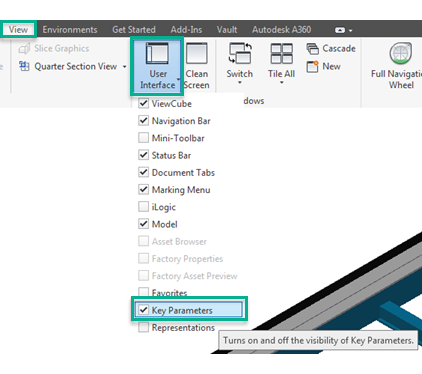
- On the
View tab
 Windows panel
User Interface menu, select the
Key Parameters checkbox.
Windows panel
User Interface menu, select the
Key Parameters checkbox.
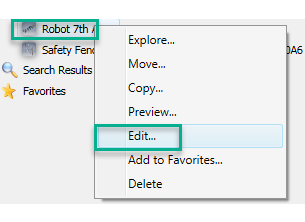
- Right click the User Asset in the
Asset Browser and select
Edit from the context menu to open the Asset Editor environment.
- Optionally, once an asset is published, you can select
Asset Builder
 from the
Factory Assets panel on the
Create Asset tab to customize Key Parameters in the Assert Builder environment.
from the
Factory Assets panel on the
Create Asset tab to customize Key Parameters in the Assert Builder environment.
- In the
Asset Editor Model Browser, select the
 next to the
Model browser tab.
next to the
Model browser tab.
- Select Key Parameters from the menu.
- In the Key Parameters dialog, type in a unique Factory Name to display in the Factory Properties dialog. This unique Factory Name also displays in AutoCAD Factory, Vault Factory, and Navisworks Factory Properties.
- Click
 from the ribbon.
- If prompted, in the Save Asset dialog, click OK to save.
- To update the asset instance with new properties, click
 on the Factory ribbon.
- To view your Factory Name in the Factory Properties dialog, on the
Factory tab
Tools panel
Palettes menu, select
Factory Properties.