To maximize the efficiency of your workflow, and reduce the number of mouse clicks, you can now create new ribbon tabs, or new panels on existing tabs, to include the commands you use most frequently.
Commands are located on the ribbon, and organized according to their function. For example, the Home tab contains the commands required to set up a basic analysis. The Reports tab hosts the commands for generating a customized report. If you find that you only use a few commands on each tab, and would like to locate them all on the same tab, you can create a custom tab with only those commands. Alternatively, you can add a new panel to your most frequently used tab, containing the remaining commands that you need. In this way, you can access all your frequently used commands, without having to switch tabs.
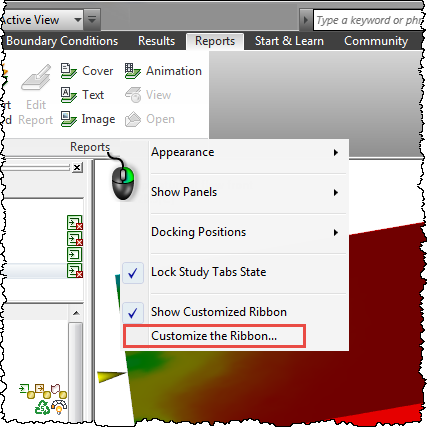
To create your customized ribbon, right-click anywhere on the ribbon, and select Customize the Ribbon. Your customized ribbon is shown by default. If you want to hide it, uncheck Show Customized Ribbon.
In the Customize Ribbon dialog, you can:
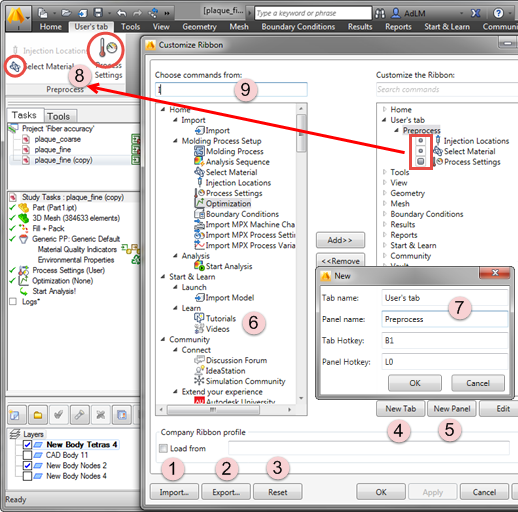
- Import a customized ribbon as an .xml file. If you have a company ribbon profile to use, click Load from, and navigate to the folder where it is saved.
- Export a customized ribbon as an .xml file
- Reset your customized ribbon back to the default settings
- Create up to 27 ribbon tabs, customized according to your requirements
- Create up to 21 ribbon panels on single tab
- Add up to 75 of your most frequently used commands on a single panel
- Rename customized ribbon tabs and customized panels
- Make the icon large or small to fit the panel better
- Search for commands, if you don't know which ribbon to find them on