Get acquainted with the range of controls for solving simulations and analyzing the results.
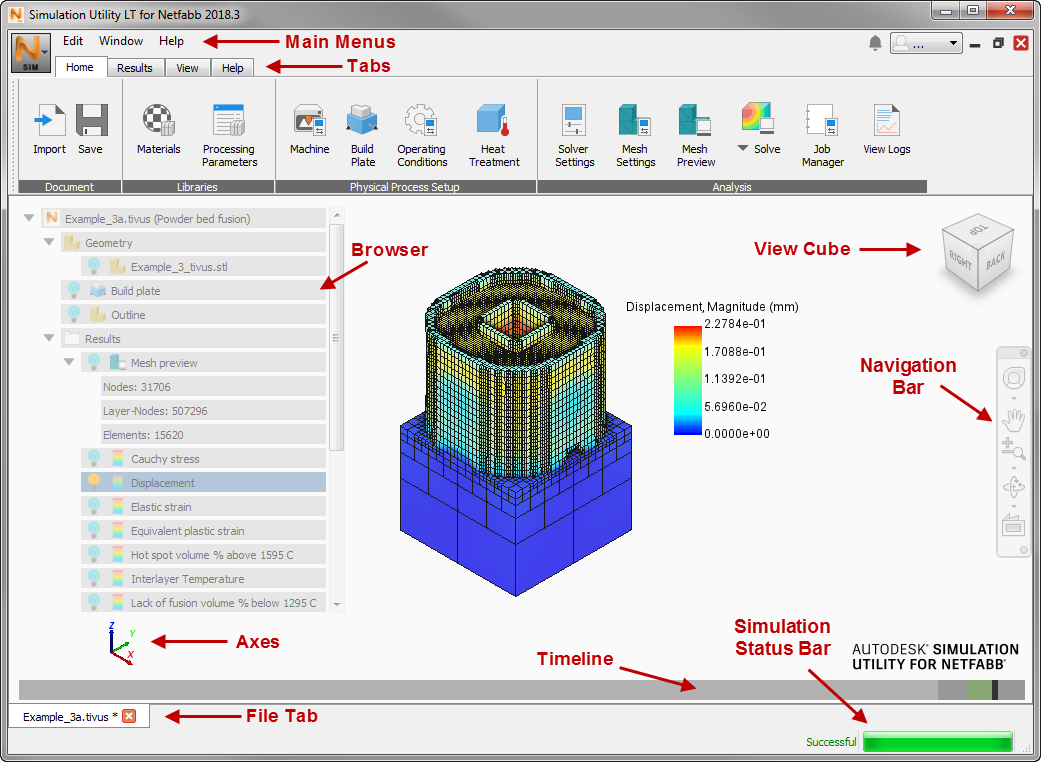
- Main Menus are used for project settings, management of files and windows, and access to the Help and product information.
- Tabs are used to separate simulation tasks into pre-processing tasks on the Home tab, post-processing tasks on the Results tab, and View operations on the View tab.
- Pointer Help is used to access brief tooltips about interface controls. When you click the icon and the cursor changes to a question mark, click on a control for which you want information.
- Browser displays geometric details of the part, the simulation results, and named views of the part.
- View Cube and Navigation Bar provide intuitive tools for controlling the part view.
- Axes move in synch with the part model to always show the alignment of X, Y, and Z axes, which is handy when you are resizing a build plate, or moving a part.
- Timeline shows the stages of the simulation, such as printing, cooldown, and substrate removal. Slide your cursor along the line to see a label for each operation, including the time stamp and increment number.
- File Tab identifies the file displayed in the window; if you open multiple files or create other windows of the current file, each file or view is represented by an additional tab here.
- Simulation Status Bar displays the progress of a simulation or a mesh preview after you click Solve or Mesh Preview.
The following sections explain the menus, tabs, and controls of the user interface.