In Netfabb, generate supports for use in Simulation Utility.
Video length (2:45).
In this tutorial, the concept of homogenization of support structures is shown, and it is demonstrated how to use Netfabb and Simulation Utility together for the efficient modeling of support structures.
Sample files for use with the tutorials are available on the Download Page.
Homogenization
In the figure below, on the left lattice support structures are shown. The volume fraction is small, meaning that only a small portion of the total volume of the support region is occupied by solid material. Meshing the fine lattice features adds a significant amount of small elements and thus degrees of freedom, which extends the run time of the simulation and increases the required memory usage.
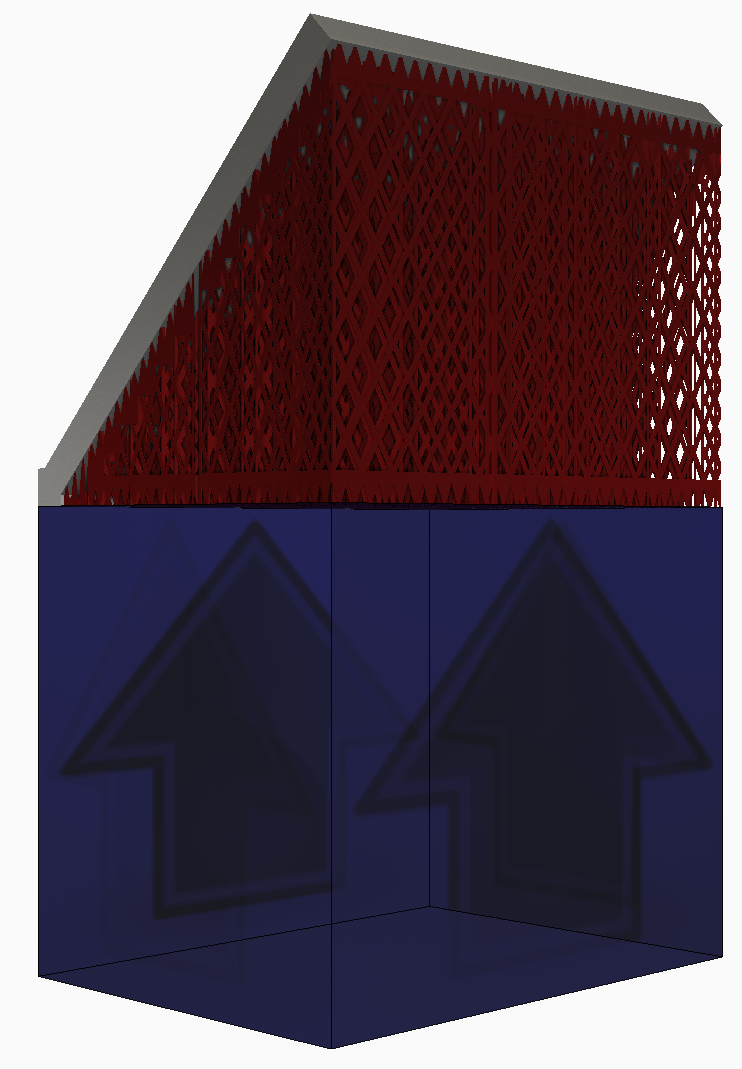
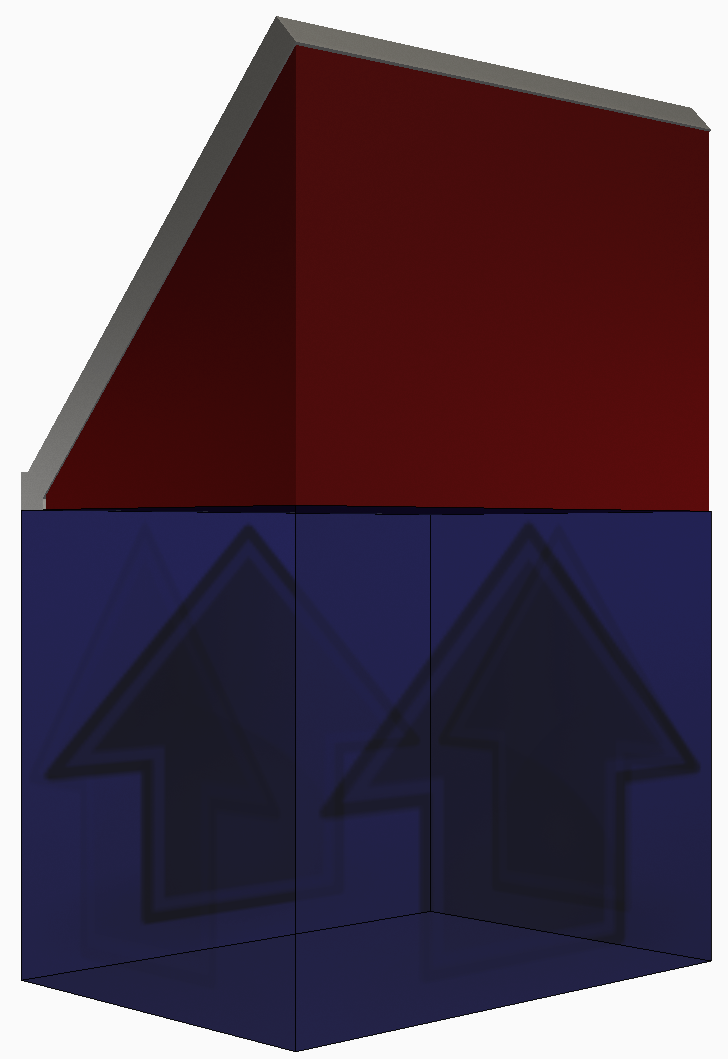
To improve modeling efficiency, it is advised that users always implement support structure homogenization. Homogenization uses a volumetric type support structure that fills the same volume as the support which will be printed. The volumetric support can be coarsely meshed which will reduce both memory consumption and computational times. To ensure the homogenized structure will exhibit the same thermo-mechanical behavior, the material properties of the homogenized structure are scaled by the volume fraction of the nominal support structure. Consult the Documents page for further details about the homogenization process and how to manually calculate volume fractions for support structures generated outside of Netfabb.
To generate the supports in Netfabb
- In
Netfabb, click
.
- Click and add the sample file Example_15.stl .
- In the left pane, make sure that
Force parts above platform is not checked, then click
Create Supports.

- At the bottom of the window, click
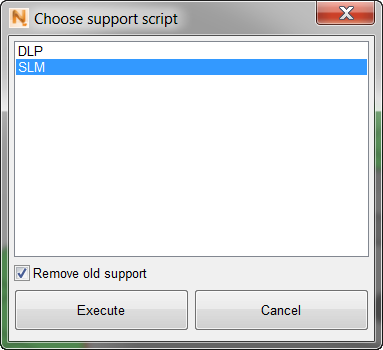
Run Support Script, select SLM, and click Execute.
The lattice-like supports are created.
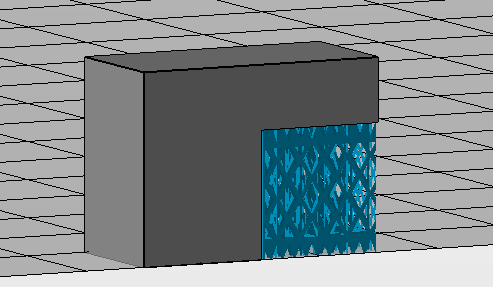
- Click Apply support.
- Click Simulate Process; in the dialog that opens, enter a suitable file path and name, such as Example 15, leaving in place the file extension .3mf.
-
In the Simulate process dialog, select Unify support volumes for simulation, which runs a simple repair process to improve the mesh quality. Also select the Simulation Utility version, if both are available, and click Start Simulation.
The exported file opens inside the Simulation Utility window, on a large build plate. Note that the lattice support has been replaced with a solid block.
To modify the support in Simulation Utility
- On the Home tab, click .
- To resize the build plate, click the Snap to X and Y button.
- In the Browser, right-click on the support structure, which has a name that includes
_hulledsupport_, and select
Edit Geometry.
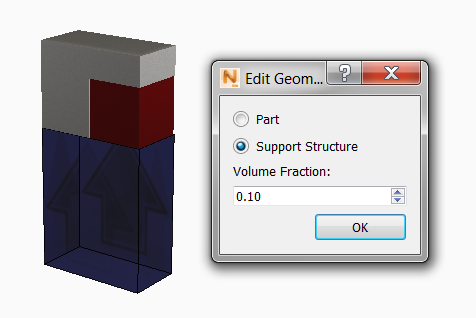
Note that the Volume Fraction brought over from Netfabb was automatically calculated at 10%. Click OK. Next, generate a mesh preview to see the results of homogenization.
- On the Home tab, click
Mesh Preview and save the project in a suitable location.
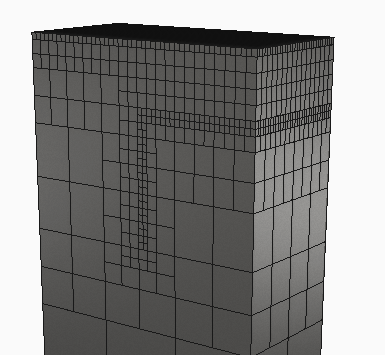
Upon viewing the results observe that coarse mesh elements are used where the part and support are near the build plate, and fine elements along the interfaces between the part and support. This part will simulate in a much shorter time than if the original lattice like supports had been used, while attaining the same predictions of thermo-mechanical behavior during processing.