The Netfabb user interface consists of the menu, the toolbar, the project tree, the context area, the quick access menu, and the display. Additional elements are controls for clip planes, context menus.
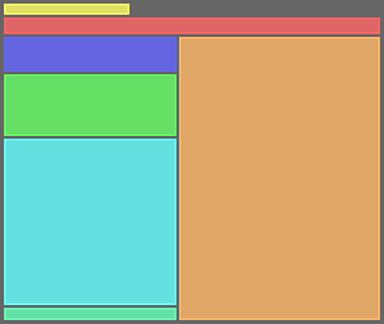
Main window elements in Netfabb's default layout. Counter-clockwise from top left: Main menu, toolbar, project tree, clip plane controls, context area, quick access, and display.
The default layout can be changed and the main window frames be rearranged, even released from the main window and placed as separate windows on the desktop, allowing to make best use of multi-monitor set-ups.
Main Menu
The main menu contains a number of commands for editing, preparing, analyzing, modifying, and arranging, and viewing your parts, among others.
- File: Contains commands for managing projects and the individual files contained in the project.
- Edit: Contains commands for interacting with the model. This includes selection, undo, redo, rename, and remove among others.
- Prepare: Contains commands for slicing, repairing, and supporting models. Most commands for getting your model ready for manufacturing, even with a specific machine, are found here.
- Analyze: Contains commands for assessing the model such as measuring, comparing meshes, and detecting collisions to name a few.
- Modify: Contains commands for adjusting the geometries.
- Arrange: Contains commands for orienting and organizing parts on the build platform.
- View: Contains commands that adjust how models are displayed and viewed.
- System: Contains commands for adjusting the settings of the application, organizing the layout, and accessing the other Netfabb utilities.
- Help: Provides access to the Netfabb help, the Netfabb website, general license, system, and warning message information.
Toolbar
Project Tree
The project tree lists all parts, slices, and structures contained in the model, as well as loaded modules.
Display
The display allows you to view your model on the build platform. By default, a generic platform is displayed. The display also shows any information, warning, or error messages at the top; these messages will be dismissed after a while. To view them, open the Warnings frame.
Context Area
The context area contains specific commands and functions based on the model state and the module you are working in. For many modules, the context area provides access to the main functions of the module.
Clip Planes
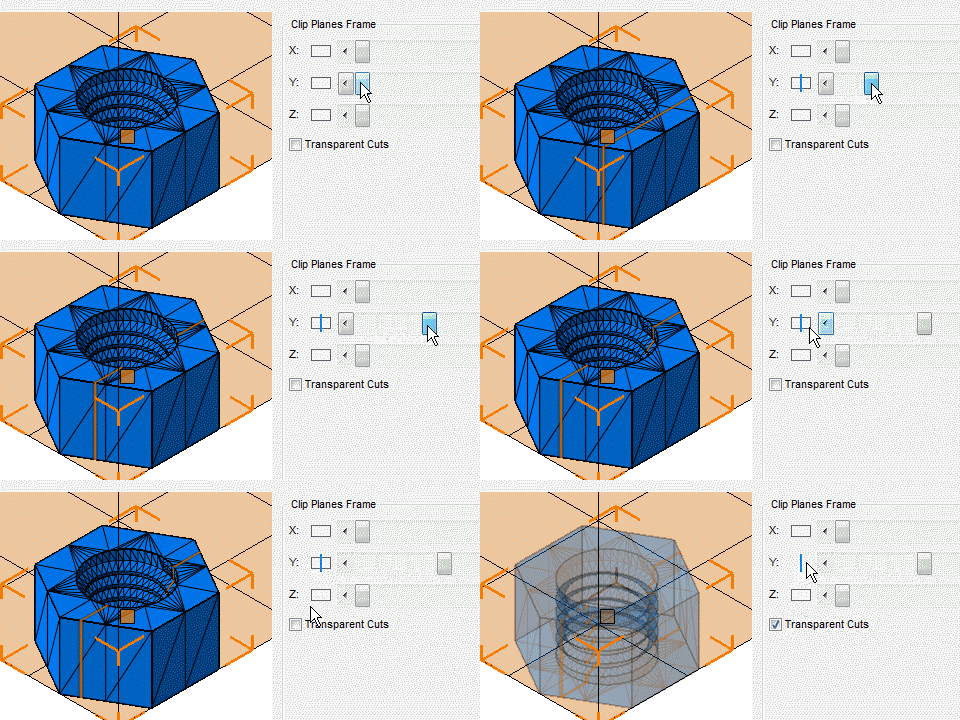
Use the clip planes to allow a look at the inside of a part
Quick Access
The quick access located at the bottom edge of the context area provides easily accessible commands based on the state of the context area.
Context Menus
Context menus are accessed by right-clicking a part, either in the project tree or in the display. Other elements have context menus as well, such as window frame headers.
Joblist
The job list is a detachable window frame where autonomous actions are listed. For instance, if you have multiple parts selected, and you apply a support script to all of them, the supports generation for each of the parts will be listed here.
By default, the joblist is not activated and not placed in the Netfabb window layout, and it will appear when needed. Using , you can open it manually.
Snapins
In some modules, an additional view is provided temporarily. This is the snapin frame, and it is used by the support module to allow manual editing supports in a 2D view, and by Texture & Color when aligning a texture. When activated via , this frame is always visible, and the views by the modules making use of it will appear there, otherwise the views remain as a new tab or overlay in the context area.
Warnings
In case there are any information, error, or warning messages to display, a dockable Warnings contains all messages since the most recent launch of Netfabb. Unlike the joblist, for instance, it is not opened automatically whenever a new message is available. Access the Warnings frame through .