Rearrange or detach the frames that make up Netfabb's window to suit your space and display preferences
The Netfabb user interface consists of several panes, or frames, arranged in a window layout. The layout of the interface can be adjusted by resizing, repositioning, stacking, even detaching the different frames that make up the interface. This can be especially useful on a multi-monitor workplace.
Select from default window layouts
Click
and select from
 Default,
 Classic, and
 Center.
Adjust the window layout manually
- Click .
- Click and hold the header line that appears around the title of the desired frame and move the frame to the desired location.
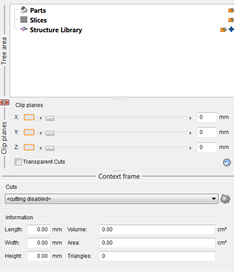
- Resize the frame using the
 splitter handle as desired.
- Repeat steps 2 and 3 for the other frames until the layout is arranged as desired.
- Click to preserve the current layout for next time you launch Netfabb.
Windows Zoom Settings
If you are using a machine with a relatively small monitor size and low resolution, you may experience difficulty accessing all features in the Netfabb display. If this occurs, you may have to adjust the default Windows zoom settings on your machine. To do so:
- Open the Display Settings by typing Display into the search field in the Windows Start menu and hitting Enter.
- Reduce the zoom level. A level of 100% is recommended.
- Restart Netfabb.
However, we do not recommend running Netfabb on resolutions smaller than 1280×1024.