Desktop
Once published, projects can be shared with others for collaboration. Access to sharing differs depending on platform, but the overall experience of adding and managing collaborators is largely the same.
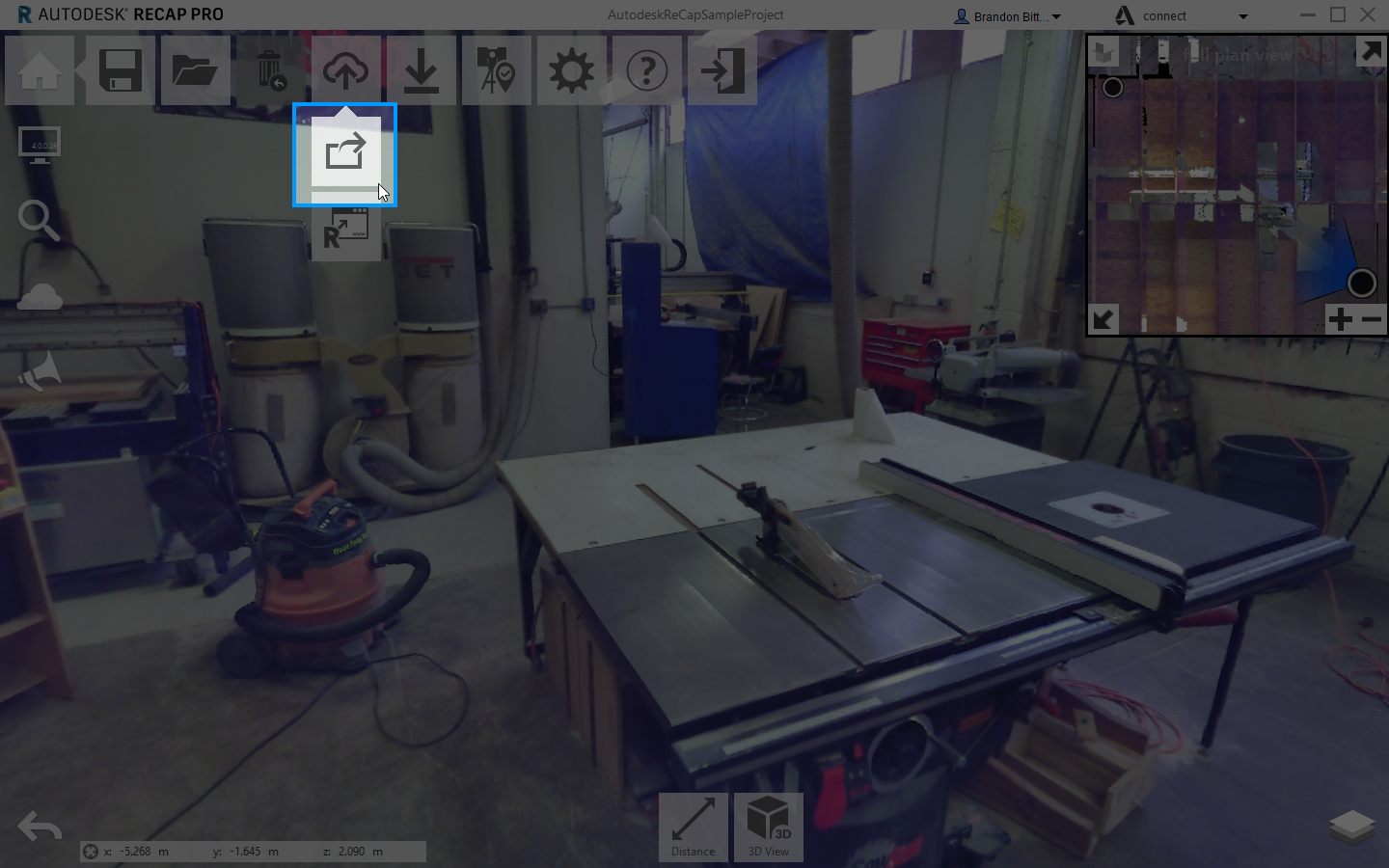
Desktop access to sharing can be found through the main menu:
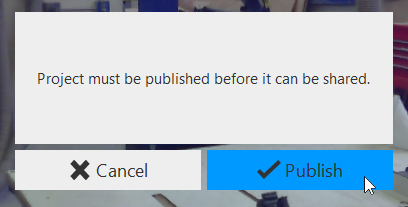
If your project has not been published yet, you will be prompted to do so.
Once publishing has completed successfully you will have access to the sharing management dialog.
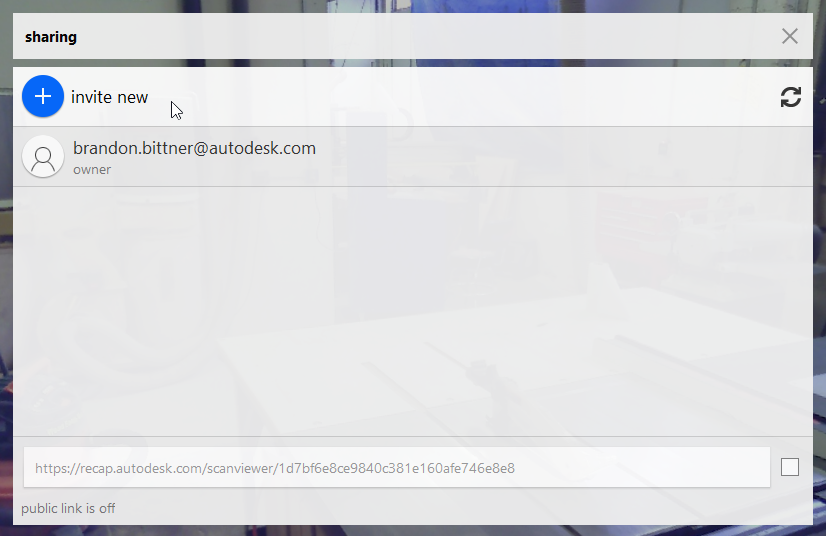
From here, you can manage the permissions of any active collaborator or remove them from the project. You can also activate a publicly sharable link to this project that will give anyone with the URL access to view the data in ReCap's web interface.
Toggling the public link on is as simple as flipping a switch.
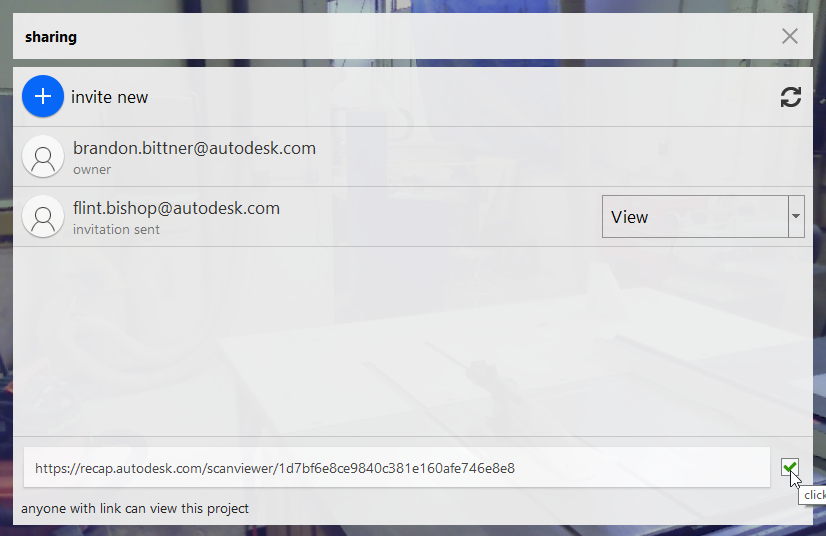
Note that a project being public in addition to being shared with specific individuals will not adversely affect the rights of either. Specific users with higher access as defined by the owner of the project will have different rights to the data than those who simply have access to the public link.
To invite new collaborators click the "invite new" button at the top of the collaborator list.
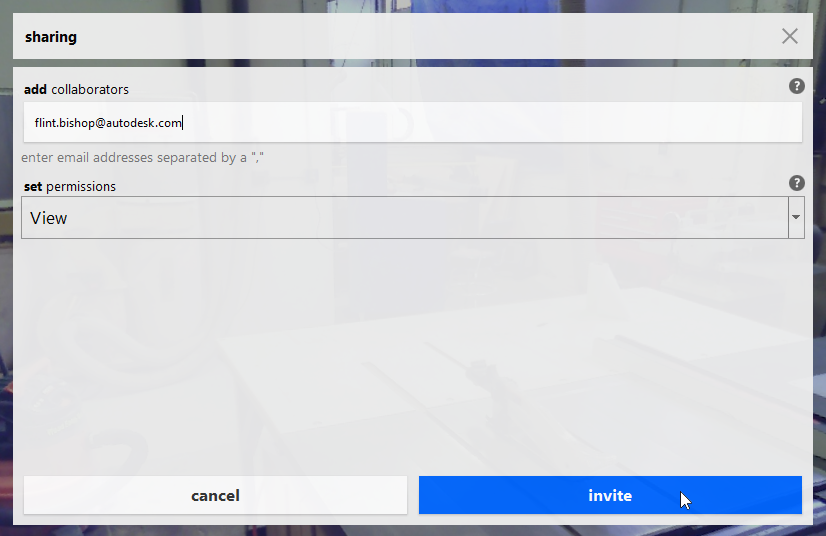
You can add as many collaborator emails as you wish, separated by commas. Permissions set at this point will be applicable to all individuals being added. Additional permissions management can be done after the fact, or by inviting individuals in unique groups depending on how you want to provide access. For more information on permissions, see Set Access Level. Once you are satisfied with your list click "invite" to continue.
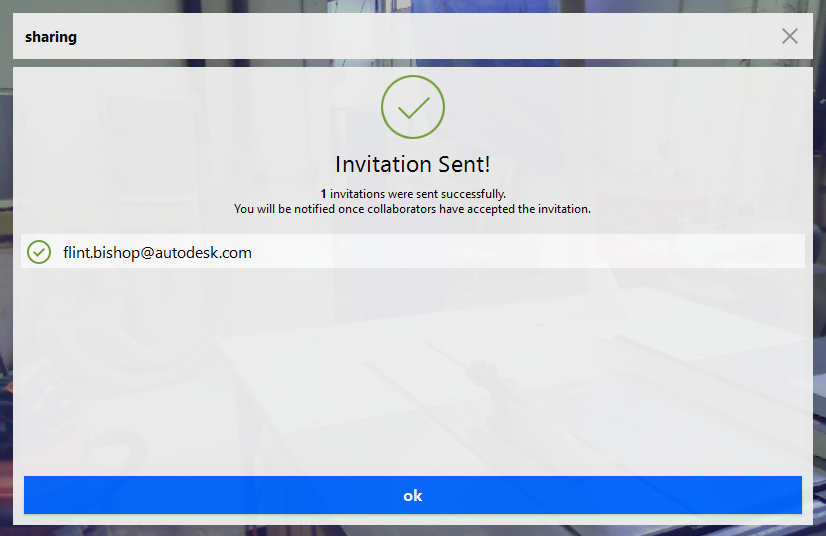
With invitations successfully sent you can now see the newly invited individuals have been added to the list of collaborators.
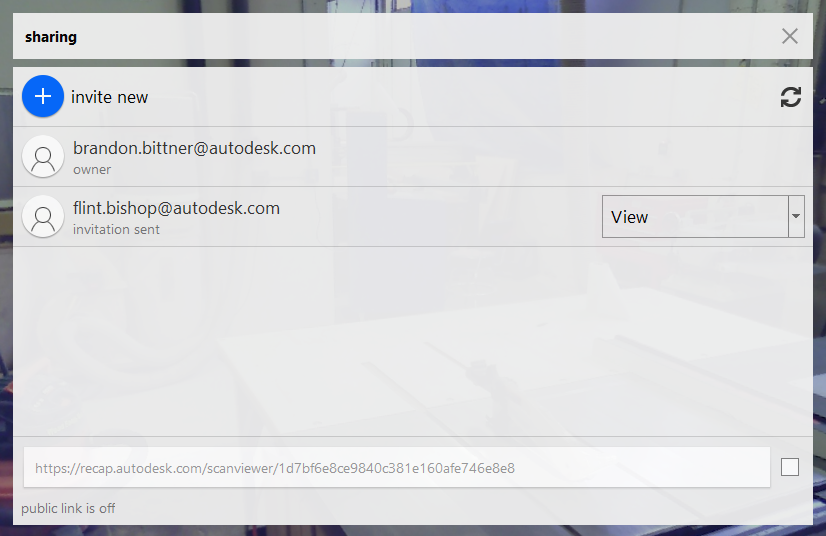
Invitation status will be updated as your selected collaborators accept the invitation to the project. You will also receive email confirmation once they have accepted.
Web
From the web application, simply login to gain access to your projects from your dashboard:
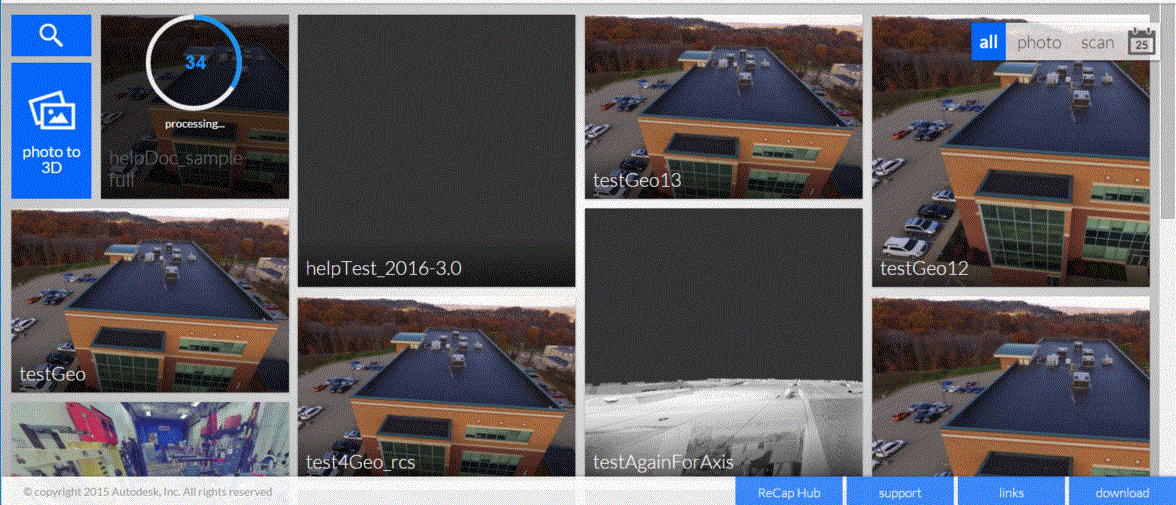
Hovering on any of the projects' menus will provide access to a list of contextual tools with options for sharing and managing the projects:
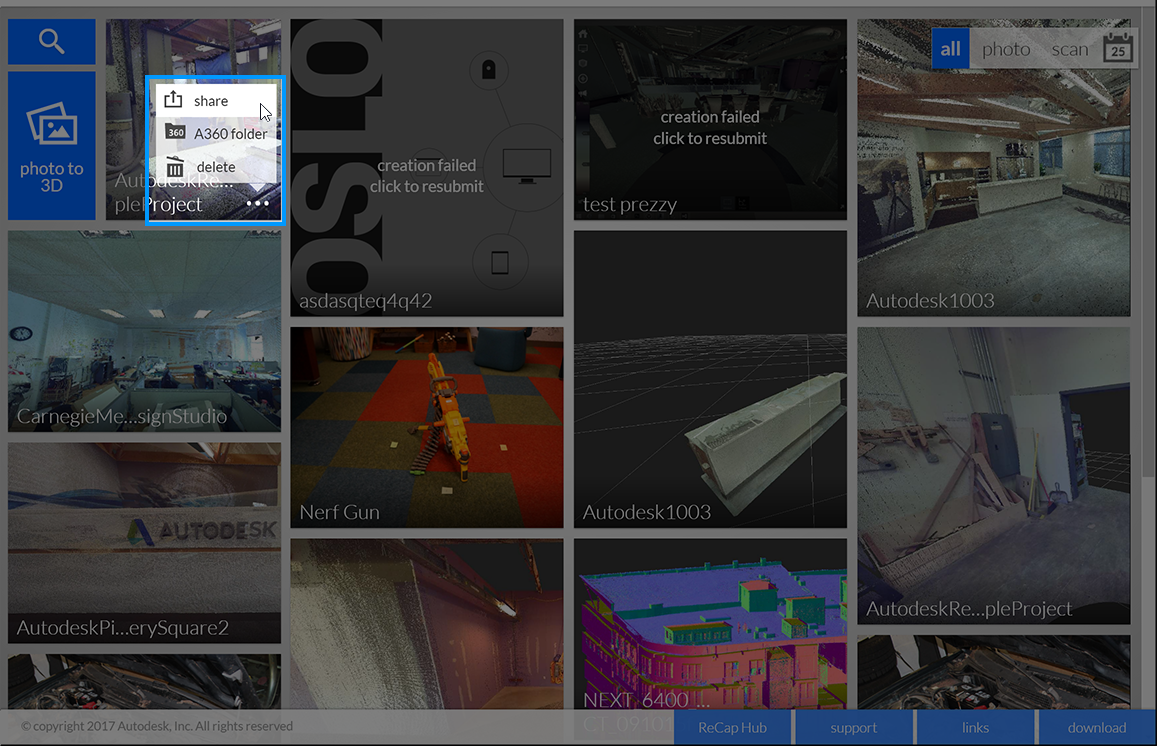
Additionally, the sharing dialog can also be accessed when viewing the project after clicking on the thumbnail.
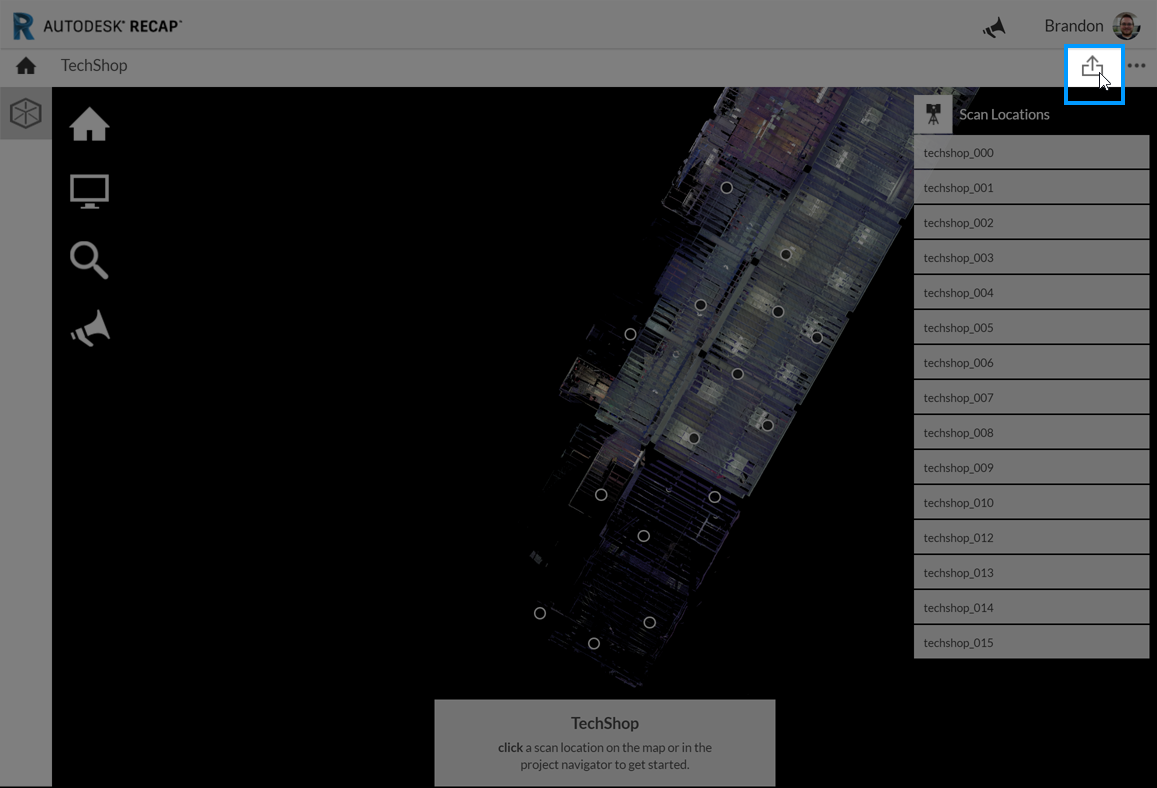
With the share dialog open, you have the same options to add new collaborators or toggle the public link on/off.
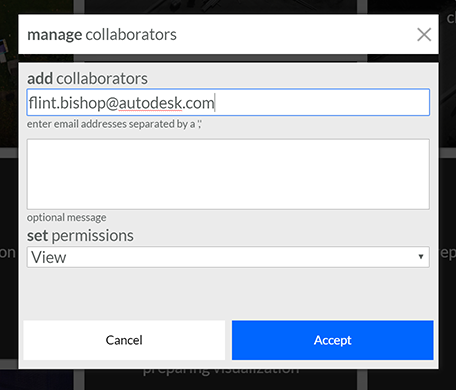
Once the desired collaborators have been added, clicking accept will send the invitation.
Collaboration
With the project now shared with multiple individuals it's possible to collaborate on the data. Changes made on desktop or web can be synced between the two applications by the project owner, allowing for rapid collaboration between multiple team members across varietal platforms.
To sync changes from the desktop application, after choosing the publish option from the Home flyout, you will be prompted to either update the currently published version or upload a new version:
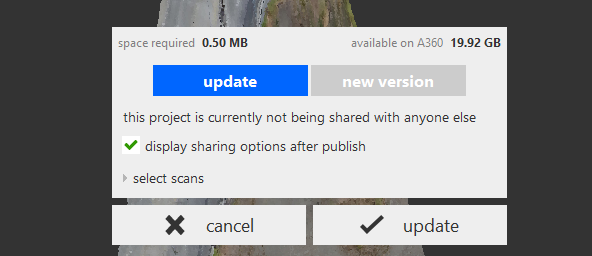
To sync from the web, simply re-share the project from the dashboard menu or download the updated version for use in your desktop application.