After exporting your photos into your desired formats, your projects will begin processing and appear on your project screen:
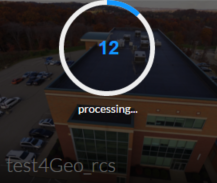
When your project has finished processing (stitching), you can then begin manipulating or navigating through your scene. Regardless of the exported format(s), you can click anywhere on the project's photo cover to open your project in ReCap's web interface where you can
- View your project in RealView
- Trim your project
- View textures and shading
- Navigate your scene using a range of tools
- Save your changes (provisionally)
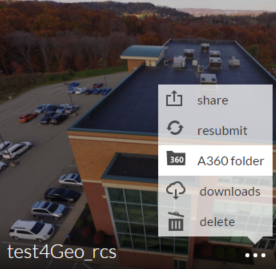
Or, you can hover over the bottom right of your project's cover to produce the menu represented by 3 dots:
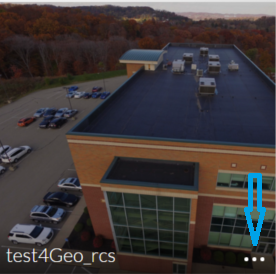
From this menu, you can
- Share
- Resubmit (to copy/rename the file, export as a new file type, or refine survey settings)
- View in your A360 Drive folder
- Download
- Delete
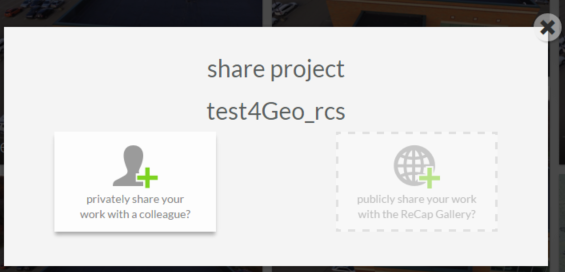
Share
ReCap offers the ability for you to privately share your project via email with whoever you wish. You also define the permissions for the user to specify at which level they can manipulate the file. You can also opt to share your project publicly with the ReCap community for feedback or to provide gallery examples of your photo or point cloud projects. For more information, see Publish and Share Data.
Resubmit
ReCap makes it easy for you to:
- Refine your project by adding or deleting photos and redefining survey points
- Rename and/or make a copy of your project
- Export your project in additional formats without having to re-upload your collection
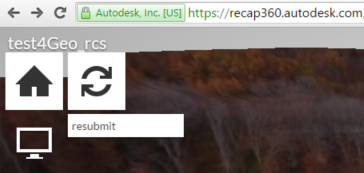
To resubmit your photo project, hover over the 3-dot menu and click "resubmit". Regardless of whether you have a ReCap Pro subscription or have purchased or been appointed Cloud Credits, the same export options will appear to you as when you first submitted your project. You can also resubmit from the RealView screen from the Home flyout menu:
Rename
Projects can be renamed from within your A360 Drive through the Options menu, however the new name will not reflect in ReCap's web interface. In order to rename through ReCap's web dashboard, you will need to resubmit your project and specify a new name. This will simply copy your project with the new name. When clicking Resubmit brings you to the "add photos" page, bypass the page by clicking "settings". You will be able to specify a new project name at the Export page. Choose the same export option and adjust the title if you wish to simply rename your project. After this point, if desired, you can delete the obsolete project with the old name from the dashboard.
View in A360
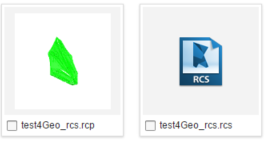
Opening your file's location in Autodesk's A360 Drive is simple and will both show your project in its native export format(s) and convert a second copy of your file to RCP format. You might use the RCP file to extract and input GPS data into some programs.

Download and Delete
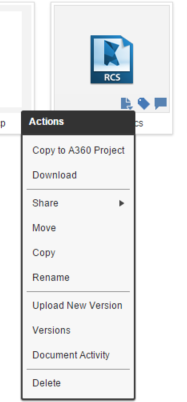
Downloading your file from either the ReCap or the A360 Drive web interface is simple. Simply click the 3-dot menu (ReCap) or the Actions menu (A360 Drive) and click your intended task.
Upload/Copy
In your A360 Drive, you can upload any type of file to store, share, copy, and maintain version control. You can access your ReCap projects through your A360 Drive and download or share with colleagues, but you cannot view or manage ReCap projects through this site. Keep in mind that your RCP file exports will only be available for download through A360 Drive, not ReCap's web interface.