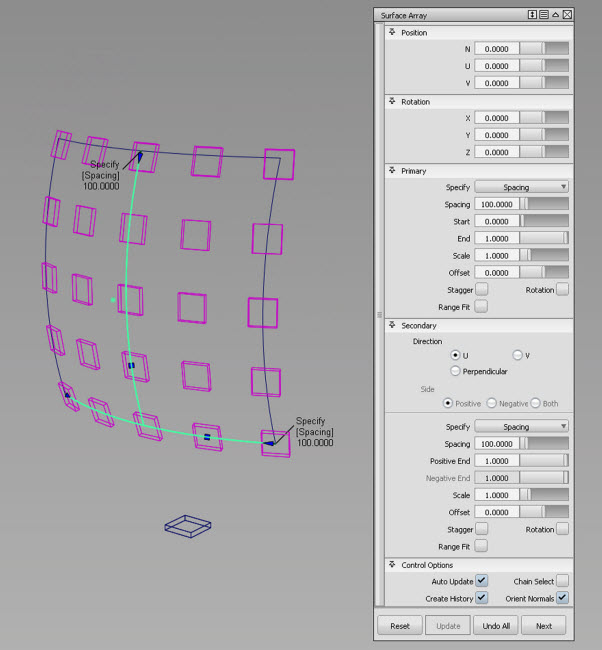
How to create arrays of objects, either linearly or radially, from duplicates of an original object (or set of objects); and how to create arrays across surfaces in multiple directions.
Create an array of similar objects from an original
- Choose Transform > Array

 .
. - Select (or box-select) the objects to duplicate.
- Click the Build button in the view window.
The array is built.
Note: If Number is 1 along both axes, you only see the original objects. - Adjust the options in the control window.
If Auto Update is on, the array updates automatically. Otherwise click the Update button.
Array Example
Below, the Array tool is used to create a grill array from a single hexagonal curve. The array of curves is then projected onto a surface. The surface is trimmed, and draft surfaces are built around the holes.
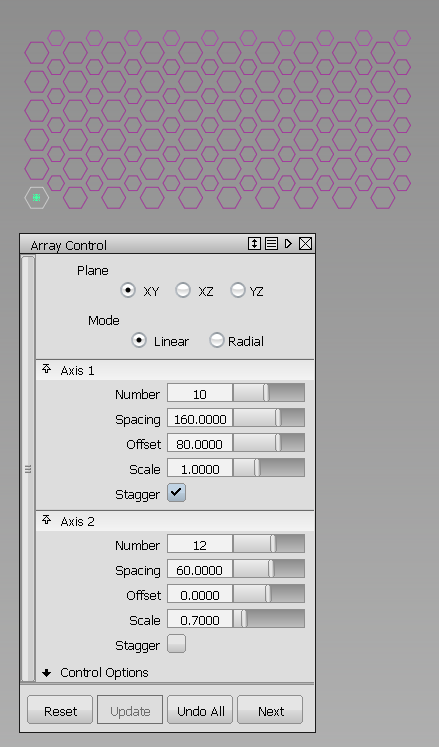
Option settings to create the grill array.
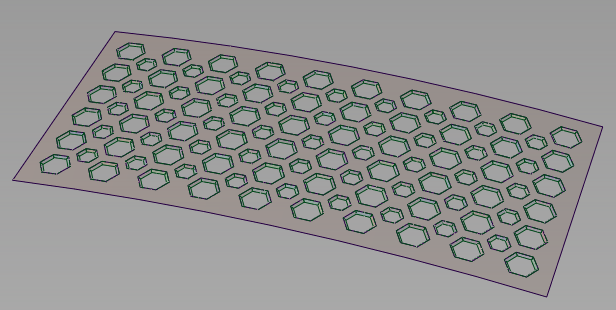
Finished grill after projection, trimming, and draft.
Create a Surface Array
- Choose Transform > Arrays > Surface Array

- Select the object to duplicate. Click Accept
- Select surface edge or curve on surface for the primary direction. The surface array is built. Note: If Number is 1 for the primary and secondary direction, you will only see the original object
- Adjust the options in the control window. If Auto Update is checked, the surface array updates automatically. Otherwise click the Update button.