A graphical representation of interpolation between animation keys that you can modify.
To open the Graph Editor:
- From the main menu bar, select .
- From the view menu bar, select > Graph Editor.
- You can switch to the Classic Graph Editor in the Preferences window. See and turn on the Classic option.
- This version of Graph editor was introduced in Maya 2017, if you are running an earlier version of Maya, only the Classic Graph Editor is available.

Maya's Graph Editor is an updated version of the legacy Maya Graph Editor, giving you a more intuitive approach to manipulating animation curves and keys in your scene.
- The Move Tool is no longer needed to move keys
- Tangents are non-weighted by default
- Interactive keyframes and the ability to isolate curves
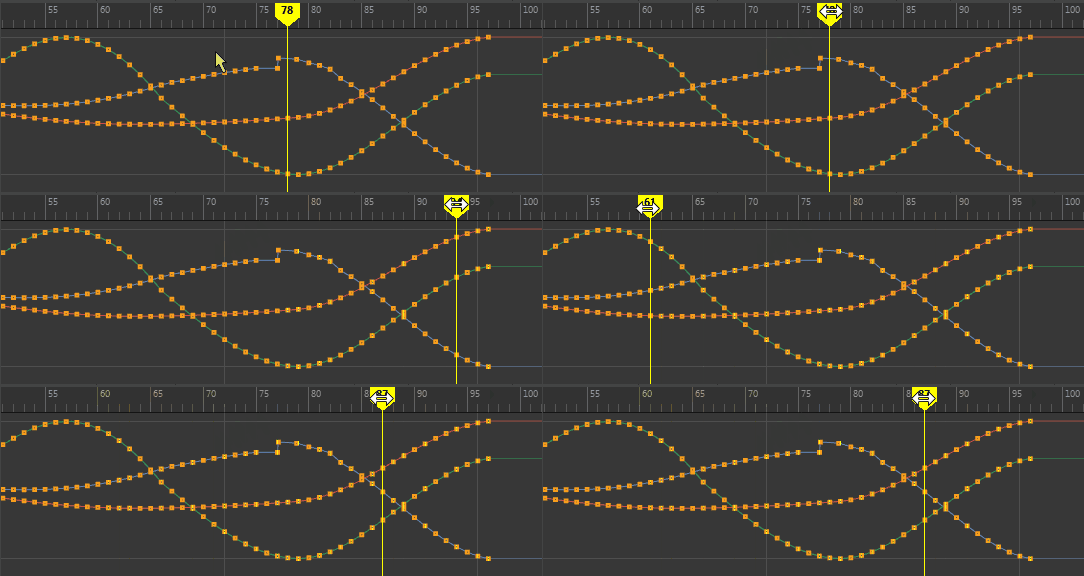
- Scrubbable Time Marker that moves anywhere you click on the Time ruler
- Resizeable play range
- Simplified view names. (Stacked Curves is now Stacked View , Display Normalized is now Normalized View and now there is an Absolute View.)
- Customizable key and curve colors (See the Graph Editor section in the Color Settings)
The following table provides a brief overview of tasks using the Graph Editor:
| To... | Do this |
|---|---|
|
Place the Graph Editor in a scene view |
Select the scene view in which you want the Graph Editor to appear, then select . |
|
Turn on Pre-selection highlighting in the Graph Editor |
In the
Graph Editor menu bar, turn on
.
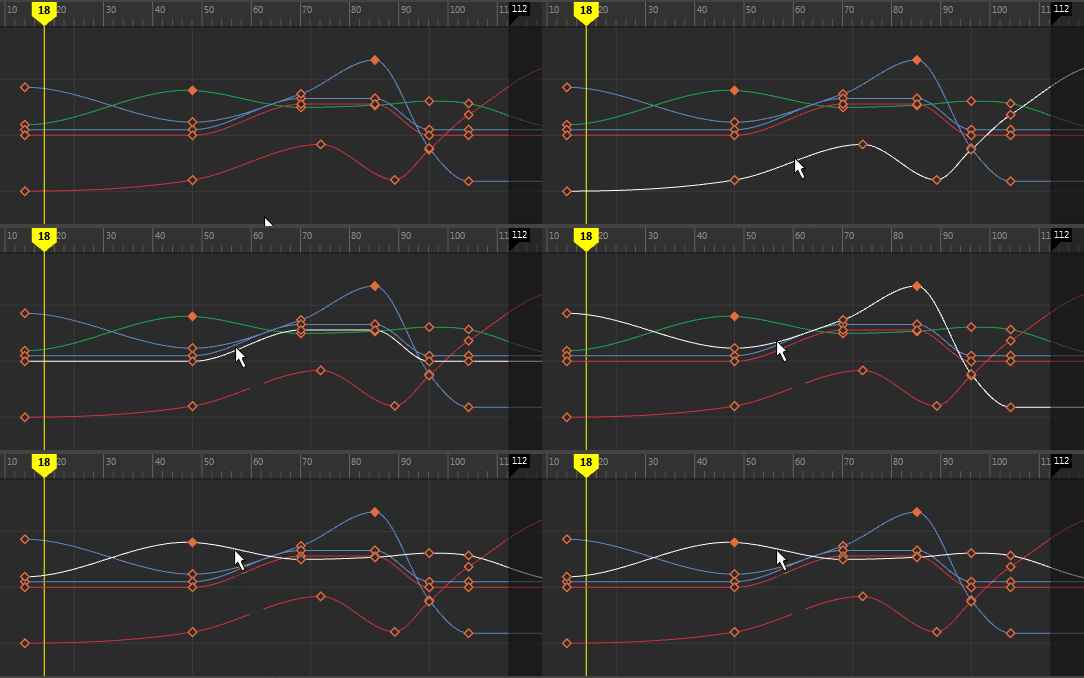 Tip: Change the highlight color with the
Colors
window. Select
, then change the
Pre-selection highlight option in the
Animation Editors section.
|
| Pan and Zoom in the Graph Editor | Same as Viewport navigation:
|
| Zoom on a curve | Select the animation curve (see
To select a curve,below) and click
F to frame the selection.
 |
| Resize the Playback range | On the Time Ruler, click the edge of the dark region and drag to change the playback range. Stretch the playback range in the time view by dragging the flags on the Time ruler.
 |
| Scrub animation | Drag the Current Time Marker.
|
| Lock a curve | Press
H to lock and
J to unlock a curve.
 |
| Move to the previous or next view | Use the square bracket hotkeys ([ and
]). These are the same hotkeys that let you move between camera views in the viewport.
 To navigate through views using these hotkeys, click in the Graph Editor then press left bracket ([) to move to the previous view, or right bracket (]) to move to the next view. |
|
Filter mangled Euler angles |
Select the mangled animation curves (for example, Rotate X, Y, and Z), then select . See Graph Editor Curves menu. |
|
Change the rotation interpolation type of existing curves |
Use the Change Rotation Interp option in the Graph Editor and Dope Sheet Curves. See Graph Editor Curves menu. |
| Select a key |
 Tip: Double-click
Move Nearest Picked Key Tool
 to open the options window, where you can set the
Direct Key Settings. See the entry for
Move Nearest Picked Key Tool in the
Graph Editor Toolbar topic. to open the options window, where you can set the
Direct Key Settings. See the entry for
Move Nearest Picked Key Tool in the
Graph Editor Toolbar topic.
|
|
Set an FK/IK key curve |
Use the Set IK/FK Key option in the IK/FK Keys menu (in the Animation menu set.) |
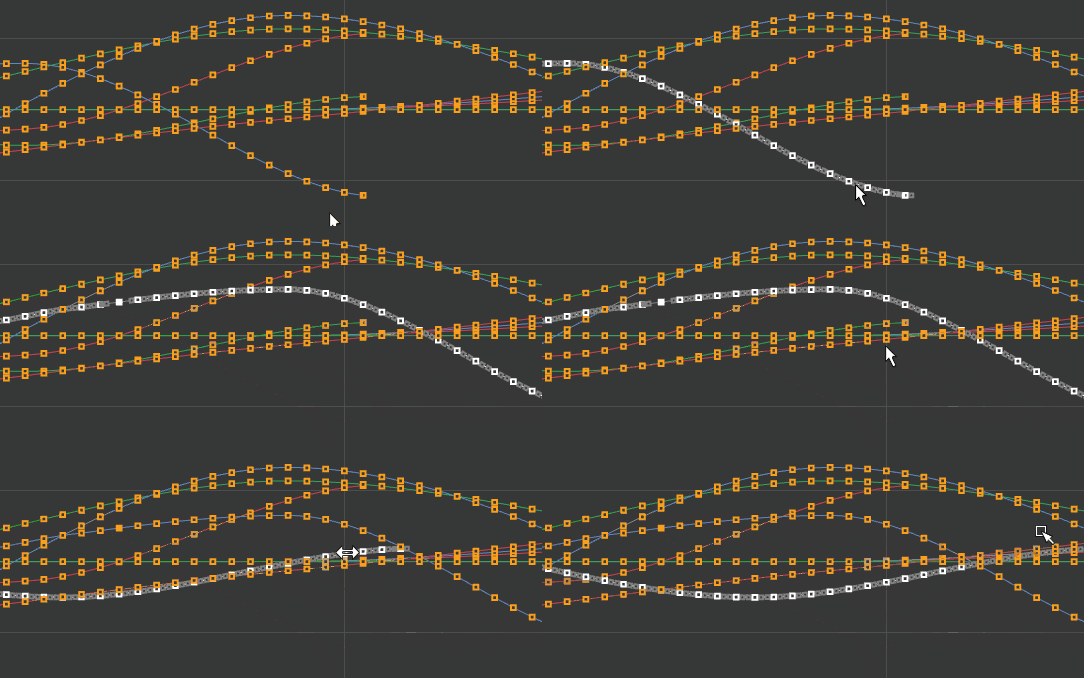
| Select a curve |
Curve selection is on by default.
 |
| Key types |
|
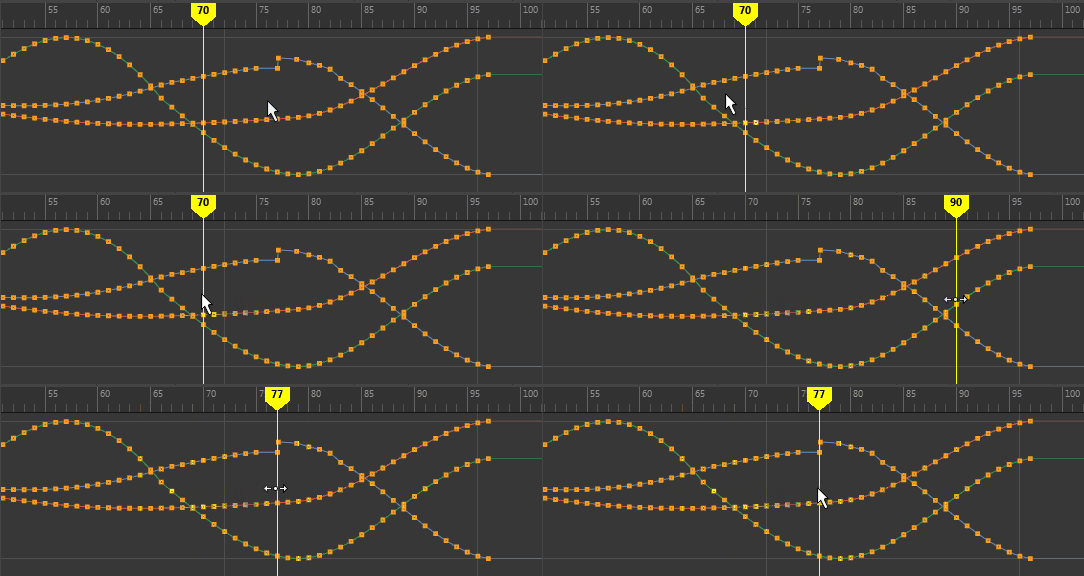
| Move a key | Select a key and drag it.
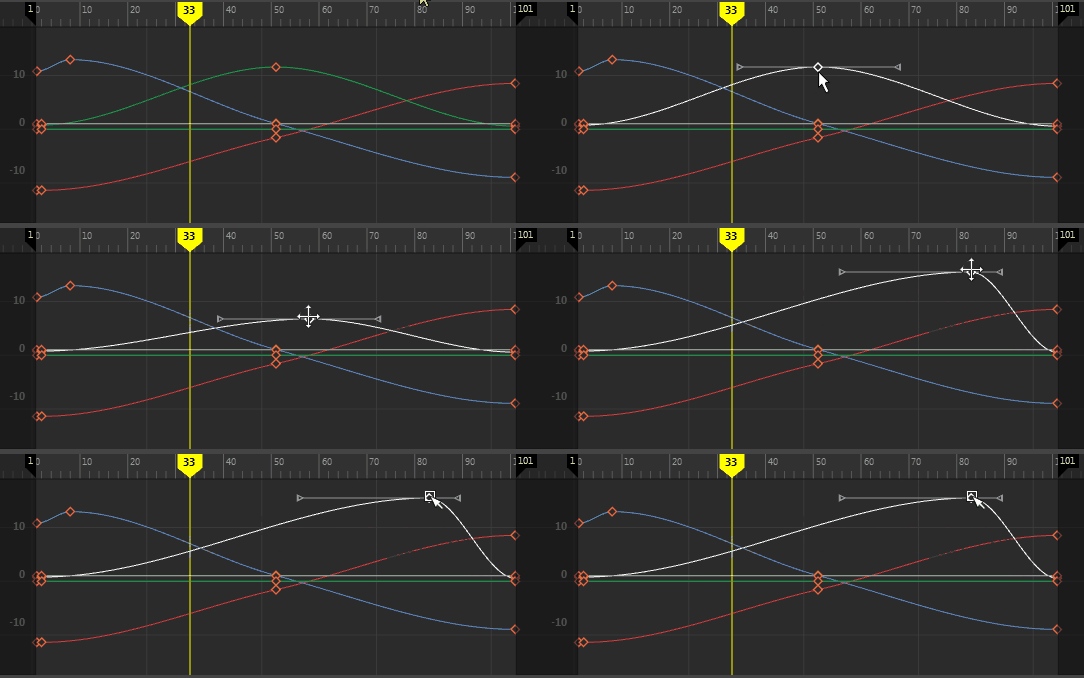 To open the
Move Key tool, select
Edit > Transformation Tools > Move Keys Tool > You can also middle-click an empty area of the Graph Editor and drag to reposition selected keys.  |
| Move multiple keyframes in time without changing the attribute value | Drag-select the keyframes to move. Shift-middle-drag the frames left or right.
 |
| Change views | Absolute view: Press
1
This view is the default. 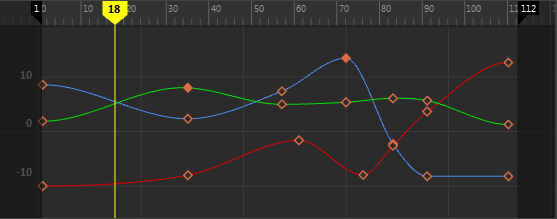
Stacked view: Press
2
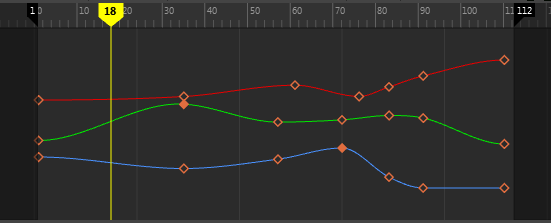
Normalized view: press
3
 Select to revert back. Note:
Curves are automatically renormalized when you turn on Display Normalized or the active curve list changes. |


 ).
).
 Diamond key: non-weighted tangents
 Square key: weighted tangents
 Circle key: a key on a quaternion curve (no tangents)
 Hollow key: A new key with 'automatic' tangents. The key is filled when you adjust the tangents to show that it has been edited.
