We are pulling in a step file to ensure that there are no changes in units or part names. Launching the software from a CAD tool may cause a slight variation in the outcomes shown.
Step 1: Start Autodesk® CFD and click New
- Start Autodesk® CFD from the Desktop or Windows® Start menu:
- Click New from the Start & Learn tab:

Step 2: Select the model file
- On the New Design Study dialog, click Browse.
- On the File manager dialog, navigate to the location of the files downloaded on the previous page.
- Select Geometry with Issues.stp
- Click Open.
Step 3: Create the Design Study
- Enter a Name for the new design study. This can be anything you want.
- If Model Diagnostic is not the active option, use the drop down menu to select Model Diagnostic.
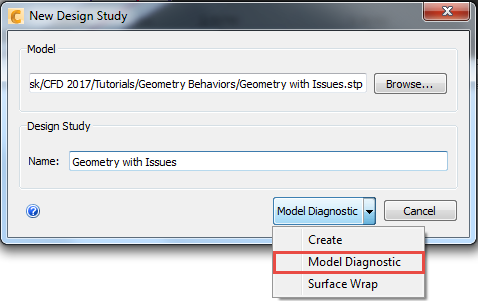
The Model Assessment Toolkit will open and run a diagnostic analysis.
Note: Wait for the Model Assessment Toolkit (MAT) to complete it's diagnostic analysis.