Collaboration Preferences
Learn about the collaboration preferences and how to set your profile and session address, as well as change avatar proximity fading.
NOTE There are two sets of preferences, Collaboration and Virtual Reality, that affect your experience in VR. See Virtual Reality Preferences for information on general VR and StarVR preferences.
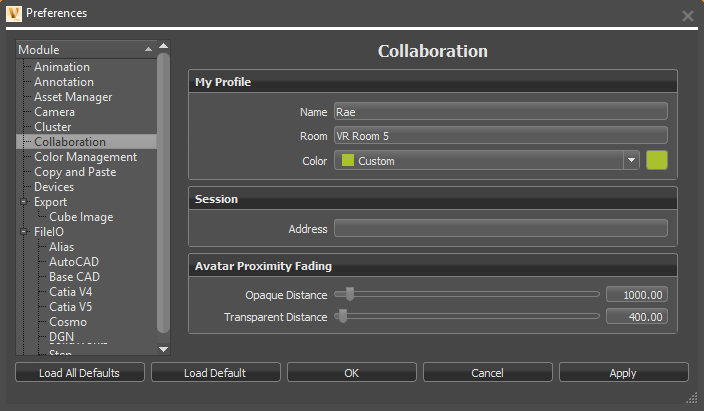
Use these preferences to set Collaboration module preferences, such as your name, room, and color, so these fields are automatically filled in whenever you enter a session.
My Profile
Click within each field and enter your information to setup your profile.
Name - Enter the name displayed in the Participant List and above your avatar. By default, your PC login is used.
Room - (Only for participants using HMDs) Enter the name of the VR room you are in. This let VRED know where you are in the same real-world space to avoid collisions.
NOTE For HMD users, all PCs in the same real-world space MUST set the same Room name. This tells VRED to enable safety mechanisms for these PCs to help avoid real-world collisions. See this section for how to set up a room.
Color - Select a color from the drop-down menu to set your color in the Participant List and for your desktop or VR avatar.
Session
Enter information for setting up a collaboration session.
Address - Click within the Address field and enter the IP address for the session or PC name for the server hosting the session. If you have a permanent server used for VRED collaboration sessions, add it here.
IMPORTANT This server must be running the cluster service to host the session and must be reachable on the network by all participants.
Avatar Proximity Fading
Set the distance at which other participants' avatar opacity starts to fade, becoming more transparent. When there are many HMD participants crowding around an area, the Avatar Proximity Fading settings fade out the avatars, so your view is unobstructed.
Python Functions for Avatar Proximity Fading
As participants get closer, the opacity of their avatar fades, becoming more transparent. These parameters set the threshold for distance at which your avatar begins to fade (Avatar Proximity Fading).
Opaque Distance - Set the distance of when your avatar's opaqueness starts to fade, using either the sliders or by entering numeric values. The default distance before your avatar starts to fade is 1000 mm (1 m).
NOTE: You can also use these Python functions to define the distance for when the regular avatar is shown and when it fades out:
```vrSessionService.setAvatarProximityTransparentDistance(value)Transparent Distance - Set the distance of when your avatar's transparency stops fading, using either the sliders or by entering numeric values. The default distance when your avatar stops fading is 400 mm (0.4 m).
NOTE: You can also use these Python functions to change the Transparent Distance of when the safety twin stops fading:
```vrSessionService::setAvatarSafetyTransparentDistance(maxDistance)
Here is how these work:
- If the distance is < minDistance, the safety twin is visible.
- If the distance is > maxDistance, the safety twin is hidden.
- If the distance is between minDistance and maxDistance, the safety twin is faded in.
How to Set Collaboration Preferences
- Select Edit > Preferences > Collaboration to set your profile and session information.
- Click within each field and enter information to setup your profile.
- When finished, click OK.