Converts and imports geometry, such as WIRE files and other supported file formats, to reference data (WREF) files. Using referenced data lets you to work with large data sets while maintaining interactivity in Alias, provides alternative shading and comparisons for design reviews, and supports collaborative workflows on design projects.
In addition, generating WREF files, the Reference Manager also provides several features that let help you work with referenced data, including:
- Real time notification of out-of-date and missing referenced or source data.
- Direct access to the locations of source geometry and their associated references.
- Ability to designate reference directories so that all referenced data can be centralized in one location.
- Ability to create alternative shading comparisons for design reviews.
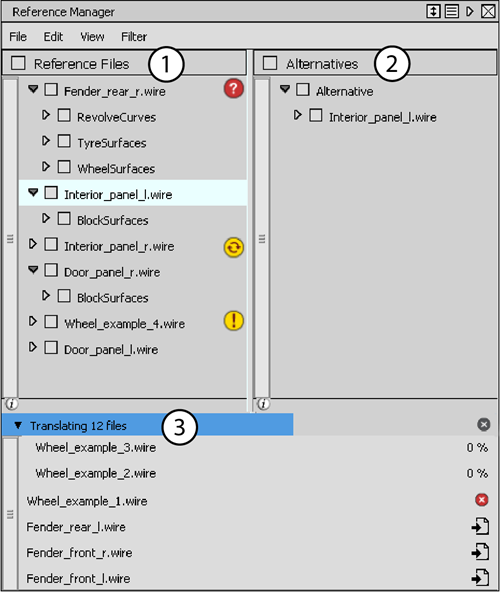
1. Reference Files
Displays the files and associated objects currently referenced in the scene. The Reference Manager provides current status of file references in the scene with the following icons.
| Reference Manager icons | Description |
|---|---|

|
The reference file is not up-to-date due to modifications to the source file. Clicking the icon updates the reference. |

|
The referenced file is missing. Clicking the icon re-imports the reference. |

|
Source file cannot be found. Clicking the icon displays a prompt to locate the file. |

|
Re-import reference |
2. Alternatives
Lists reference Alternatives of the currently referenced files. You can create Alternatives as a way to display different versions of a model or any associated parts of a model. For more information, see Work with reference Alternatives .
3. Translated files
Displays the files currently being translated and ones that have been translated using the Batch Translate command. Files displayed here have not been imported into the viewport.
| File translation icons | Description |
|---|---|

|
Clicking this icon cancels the translation. |

|
Indicates an error occurred during translation. |

|
Clicking this icon imports the translated file into the scene. |
Reference Manager Menus
File menu
- Import
-
Loads geometry from a WIRE file, or other supported geometry file types, into Alias as a reference. During the import process, Alias locates any existing reference files (WREF) previously generated from the source geometry file. If a reference file already exists, Alias loads the existing reference file in the viewport.
If a reference file does not exist, Alias converts the source geometry to a WREF file according to the tessellation settings in the Import Reference Options window (see Translate reference options below). By default, WREF files are saved to the set output directory (see Work with reference data). If a reference directory is not specified, you are prompted to save the WREF files to the same directory as the source geometry.
- Re-Tessellate Files
- Re-translates the selected referenced files according to the new tessellation settings in the Re-Tessellate Reference Options window (see Translate reference options below).
- Update All
-
Updates all the out-of-date references listed in the Reference Manager. A
icon displays beside a reference in the list to indicate that it is out of date and needs to be updated.
- Batch Translate
-
Converts one or more geometry files to reference WREF files according to the tessellation settings in the Translate Reference Options window (see Translate reference options below).
All file formats that can be imported into Alias can be translated to reference files.
Select the Use reference directory check box to save the reference files to the currently set working referenced directory, or browse to the desired directory .
- Cancel All
- Cancels any current translation operations.
- Set Reference Directory
-
Opens the Set Reference Directory window where you can specify directories for saving reference files (WREF). When you import files as references or translate files to references, Alias searches through the set reference directories to locate any existing instances of the reference.
Note: You can choose not to designate a reference directory and instead store reference files in source directory. Alias also searches source directories for existing reference files.Use the Add or Remove commands to manage reference directories. A
 icon displays to the right of currently set output directory. By default, all newly created references are saved to the output directory. To a set a listed reference directory as the output directory, click the check box to its right.
- Pack
-
Stores all your data in the same folder for easy transfer. This includes your wire file and all the reference files it points to.
- Import From Vault
-
Lets you import a reference file (WREF file) from Autodesk Vault into Alias. Reference files are found in the reference folder of a project (by default).
Edit menu
- Remove File
-
Removes the selected reference file from the Reference Manager, or from an Alternative.
- Remove Alternative
-
Removes the selected Alternative (on the right side of the Reference Manager window). This has the same effect as right-clicking on the Alternative and choosing Remove Alternative from the menu.
- New Alternative
-
Creates a new Alternative (on the right side of the Reference Manager window). If reference files were selected, they become part of the Alternative.
- Duplicate Alternative
-
Makes a copy of the selected Alternative. The copy is place below the selected alternative and called Copy of <alternative name>.
- Promote Geometry
-
Copies and transforms selected parts of the reference data into real geometry. (Use Pick > Pick Reference to select individual components in the view windows.)
- Promote Shader
-
Places the shader from the selected reference object in the Multi-lister, so it can be re-used. (Use Pick > Pick Reference to select individual components in the view windows.)
- Re-tessellate Objects
-
Re-tessellates the selected object according to the new tessellation settings in the Re-Tessellate Reference Options window (see Translate reference options below).
View menu
- Reference Files
-
Shows only the left side of the Reference Manager window.
- Alternatives
-
Shows only the right side of the Reference Manager window.
- Both
-
Shows both sides of the Reference Manager window (Reference Files and Alternatives).
- +/- All
-
Expands or collapses the content of all the reference files and Alternatives.
Filter menu
Choose what type of object to display in the Reference Manager window: Surfaces, Curves, Meshes, or Shells.
Translate reference options
These options are available in the Import Reference Options, Translate Reference Options, and Re-Tessellate Reference Options windows when you select the control box.
- Curve Tolerance
-
Chordal tolerance that controls the precision with which curves are drawn after being translated. A higher value will produce smoother reference curves.
- Surface Tessellator/Tesselator
-
Choose between Fast or Accurate tessellation. Fast tessellation might ignore some local details.
- Surface Tolerance/Tolerance
-
Controls how accurately surfaces are triangulated.
Right mouse button menus
This section describes the choices from the menu that appears when you right-click various items (reference file, alternative, layer, etc) in the Reference Manager.
Translations
- Import
-
Imports the reference file corresponding to this translation.
- Remove
-
Deletes the name of the translated file from the Reference Manager.
- Open Reference Location
-
Lets you cancel an ongoing translation.
Reference Files
- Visible
-
Toggles the visibility of the reference file. The file is visible when the check mark is displayed.
- Isolate
- Shows the selected reference only. The visibility of all other references is turned off. To enable visibility on the other references, toggle on the layer visibility or right-click and select Visible.
- Remove File/Remove File from Alternative
-
Deletes the reference file from the Reference Manager.
If the file is inside an Alternative, it removes it from that Alternative only.
- Revert Transform
-
Undoes all the transformations (move, scale, etc) applied to the Alternative and returns it to its original state.
- Show All Layers
-
Makes all the layers under that reference file visible.
Note:If you right-click Reference Files at the top level and choose Show All Files, all reference files become visible.
- Show All Files
-
Makes all the reference files under that Alternative visible.
Note:If you right-click Alternatives at the top level and choose Show All Alternatives, all Alternatives become visible.
- Visible
-
Toggles the visibility of the Layer. It is visible when the check mark is displayed.
- Symmetry Original
-
Shows only the original reference data.
- Symmetry Mirror
-
Shows only the mirrored reference data. It uses the symmetry plane set in Layers > Symmetry > Set Plane.
- Symmetry Both
-
Shows both the original and mirrored reference data.