Pick from a standard palette or create custom colors
Colors can be changed in Netfabb for parts, slices, other objects, and all visualizations. They are always changed in the Color dialog box, which provides every color of the spectrum. For parts and slices, you can change the color with the Change Display Color option on the context menu and the menu bar. Other colors are changed in dialog boxes or in the System Settings.
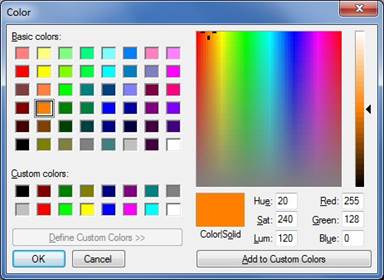
Color dialog box
Several options are provided for picking a color:
- Click one of the basic colors in the palette on the left.
- Click anywhere in the spectrum on the right.
- Adjust the brightness of the chosen color using the slider on the far right. The color is always white at the top of the bar, and black at the bottom.
The chosen color appears below the spectrum, in the Color|Solid field, along with the associated HSL and RGB values. The change of color is confirmed when you click OK.
To save a custom color for later use
- In the Color dialog, on the lower left, click a custom color block.
- Pick a color in the spectrum and adjust its brightness.
- On the bottom right, click
Add to Custom Colors.
The new color appears in the block you initially selected.
In the
 Settings, you can edit the default settings for every kind of coloration by double-clicking on the respective color.