About the various panes that can make up Netfabb's main window
 The classic menu has been removed.
Jump to:
- Main Menu
- Project Tree
- Display
- Context View
- Clip Planes
- Quick Access
- Joblist
- Snapin
- Warnings
- My Machines
Main menu
The main menu contains a number of commands for editing, preparing, analyzing, modifying, and arranging, and viewing your parts, among others.
-
 File: Manage projects and the individual files contained in a project.
- Edit: Control interaction with the parts, such as selection, undoing and redoing actions, renaming parts and deleting them.
- Home: Access the functions most commonly used during print preparation through only a single click
- Analyze: Measure and compare parts, detect collisions and check for removability
- Modify: Cut and merge parts, label them, generate hollowing cavities, and fill voids with lattices.
- Arrange: Orient and position parts on the build platform, or create caging.
-
 View: Control how parts are displayed and visualized.
 Sign in: Log into your Autodesk account to access your cloud storage directly with
Netfabb (Tech Preview)
Sign in: Log into your Autodesk account to access your cloud storage directly with
Netfabb (Tech Preview)
-
 Settings: Access application settings, the window layout, organizing the layout, and accessing the other
Netfabb utilities.
Settings: Access application settings, the window layout, organizing the layout, and accessing the other
Netfabb utilities.
-
 Help: Provides access to the
Netfabb online help, the
Netfabb website, general license, system, and warning message information.
Help: Provides access to the
Netfabb online help, the
Netfabb website, general license, system, and warning message information.
The main menu is the only frame that cannot be detached from the main window.
TopProject tree
The project tree lists all parts, slices, and structures contained in the model, as well as loaded modules.
TopDisplay
The display allows you to view your model on the build platform. By default, a generic platform is displayed. The display also shows any information, warning, or error messages at the top; these messages will be dismissed after a while. To view them, open
Help >  Show Warnings.
Context view
The context view contains specific commands and functions based on the model state and the module you are working in. For many modules, the context view provides access to the main functions of the module.
TopClip planes
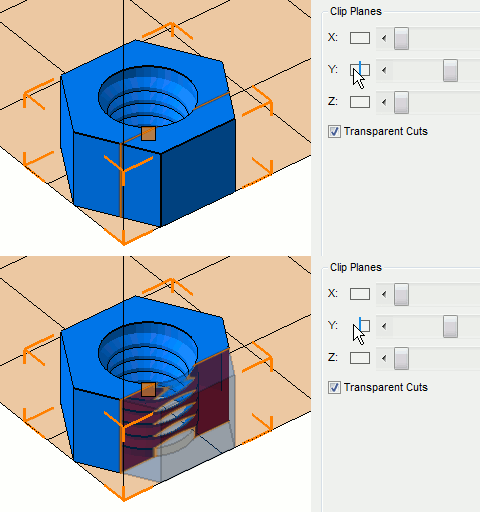
Use the clip planes to have a look at the inside of a part
Quick access
The quick access located at the bottom edge of the context view provides easily accessible commands based on the currently loaded module.
TopJoblist
The job list is a detachable view where autonomous actions are listed. For instance, if you have multiple parts selected, and you apply a support script to all of them, the supports generation for each of the parts will be listed here.
The joblist is
not activated and not placed in the
Left window layout by default, but it will appear when needed. Using
Settings > Show Views > Joblist, you can open it manually.
Snapin
In some modules, an additional view is provided temporarily. This is the snapin view, and it is used by the
support module to allow manual editing supports in a 2D view, and by
Texture & Color when aligning a texture. The snapin view is
not activated and not placed by default in the
Left window layout, but it will appear when needed. When activated via
Settings > Show Views > Snapin, this view is always visible, and the modules that make use of it fill this view as necessary; otherwise the view remains as a new tab or temporary overlay in the context view.
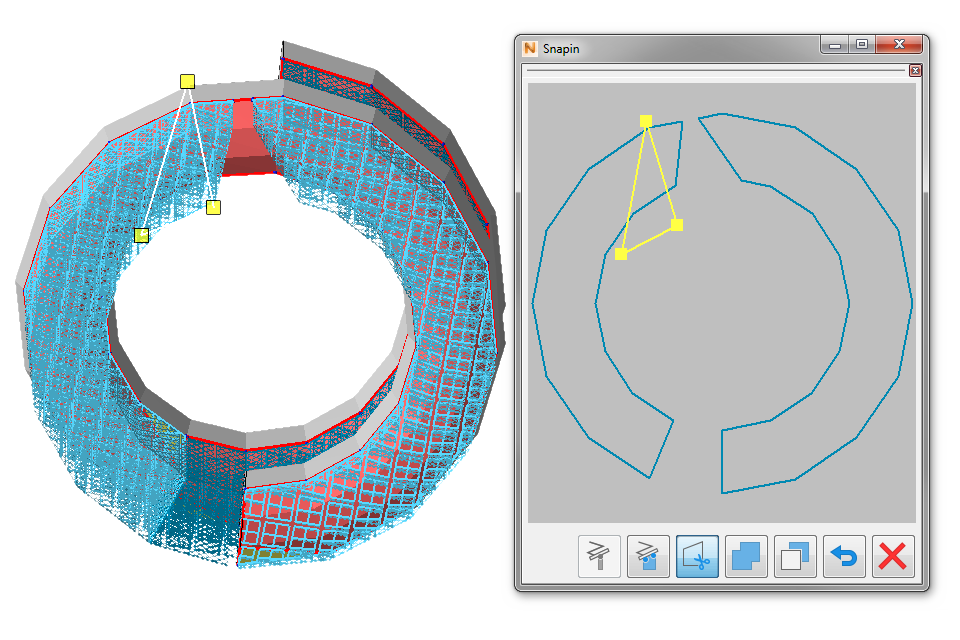
The snapin view as it appears when editing support
Warnings
In case there are any information, error, or warning messages to display, a dockable
Warnings view contains all messages since the most recent launch of
Netfabb. Unlike the joblist, for instance, it is
not opened automatically whenever a new message is available. Access the
Warnings view through
Help > Show Warnings.
My Machines
Any machine workspaces that you have defined in My Machines appear here. Double-click the workspace's icon to load it into the project tree.
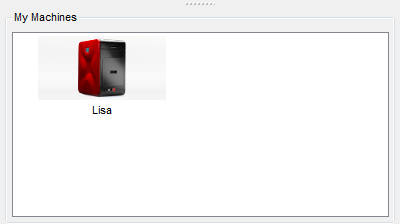
View for picking directly from My Machines
By default, this view is activated and docked
only in the
Center default layout but can be opened at any time from the
Settings menu category.