Move CVs
How to move CVs along or parallel to an arbitrary vector, relative to their curve or surface, or in relation to a specific point.
If the CVs you want to move are in a selection set, turn on Use sel sets in the Transform CV control window.
Move CVs along, or parallel to, an arbitrary vector
-
In the Control Panel, double-click the Transform CV tool
 to open the control window.
 -
In the Transform CV control window:
- Choose Move from the Transform menu.
- Choose PROJ from the left Mode menu to snap to a vector and move along it, or choose PARA to move parallel to a vector without snapping to it.
-
Pick the CV or CVs you want to move. To select additional CVs, hold
 and click them.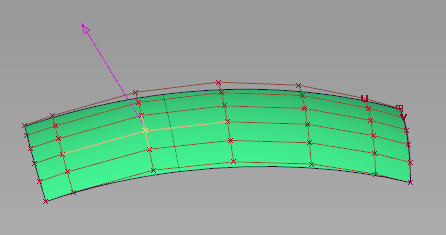
-
Press a mouse button on a hull line, reference vector, or reference plane and drag to constrain the CV movement.
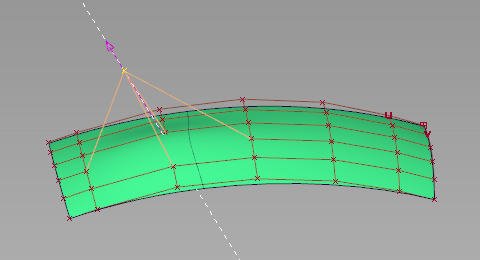
Using PROJ mode to move a CV along a vector
You can also use the Hot Spot Interface to switch between options in order to reduce mouse movement across the screen.
Move CVs relative to their curve or surface
-
In the Control Panel, double-click the Transform CV tool
to open the control window. -
In the Transform CV control window:
- Choose Move from the Transform menu
- Choose NUV from the left Mode menu.
-
Pick the CVs you want to move. To select additional CVs, hold
and click them.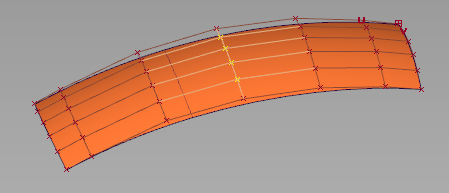
-
Drag a mouse button to move the CVs:
-
Drag the
 to move along the normal.
 -
Drag the
 to move along the U direction.
 -
Drag the
 to move along the V direction of a surface.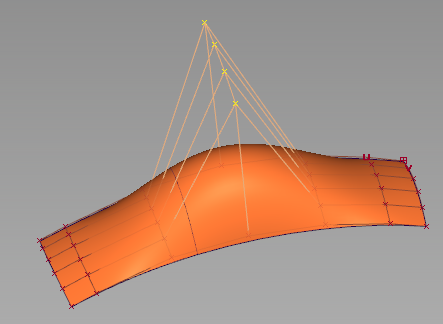
Moving four CVs along the surface normals.
-
The Transform > Modify > Move CV Normal tool in the Palette works in a similar fashion.
Move CVs along their hulls
-
In the Control Panel, select the Transform CV tool
. -
In the Transform CV section of the control panel:
- Choose Move from the Transform menu
- Choose SLIDE from the left Mode menu.
-
Click the CV you want to move. To select additional CVs, hold
and click them.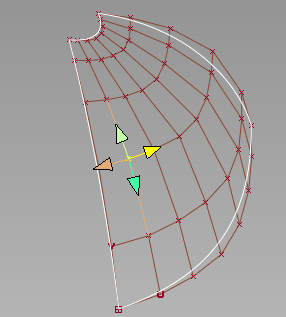
-
Click the arrow on the hull you want to move the CVs along, then drag to move the CVs.
You can also use the Hot Spot Interface to switch between options in order to reduce mouse movement across the screen.
Move multiple CVs toward or away from a point
- In the Transform tool palette, select the Local > Set Pivot tool
 to move the object’s pivot point to the point toward or away from which the CVs will move.
 - In the Pick tool palette, select the Point Types > CV tool
 to pick the CVs you want to move.
 - In the Transform tool palette, select the Non-p Scale tool
 to scale the CVs out (away from the pivot point) or in (toward the pivot point).