Autodesk® Vault helps you to manage your engineering data more efficiently, improve collaboration within your teams, and take control of your product development processes. Vault is tightly integrated with more than 30 Autodesk design applications and provides powerful revisioning and access control capabilities. With simplified installation and optional multi-site scalability, Vault is used by Autodesk customers worldwide to connect their people and processes, so that they can get more done, better, in less time.
The 2020 release marks the next step forward with enhanced design experience for CAD users such as vast copy design improvements, PDF enhancements, and installation now including language switch support.
Accelerate Design Documentation
Streamline Internal and External Collaboration
Automate Design Creation
Getting new products to the market faster does not allow customers to waste valuable time recreating designs that already exist from scratch. At the same time creating a variation of an existing design can be a difficult process. Finding all the related data, figuring out what is going to be reused before you even start the design, and then trying to relink all the new data together is time-consuming. Copy Design helps you to automate the design creation, create all new files for you, as well as link all the data together. Designers using Autodesk Vault 2020 with vastly updated copy design will notice several ergonomic improvements as well as extended capabilities that will significantly accelerate their overall design creation and data management experience.
Also, Vault 2020 removes some outstanding issues reported by customers like updating part number by default during the rename process.
Copy Design
Vast improvements in Copy Design include changes to the user interface and workflow as well as new enhancements:
User Interface changes
-
Copy Design is now a modeless dialog with a toolbar: It can now remain open while you use the Vault client for other commands as well as add files to be copied.
-
The toolbar consists of a File, View, Actions, Options, and Help menu.

-
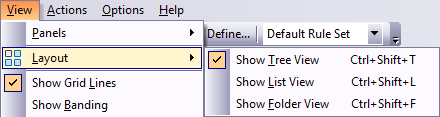
List and Folder views are now available in the main grid. You can easily switch between List View, Tree view and Folder view and apply column filtering in the list view.
-
Drawings are now visible in the Documentation folder. Display it by selecting the Tree View.
-
You can edit the Destination Name and Destination Path right in the main grid.
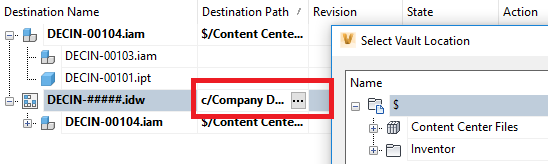
- Numbering scheme column is added for customer view.

New enhancements
-
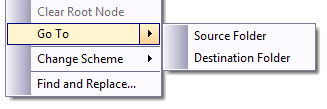
After the Copy operation, you can open the Source Folder, or Destination folder using the options in the right-click menu.
-
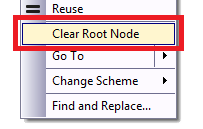
You can remove the node and all children from the dialog using the Clear Root Node option from the right-click menu. This option is only available if you select the root node.
-
The new Filename for the numbering scheme used is shown after the copy operation.
-
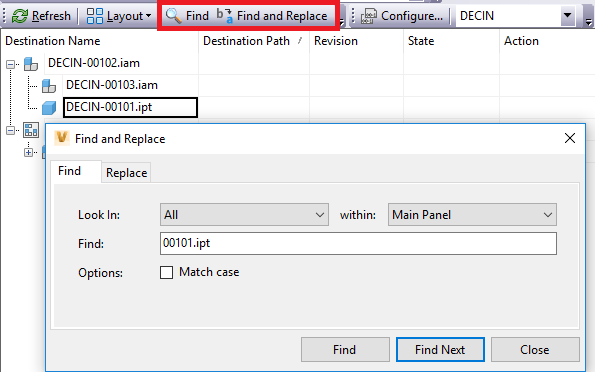
You can perform Find and Replace operations in the main grid.
-
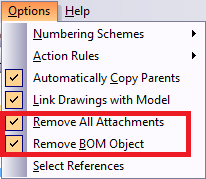
You can remove BOM object as well as all the attachments of models and design documents.
-
You can now export directly from the Copy Design dialog using the Export command in the File menu.
-
Before you perform the copy operation, Copy Design will check the file name duplicates and user permission for the folder.
-
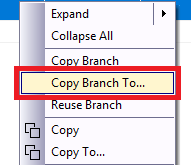
The new Copy Branch To functionality enables you to copy a complete branch to a specific folder maintaining the original folder structure.
-
Shortcut keys are available for all options in the Copy Design dialog.
Accelerate Design Documentation
Many companies use the PDF format of a 2D design file to facilitate internal communication among various departments. With this release of Vault we added options that enable design engineers to be more productive than ever when dealing with documentation of their design and sharing it.
2D PDF Enhancements
In Vault 2020, several enhancements are implemented to 2D publishing:
-
Until now you could only create PDF at the “Released” lifecycle state change. Now with Vault 2020 you can create a PDF at any lifecycle state.
-
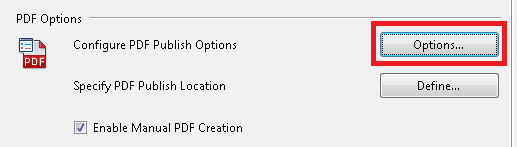
You can configure PDF publishing options so that the PDF gets synchronized with the drawing. You now have the new option: Sync Lifecycle State and Revision as Source. This option allows both the published PDF and its source file to have the same lifecycle state and a revision value.
-
You can now publish PDF files outside of Vault.
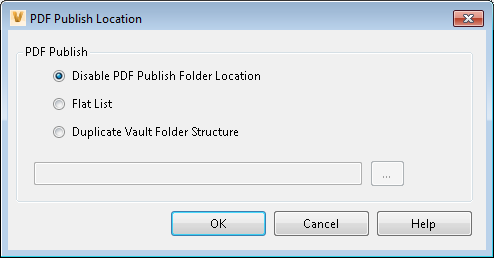
- To support the enhancements, the Files tab in the Vault Settings dialog was adjusted to combine the PDF Options and PDF Publish Location settings.
-
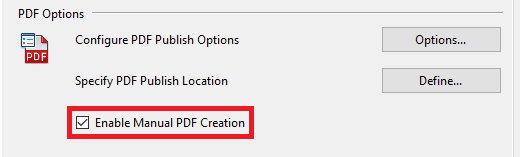
You can now manually create a PDF of a 2D CAD file using the Create PDF command which is available in the toolbar, context menu, and the Actions menu. Use this command to create a PDF without going through lifecycle state change for a 2D file. Enable the command in the Vault Settings dialog.
Other Enhancements to remove barriers when dealing with design documentation
-
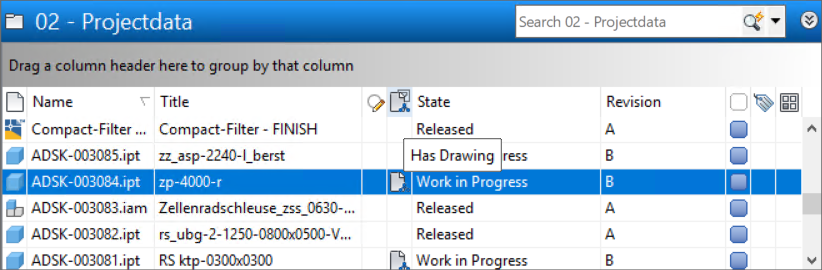
New property "Has Drawing" helps identify whether a model has one or more associated drawings. With this property, you can list all models within a project which are missing drawing by searching the "Has Drawing" property. Secondly, you can make sure models are only released if associated drawing exists by leveraging the property check-in lifecycle transition and finally be able to identify and filter within the Inventor Browser the components without an associated drawing.
-
AutoCAD supports attaching PDF files drawings as an underlay so that the PDF can be associated with a given DWG. Vault 2020 includes two tweaks to better support customers leveraging this capability. First, the handling of AutoCAD drawings with PDF as an attachment. Second, Vault 2020 allows you to attach PDF files from Vault directly. The "Attach from Vault" dialog contains a PDF file option so that you can attach Vaulted PDF's to AutoCAD DWG's.
-
Open a models drawing in the Vault Browser: Opening the drawing of a design from Vault involves in the past multiple steps, and it was a highly manual effort. One of the most asked Idea requests is to open the drawing from Vault for the corresponding design file since Vault knows and stores the relationship of design documents. Vault 2020 introduces a new command "Open Drawing from Vault" which helps the Inventor Designer to open the drawing stored in Vault within Inventor with a single command.

-
In the previous releases, the "Go to Vault Folder" command within the Inventor Vault Add-In opened a new instance of Vault Client if the Vault Client was already running. With Vault 2020 if the Vault Client is already running, this command navigates to the file in the current instance of the Vault Client.
-
Customers send link of the Vaulted drawing via email. When the link is clicked it always opens a new instance of Vault Client even if the Vault Client is already running. With Vault 2020 if the Vault Client is already running, clicking the link navigates to the file in the current instance of the Vault Client.
-
Part number option is checked by default during the rename operation.
Streamline Internal and External Collaboration
Customers leveraging Vault as their enterprise solution across the globe and beyond the firewall will benefit from several improvements. Project Sync within Vault Professional 2020 has been extended to support Vault customers in the infrastructure and civil engineering market for streamlined collaboration with their extended project team by having a bi-directional connection with BIM 360.
Finally, additional small but key improvements for internal collaboration are introduced like support for Inventor Read-only viewing for non-CAD users with the Vault client, language switching support for the Vault Client with individual language pack installations as well as Thin Client supporting other browsers than Internet Explorer.
Project Sync Connectivity for BIM 360
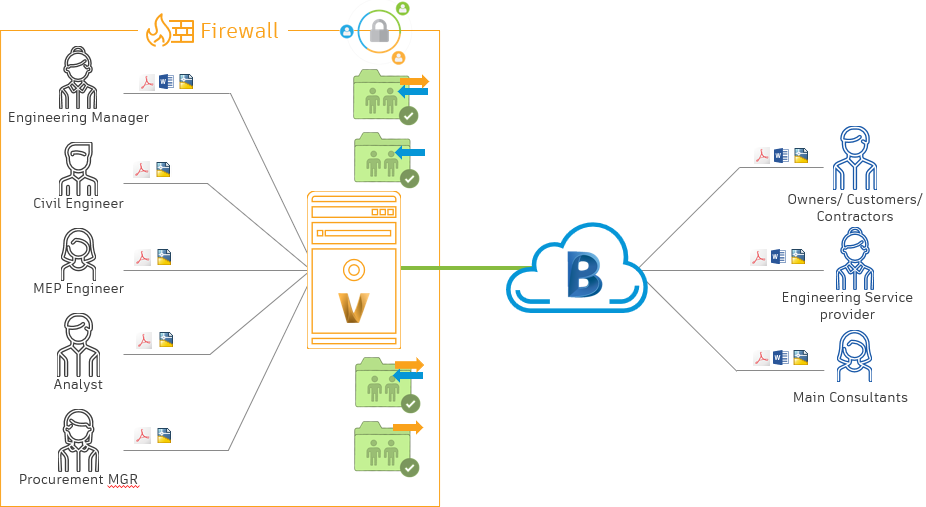
Make all relevant design data accessible for everyone and ensure the right team members access the right design data at the right time throughout a defined process is a key challenge in the construction workflows. With Vault 2020, customers can automatically sync data with BIM 360. Automatically syncing files eliminates the need to download files and upload them and reduces opportunities for errors in transmission and resulting rework. The admin can control project base which data should be shared one way, or 2 ways.
He can define as much BIM 360 folder mapping as necessary for different collaborators or projects by mapping a Vault folder to a cloud location folder leveraging desktop connector. Each collaborator has access to specific project and folders in BIM 360.
The admin can configure the synchronization to work in either direction or both directions. Also, the admin can specify when the synchronization should occur at a scheduled time each day, for example at midnight, at specific time intervals, for example 8 or 12 hours.
- CAD relationship awareness and reference handling
- Define and manage multiple mappings
- Synchronization can work in either direction or both directions
- Option to schedule synchronization
- Selectively filter files for upload
- Ability to use file links to sync files from multiple folders in the vault to a single folder on the cloud drive
Numbering scheme flexibility with custom schemes
Vault 2020 introduces a way to select a new numbering scheme provider: User-Defined Number Generator. This allows you to create a custom provider based on rules in your company or derived from other business systems. You also have an option to select the Centralized Number Generator option for a replication environment.
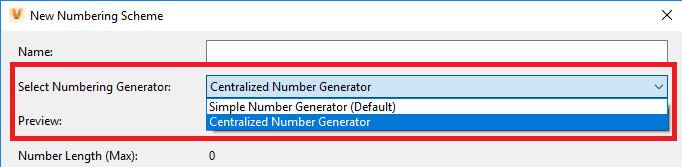
For replication environment, the Simple Number Generator option continues to generate a number from the corresponding workgroup you are logged in as before. The Centralized Number Generator option generates numbers from the publisher whether you log in to the publisher or a subscriber.
Numbering schemes let you configure how files, items, and change orders are named when they are added to a Vault.
A new option allows the administrator to control item numbering reuse. Reuse is only supported for fixed text, delimiter, and auto-generated fields.
Inventor Read-Only Mode Support
We are adding a new configuration to make Vault Client work with the Inventor Read-only mode. Depending on what you install first (Vault Client or Inventor Professional 2020) and what you have available on your system, you can either open files in the Inventor View or Inventor read-only mode.
Language Switch Support
Vault 2020 installation now includes standalone language packs which enable you to switch Vault UI to a preferred language. There is no need to install full localized build with matching operating system for the localized experience. With that, the user can determine the user interface language used for menus, dialog boxes, help files, and so forth by selecting the corresponding shortcut for the specific language.