Import File

Allows you to transfer data from different file formats into the current scene.
To replace the current scene with the contents of a file, use File > Open. The PTC Granite format is also supported, but because there are no options, it is not listed in the option window.
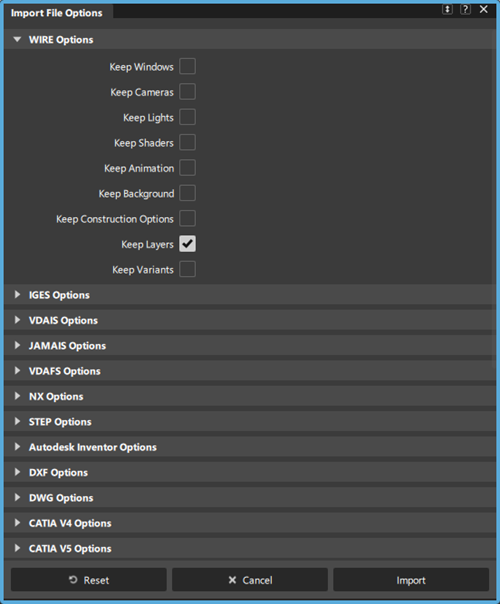
WIRE Options
Programmers can access wire files via the Alias OpenModel library.
From within Alias you can open an older wire version. Rename older wire files to keep the older file format version and begin working in the latest version of Alias. Supported entities include surfaces, curves, and polygon sets.
Keep Windows
Imports windows.
Keep Cameras
Imports cameras.
Keep Lights
Imports lights.
Keep Shaders
Imports shaders.
Replace Shaders by Name
When importing shaders (Keep Shaders turned on), you can choose to replace the incoming shaders with shaders in the currently set User Library location. Replace Shader by Name only works with shaders that have the same name.
This option is not visible if Keep Shaders is turned off.
For more information, see the Replace shaders by name.
Keep Animation
Imports animation. Determines whether to retrieve animations or only models. The default is ON.
When selected, both models and animation are retrieved. A window that contains an animated camera is retrieved with the model.
When not selected, only models are retrieved.
Keep Background
Imports backgrounds contained in a wire file.
Keep Construction Options
Prompts you to Accept the construction options contained in the wire file.
Keep Render Globals
Imports the render globals set for the wire file into the system, overriding the current settings.
To set render globals, use Render > Globals.
Keep Layers
Imports the layers you set in the wire file.
Keep Variants
Imports variants.
IGES Options
Shrink Surfaces
Alias detects trimmed surfaces whose trim boundaries are the same as, or iso-parametric to, the natural boundaries of the untrimmed surface. It then converts these surfaces into Alias surfaces by shrinking the untrimmed surface to the trim boundaries.
When this option is not selected, Alias converts all trimmed surfaces of this type to Alias trimmed surfaces.
Create Section Data
Imports degree 1 curves as section data.
Logfile Output
Creates a logfile containing a list of path names of imported files, and a list of warning and/or error messages.
Related pages
VDAIS Options
Group
Imports objects as a single group for easier manipulation.
Annotation
Processes supported VDAIS entities that have been flagged for use as annotation.
Coalesce Params
Removes multiple knots in curve or surface geometry read from VDAIS files containing parametric spline curves or surfaces.
Default Trim Curves
Specifies the trim curves that the processor will use. You can select parameter space curves, world space curves, or use the flag that is present in the .VDAIS file.
Scale Factor
Changes the size of models stored in VDAIS file formats as you import the file.
Level Mapping
Defines how the level (layer) information associated with a VDAIS entity is mapped to Alias Set and Alias Layer information.
Trimmed Surface Optimizations
Shrink Surfaces
Alias detects trimmed surfaces whose trim boundaries are the same as, or iso-parametric to, the natural boundaries of the untrimmed surface. It then converts these surfaces into Alias surfaces by shrinking the untrimmed surface to the trim boundaries.
When this option is not selected, Alias converts all trimmed surfaces of this type to Alias trimmed surfaces.
JAMAIS Options
Group
Imports objects as a single group for easier manipulation.
Annotation
Processes supported JAMA-IS entities that have been flagged for use as annotation.
Coalesce Params
Removes multiple knots in curve or surface geometry read from JAMA-IS files containing parametric spline curves or surfaces.
Default Trim Curves
Specifies the trim curves that the processor will use. You can select parameter space curves, world space curves, or use the flag that is present in the.JAMA-IS file.
Scale Factor
Changes the size of models stored in JAMA-IS file format as you import the file.
Level Mapping
Defines how the level (layer) information associated with a JAMA-IS entity is mapped to Alias Set and Alias Layer information.
Trimmed Surface Optimizations
Shrink Surfaces
Alias detects trimmed surfaces whose trim boundaries are the same as, or iso-parametric to, the natural boundaries of the untrimmed surface. It then converts these surfaces into Alias surfaces by shrinking the untrimmed surface to the trim boundaries.
When this option is not selected, Alias converts all trimmed surfaces of this type to Alias trimmed surfaces.
VDAFS Options
Items in VDAFS files that were grouped using BEGINSET/ENDSET are grouped in a hierarchy in Alias after import. Entity names are preserved.
Create Section Data
Imports degree 1 curves as section data.
Group
Imports objects as a single group for easier manipulation.
Coalesce Params
Removes multiple knots in curve or surface geometry read from VDAFS files containing parametric spline curves or surfaces.
Map Groups as Layers
Maps VDAFS groups to Alias Layers. All items in the group are assigned to the created layer. The name of the group becomes the name of the layer.
Default Trim Curves
Specifies the curves that the processor will use to trim surfaces. You can select parameter space or world space curves. If the trimming fails, the translator will try to trim with the alternative curves.
Scale Factor
Changes the size of models stored in VDAFS file format when you import the file.
Related page:
NX Options
Logfile Output
Produces a report containing a list of path names of imported file(s), and a list of warning and/or error messages.
Convert Meshes
Converts entities of type Mesh.
Convert Points
Converts entities of type Point.
Convert Nurbs
Converts entities of type Nurbs.
Convert Curves
Converts entities of type Curve.
Keep Topology
Converts solids to Alias shells. Otherwise, they are converted to a collection of trimmed surfaces.
Shrink Surfaces
Alias detects trimmed surfaces whose trim boundaries are the same as, or iso-parametric to, the natural boundaries of the untrimmed surface. It then converts these surfaces into Alias surfaces by shrinking the untrimmed surface to the trim boundaries.
When this option is not selected, Alias converts all trimmed surfaces of this type to Alias trimmed surfaces.
Split Periodic Surfaces
Divides periodic surfaces into multiple surfaces.
Optimize Geometry
Optimizes the CV layouts of the imported file for use in Alias.
Convert Empty Layers
Translates empty layers. The NX layers map directly to Alias layers.
Convert Empty Categories
Translates empty categories to Alias categories. Layers are subsets of categories.
Convert Category Name to Layer
Translates category names to Alias layers.
Convert Specified Layers Only
Lets you specify which layers in the imported NX file to open in Alias. After enabling this option, type the designated numbers of the target layers in the Specified Layer field. To do this, you can use a comma separated list, a layer number range, or a combination of both. The valid layer number range is between 1 and 256.
Related pages:
NX part and assembly format Reference Interpret NX log files
STEP Options
Logfile Output
Creates a log file containing a list of path names of imported files, a list of warning and/or error messages, and the options string.
Convert Meshes
Imports meshes.
Convert Points
Imports points.
Convert Curves
Imports curves.
Convert Nurbs
Imports NURBS for surfaces and solids.
Keep Topology
Keeps the topology for sheet and solid bodies.
Shrink Surfaces
Alias detects trimmed surfaces whose trim boundaries are the same as, or iso-parametric to, the natural boundaries of the untrimmed surface. It then converts these surfaces into Alias surfaces by shrinking the untrimmed surface to the trim boundaries.
When this option is not selected, Alias converts all trimmed surfaces of this type to Alias trimmed surfaces.
Convert Invisible
Imports invisible geometry.
Related pages:
Autodesk Inventor Options
Nurbs
When this option is checked, curves and surfaces are converted to NURBS geometry.
Meshes
Converts polygonal geometry to meshes.
Logfile Output
Creates a log file containing a list of path names of imported files, a list of warning and/or error messages, and the options string.
Convert Points
Imports points.
Convert Curves
Imports curves.
Convert Bodies
Imports solid and sheet bodies as shells/surfaces, meshes for bodies, or meshes for faces.
Keep Topology
Keeps the topology for sheet and solid bodies.
Shrink Surfaces
Alias detects trimmed surfaces whose trim boundaries are the same as, or iso-parametric to, the natural boundaries of the untrimmed surface. It then converts these surfaces into Alias surfaces by shrinking the untrimmed surface to the trim boundaries.
When this option is not selected, Alias converts all trimmed surfaces of this type to Alias trimmed surfaces.
Related page:
DXF Options
Convert Invisible
Converts DXF invisible geometry to Alias invisible geometry.
Convert Curves
Converts entities of type Curve.
Convert Meshes
Converts entities of type Mesh.
Want Log
Produces a report containing a list of path names of imported file(s), and a list of warning and/or error messages.
DWG Options
Convert Invisible
Converts DWG invisible geometry to Alias invisible geometry.
Convert Curves
Converts entities of type Curve.
Convert Meshes
Converts entities of type Mesh.
Want Log
Produces a report containing a list of path names of imported file(s), and a list of warning and/or error messages.
CATIA V4 Options
Logfile Output
Creates a log file containing a list of path names of imported files, a list of warning and/or error messages, and the options string.
Convert Meshes
Converts CATIA meshes to Alias meshes.
Convert Points
Converts CATIA points (Type 1) to Alias points.
Convert Curves
Converts CATIA parametric curves (Type 3), composite curves (Type 24), and NURBs curves (Type 46) to Alias curves.
Convert Nurbs
Converts CATIA NURBS to Alias NURBS.
Keep Topology
Converts CATIA skins to Alias shells. Otherwise, they are converted to a collection of trimmed surfaces.
Shrink Surfaces
Alias detects trimmed surfaces whose trim boundaries are the same as, or iso-parametric to, the natural boundaries of the untrimmed surface. It then converts these surfaces into Alias surfaces by shrinking the untrimmed surface to the trim boundaries.
When this option is not selected, Alias converts all trimmed surfaces of this type to Alias trimmed surfaces.
Convert Invisible
Converts CATIA invisible (not datum) entities to Alias invisible entities.
When this option is not selected, CATIA invisible (hidden) entities are ignored and are not converted.
Convert Infinite
Converts CATIA entities which are considered as having an infinite geometry (for example, lines, planes).
When this option is not selected, CATIA infinite entities are ignored and are not converted.
Related page:
CATIA V5 Options
You can open either part (.CATPart) or product (.CATProduct) documents in Alias by selecting the file name in the file browser. If you get “File not recognized” errors on your CATIA part file, you can either use drag or drop with Alias or use the stand-alone utility to convert the file.
Logfile Output
Creates a log file containing a list of path names of imported files, a list of warning and/or error messages, and the options string.
Convert Cloud Meshes to Meshes
Converts CATIA cloud mesh data (which is generally scan data) to Alias mesh data.
Convert Weld Data
Converts CATIA weld data (assembly joints) to NURBS data in Alias.
Use Tighter Edge Curve Tolerance
Increases edge accuracy and reduces the gaps between surfaces while maintaining continuity.
Convert CGR Data to Meshes
Converts tessellated data associated to a part in CATIA (that is, the graphical representation of the geometry data in CATIA) to meshes in Alias.Note:
In general, you do not want to import both NURBS and Mesh data, as they are different representations of the same objects.
Keep Color
This option only appears when Convert Meshes is selected. It preserves the color for each face of tessellated data.
Merge Vertices
This option only appears when Convert Meshes is selected. It merges all coincident vertices (within tolerance) in a mesh (tessellated data), and averages normals at the merged vertices.
Tolerance
This option only appears when Merge Vertices is selected. It merges Vertices that are within this distance of each other.
Convert Cloud Points to Point Clouds
Converts CATIA points (Type 1) to Alias points.
Convert Curves
Converts CATIA parametric curves (Type 3), composite curves (Type 24), and NURBs curves (Type 46) to Alias curves.
Convert Nurbs
Imports curve, surface, shell, and solid geometry data in CATIA as NURBS in Alias.
Keep Topology
Converts CATIA skins to Alias shells. When this option is not selected, they are converted to a collection of trimmed surfaces.
Shrink Surfaces
Alias detects trimmed surfaces whose trim boundaries are the same as, or iso-parametric to, the natural boundaries of the untrimmed surface. It then converts these surfaces into Alias surfaces by shrinking the untrimmed surface to the trim boundaries.
When this option is not selected, Alias converts all trimmed surfaces of this type to Alias trimmed surfaces. This is the default.
Convert Invisible
Converts CATIA invisible (not datum) entities to Alias invisible entities.
When this option is not selected, CATIA invisible (hidden) entities are ignored and are not converted. This is the default.
Convert Infinite
Imports CATIA entities which are considered as having an infinite geometry (for example, lines, planes) into Alias.
When this option is not selected, CATIA infinite entities are ignored and are not imported. This is the default.
Materials/Fill Colors
Lets you specify how the incoming materials and object fill colors are processed when your file is translated to a .wire file.
Materials to HW Shaders - Materials are converted to Alias hardware shaders and object fill colors to Alias diagnostic shader colors.
Fill Colors to HW Shaders - Materials are ignored and object fill colors are converted to Alias hardware shaders.
Material Naming Scheme - (Applies to Fill Colors to HW Shaders) Defines how the resulting shaders are named.
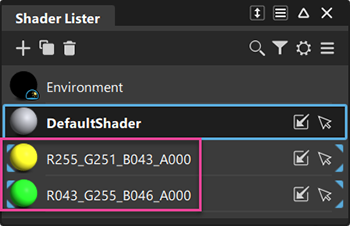
When set to By RGBA Values, the imported shaders are named using their RGB color values.
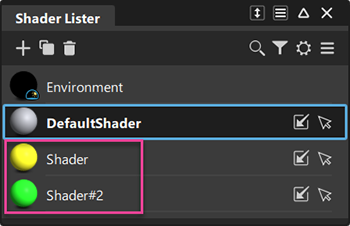
When set to None, imported shaders are named sequentially as "Shader".
Convert Empty Geometric Sets
Retrieves empty geometric sets from CATIA and imports them into Alias.
Convert Annotations
Converts CATIA annotations to Alias annotations.
Merge Layers
When importing multiple CATIA files, merges layers with the same name.
Related pages:
OBJ Options
Keep Normals
Preserves vertex normals in the file. When this option is not selected, vertex normals are ignored, which means that they are recalculated during rendering.
Input Units
Specifies the major linear unit for the incoming file.
Scale Factor
Specifies the scaling factor for this save.
Merge Vertices
Merges vertices if they are within the position tolerance. When this option is not selected, vertices are not merged.
Position Tol. (units)
Specifies how close vertexes must be to be merged, in the current major linear units.
Related page:
FBX Options
Logfile Output
Generates a log file containing a list of path names of imported files, a list of warning and/or error messages, and the options string.
Import Curves
Imports FBX curves.
Import Cameras
Imports FBX cameras.
Import Lights
Imports FBX lights.
Import Shaders
Imports FBX materials.
Import Subdiv
Imports subdivision objects
Split Period Surfaces
Splits a periodic surface into multiple surfaces.
Axis Conversion
Converts the imported file to either a Z-up or Y-up coordinate system. For example, if you import an .fbx file created by an application that defines the Y axis as pointing up by default, such as Autodesk Maya, you can set this to Z Up Axis to correctly orient the object in Alias.
For more information see Transfer Maya polygon objects to Alias.
Transfer Maya polygon objects to Alias
You can exchange subdivision geometry between Alias and Maya using the FBX file format.
When transferring these objects between Alias and Autodesk Maya, be aware of the following:
- To display G0 creases added by the Alias Subdivision Crease Edge tool, turn on Smooth Mesh Preview after loading the file in Maya.
- To preserve creases in Maya polygon objects in Alias, turn on Smooth Mesh in the Maya FBX Export options before exporting geometry from Maya.
Export polygon objects to a .fbx file
In Maya, select the polygon object you want to transfer to Alias.
Choose File > Export All or File > Export Selection.
The Export All or Export Selection dialog box appears.
In the Export Options, under General Options, select FBX export from the File type list.
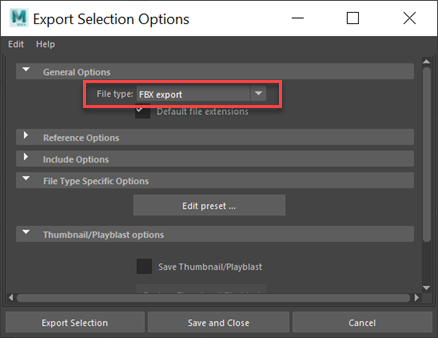
To ensure that the creases in your object are preserved in the exported file, Smooth Mesh must turned on before exporting. To do this:
Click Edit preset.
In the Edit export preset window, click Geometry and ensure that Smooth Mesh is turned on.
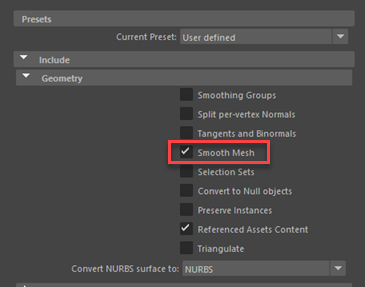
Click Close.
Click Export Selection, name your file, and then click Export Selection.
Import the .fbx object into Alias
In Alias, choose File > Import > File >
 .
. In the Import File Options window, select FBX Options from the list.
Ensure that Import Subdiv is turned on.
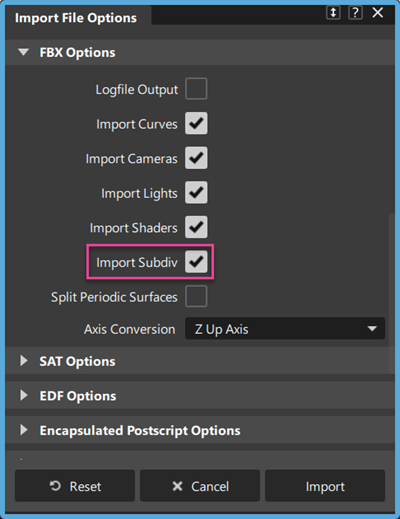 Note: Since Alias has the Z axis (not the Y axis like Maya) pointing up by default, the model will appear rotated on its side in Alias. You can change this by setting the Axis Conversion to Z Up Axis in the Import Options. For more information, see FBX import options.
Click Import.
SAT Options
Logfile Output
Creates a log file of the results (<filename>.alias2sat).
Encapsulated Postscript import options
Group
Imports objects as a single group for easier manipulation.
Scale Factor
Changes the size of models stored in Postscript file format as you import the file.
Illustrator import options
Group
Imports objects as a single group for easier manipulation. When this option is not selected, each of the curves in the model display in the SBD window as separate nodes.
Scale Factor
Changes the size of models stored in Illustrator file format as you import the file.
PTC Granite import options
Logfile Output
Creates a log file containing a list of path names of imported files, a list of warning and/or error messages, and the options string.
Convert Points
Converts Granite points to Alias points.
Convert Curves
Converts Granite curves to Alias curves.
Convert Nurbs
Converts Granite NURBS for solid bodies to Alias NURBs curves.
Convert Quilts
Converts Granite Quilts for open bodies to Alias NURBs curves, maintaining the topology.
Convert Construction Planes
Converts Granite construction planes to Alias construction planes.
Keep Topology
Keeps the topology for sheet and solid bodies.
Shrink Surfaces
Alias detects trimmed surfaces whose trim boundaries are the same as, or iso-parametric to, the natural boundaries of the untrimmed surface. It then converts these surfaces into Alias surfaces by shrinking the untrimmed surface to the trim boundaries.
When this option is not selected, Alias converts all trimmed surfaces of this type to Alias trimmed surfaces.
Convert Invisible
Converts Granite invisible geometry to Alias invisible geometry.
Related page:
Pro/E Render import options
The Pro/ENGINEER Render translator converts the triangle data of the Pro/ENGINEER Render format into Alias meshes.
Group
Imports objects as a single group for easier manipulation.
Input Units
Indicates the units of the Pro/ENGINEER Render coordinate data, so that the data is properly converted to the linear units set in Alias.
Scale Factor
Changes the size of models stored in the Pro/ENGINEER Render file format as you import the file.
Keep Normals
Vertex normals in Pro/ENGINEER Render files all point towards the inside of objects. For rendering purposes in Alias, these normals must point towards the outside of objects. Consequently, the translator flips all vertex normals during the translation.
The vertex normals of meshes are usually recalculated by the Alias renderer before it renders meshes. By default, the normals assigned to vertices in the Pro/ENGINEER Render file are “frozen” so that they are used by the renderer rather than discarded and recalculated. This allows the renderer to produce a better quality rendering.
To suppress this behavior, deselect Keep Normals so that the renderer discards the Pro/ENGINEER assigned normals and recalculates them.
Merge Vertices
By default, the translator may merge the vertices of triangles along apparent shared edges. If two vertices have the same x,y,z position within a tolerance and have the same normal within angular tolerance, they are merged into one vertex. This allows Alias to do smooth shading across the edges. If two vertices have the same x,y,z position, but have different normals, then these vertices are not merged to maintain the hard edge.
If this option is not selected, no vertex merging occurs and all edges are rendered “hard”.
If selected, the Position/Normal menu becomes available.
Position/Normal
Determines how vertices and normals are merged.
| List Item | Description |
|---|---|
| POSITION + NORMAL | vertices and normals are merged based on their x, y, z position. |
| POSITION | vertices only are merged based on their x, y, z position. Normals are not merged. |
Position Tol. (units)
Specifies the tolerance used for comparing vertex positions. The value specified is in the same units as the data (specified in the Input Units option). For example, if you specify 0.01 MILLIMETERS from the Input Units menu, the tolerance for comparing vertex positions is 0.01 millimeters.
Normal Tol. (degrees)
Specifies the tolerance used for normal comparisons in degrees and is the angle between the normals of two vertices. The default is that two vertices will be merged if their positions are equal within tolerance and the angle between the normals is less than 1 degree.
STL import options
The triangle data from STL files is imported into Alias as meshes.
 before importing the file.
Logfile Output
Creates a log file containing a list of path names of imported files, a list of warning and/or error messages, and the options string.
Convert Colors
Processes color binary STL files.
Merge Vertices
Merges vertices within the given tolerance (see below).
Tolerance
This option is only visible if Merge Vertices has been selected. The value is the tolerance within which vertices of the tessellated mesh are considered to be coincident and will be merged. Increase this value to broaden the distance within which vertices will be considered coincident.
The slider range is 0.0001 to 10. The default value is 0.0001.
Color Schema
Uses the BGR (VisCam) or RGB (Magics) color schema.
Input Units
Select the units to use.
STL Options
The triangle data from STL files is imported into Alias as meshes.
before importing the file.Logfile Output
Creates a log file containing a list of path names of imported files, a list of warning and/or error messages, and the options string.
Convert Colors
Processes color binary STL files.
Merge Vertices
Merges vertices within the given tolerance (see below).
Tolerance
This option is only visible if Merge Vertices has been selected. The value is the tolerance within which vertices of the tessellated mesh are considered to be coincident and will be merged. Increase this value to broaden the distance within which vertices will be considered coincident.
The slider range is 0.0001 to 10. The default value is 0.0001.
Color Schema
Uses the BGR (VisCam) or RGB (Magics) color schema.
Input Units
Select the units to use.
JT Options
Supported data
The JT Open Program develops and supports the DirectModel format JT. It is a format for the visualization of 3D models.
Supported items are assembly, instances, materials, curves, XT-Brep, JT-brep, LODS.
Alias maintains the following information when importing JT files:
- Precise geometric data conversion
- Data organization (parent and child hierarchal data, visibility, and instances) Units
- Levels of detail (degrees of tesselation)
- Materials (brightness (shininess), ambient color, specular color, diffuse color, and emission color)
- Textures (embedded image files)
- XTBREP and BREP topology
Options
Logfile Output
Creates a log file containing a list of path names of imported files, a list of warning and/or error messages, and the options string.
Convert Points
Converts JT points to Alias points.
Convert Curves
Converts JT curves to Alias curves.
Convert Nurbs
Converts JT NURBS to Alias NURBS.
Keep Topology
Keeps the topology for sheet and solid bodies.
Shrink Surfaces
Alias detects trimmed surfaces whose trim boundaries are the same as, or iso-parametric to, the natural boundaries of the untrimmed surface. It then converts these surfaces into Alias surfaces by shrinking the untrimmed surface to the trim boundaries.
When this option is not selected, Alias converts all trimmed surfaces of this type to Alias trimmed surfaces.
Convert Meshes
Converts JT meshes to Alias meshes.
Level of Detail
Specify the level of detail if Convert Meshes is selected: Highest, Lowest, All.
Merge Vertices
Merges vertices within the given tolerance when the file is retrieved.
Tolerance (units)
This option is only visible if Merge Vertices is selected. The value is the tolerance within which vertices of the tessellated mesh are considered to be coincident and will be merged. Increase this value to broaden the distance within which vertices will be considered coincident.
The slider range is 0.0001 to 10. The default value is 0.0001.
Solidworks Options
Logfile Output
Convert Points
Convert Curves
Convert Nurbs
Keep Topology
Shrink Surfaces
Alias detects trimmed surfaces whose trim boundaries are the same as, or iso-parametric to, the natural boundaries of the untrimmed surface. It then converts these surfaces into Alias surfaces by shrinking the untrimmed surface to the trim boundaries.
When this option is not selected, Alias converts all trimmed surfaces of this type to Alias trimmed surfaces.
Convert Invisible
Parasolid Options
Parasolid Options
Logfile Output
Produces a report containing a list of path names of imported file(s), and a list of warning and/or error messages.
Convert NURBS (Sheets and Solids)
Converts NURBS surfaces.
Convert Curves
Converts curves.
Keep Topology
Converts sheets and solids to Alias.
Split Periodic Surfaces
Divides closed/periodic surfaces into multiple surfaces. This is off by default.
Convert Invisible
Converts invisible geometry. This is on by default.