To Edit Parameters and Asset Variants
To Edit parameter values in the Factory Properties Browser
Once an asset from the Asset Browser is placed, you can select it and change the available Model parameters or Miscellaneous parameters in the Factory Properties browser. The Factory Properties browser automatically displays when a new layout is created. To toggle the Factory Properties browser on and off, click  Factory tab > Tools panel > Factory Properties from the Palettes drop-down menu.
- In the factory layout, select the asset for which you want to make parameter value changes. (Press and hold the Ctrl key if you wish to select multiple assets.) Once the asset is selected, any of the values displayed in the Factory Properties browser can be edited. Only the Model parameters that were specified as Key parameters when it was published are listed in the Factory Properties browser. A select few iProperty parameters are also listed in the Factory Properties browser. These iProperty parameters include Author, Title, Company, Catalog, Keywords, and Comments.
- Select any of the parameter values in the right-hand column and enter a new value.
 Update to complete your changes and update the parameters in your layout.
- You can restore a changed value by clicking the Refresh button
 .
. - To finalize the change and update the asset, press the Enter key on the keyboard or click the Update button . Using the Update button enables you to update multiple parameter values at one time.
- To make changes to custom asset properties click
 .
.
To identify Assets with Variants
A User Asset that has been published with variants displays this number icon  in the upper left corner of the asset. The number indicates the number of asset variations. When you right-click over the asset, the Asset Variant option appears in the context menu. Select the variant you wish to place from the Asset Variant submenu. The variations appear with default names like Variant_1, Variant_2, etc., but they can be renamed.
For more information, see the Inventor Factory Help topic: Create Asset Variants
To edit Asset Variant parameters in Factory Properties
Parameter values of a placed asset variant can be modified using the Factory Properties browser.
- In the factory layout, select the asset variant you wish to modify. (Press and hold the Ctrl key if you wish to select multiple assets.) Once the asset is selected, click anywhere within the Selected Variant value field to activate the drop-down arrow at the far right.
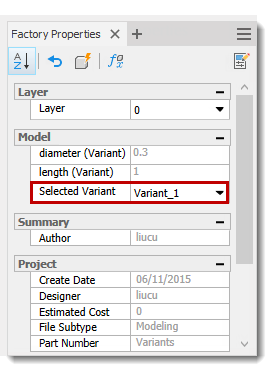
- Click the down arrow to display a drop-down list of available asset variant parameters from which to choose.
- Select the desired parameter from the list and press Enter, or click the Update button at the top of the Factory Properties browser.
- The selected asset variant is updated with the new parameter value.
To provide a different value from any of the existing asset variant parameters:
- In the factory layout, select the asset variant you wish to modify. (Press and hold the Ctrl key if you wish to select multiple assets.)
- Once the asset is selected, click the Enable Variant Controlled Parameters button
 at the top of the Factory Properties browser to activate the Model Parameter variant name.
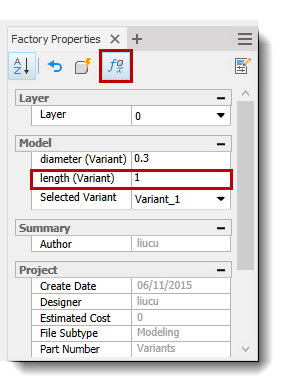
- Enter a new value for the variant parameter name and press Enter, or click the Update button at the top of the Factory Properties browser.
- The selected asset variant is updated with the new value and the word *None* appears in the Selected Variant field.