The License Check In / Check Out Page of the License Wizard can be used to check licenses in and out from the floating license server specified in the previous step (see Specify Floating License Server Page topic)
This page is displayed when the Next option is selected on the Specify Floating License Server Page.
Show image
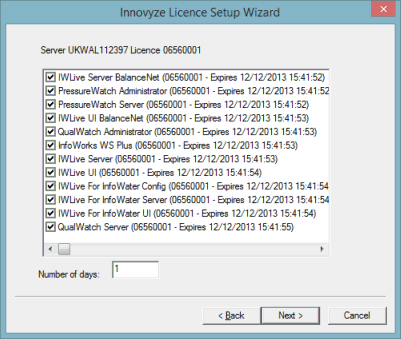
The following tasks can be performed in this dialog:
- licenses can be checked in
- licenses can be checked out
- licenses can be extended
There is an entry (check-box and product name) for each license present on the floating license server. A ticked check box in front of a license indicates that the license is checked out (Checked in licenses have an empty check box close to their name).
To check a license in / out, untick / tick the adjacent check box.
It is possible to check out a license for a defined period or to extend the period during which a license that is already checked out is actually checked out for. This is achieved by typing a value in the Number of Days box (defaulted to 1 day).
If the number of days typed in the Number of Days box is less than the number of days a license is still checked out for (e.g. if the license is checked out for another 6 days and 2 is typed in the text box or the check box is left at 1), then the period of the check-out DOES NOT decrease. This is to stop users accidentally shortening the period they have a license checked out for. To decrease the period a license is checked out for, it is recommended to check the license in (by unticking the check box adjacent to it) then to click the Next button of the dialog to commit the changes. Open the License Check in/ Out page again and check the license out again for a shorter period.
The expiry date of licenses that have been checked out during previous sessions will appear as additional information on the dialog.
Once license checking out / in process is complete, click the Next button to apply the settings. If the update is successful, the Finish page will be displayed.