In this exercise, you will create a code set style to assign rate item codes to corridor areas and linear features.
A code set style applies rate items to the link or point codes that define corridor assemblies. The code set style enables you to use the corridor model to compute quantities for a variety of units of measure, such as:
-
Cumulative Area or Volumes: To extract cumulative volumes of closed corridor areas, apply rate item codes to corridor links.
Links with rate item codes are used to extract rate item area or volumetric quantities of materials such as asphalt, gravel, or soil.
-
Linear Quantities: To extract linear quantities along a corridor feature line, apply rate item codes to corridor points.
Points with rate item codes are used to extract linear quantities for materials such as guardrails and kerb.
-
Itemized Count: To extract itemized quantities of a particular item, apply rate item codes to corridor points, and use a formula to compute the quantity from the feature line length.
Note:
You will learn how to create and apply rate item formulas in Exercise 6: Working with Rate Item Formulas.
This exercise continues from Exercise 3: Assigning Rate Item Codes to Pipe Network Parts.
Create a code set style
- Open Quantities-4.dwg, which is located in the tutorials drawings folder.
This drawing contains a commercial site, which consists of a building footprint, a parking lot, and access roads.
- In Toolspace, on the Settings tab, expand the General
 Multipurpose StylesCode Set Styles collection. Right-click All Codes. Click Copy.
- In the Code Set Style dialog box, on the Information tab, for Name, enter Corridor Quantities.
- On the Codes tab, under Link, in the Base row, click
 .
.
- In the Favorites category, select Pay Item ID30202-0600.
- Click OK.
- Repeat Steps 4 through 6 to apply rate item codes to the following links:
- Pave: 40920-1000
- Pave1: 40930-0200
- Pave2: 40310-3300
- SubBase: 30202-0800
- Repeat Steps 4 through 6 to apply rate item codes to the following Point:
Top_Kerb: 60902-0800
- Click OK.
Apply the new code set to the corridor and assembly
- In the drawing, select the side road corridor. Right-click. Click Properties.
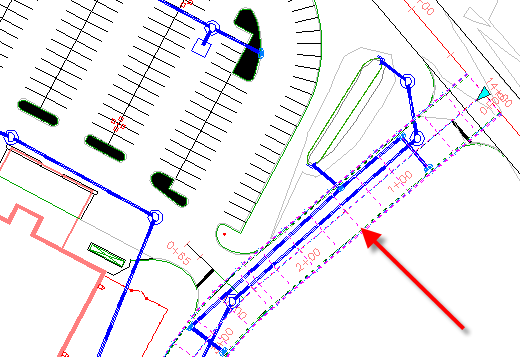
- On the Properties palette, under Data, for Code Set Style Name, select Corridor Quantities.
- Press Esc.
- In the drawing, select the baseline of the corridor assembly. Right-click. Click Properties.
- On the Properties palette, under Data, for Code Set Style Name, select Corridor Quantities.
- Press Esc.
- Rebuild the corridor.
To continue this tutorial, go to Exercise 5: Working with Quantity Reports.